Table of Contents
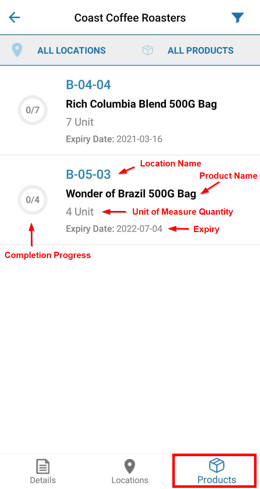
On selecting the Products tab after choosing to enter the Pick mode for a Wave Pick, required product numbers will be displayed aggregated by Product Id, Warehouse Location and Expiry Date.
Android
iOS 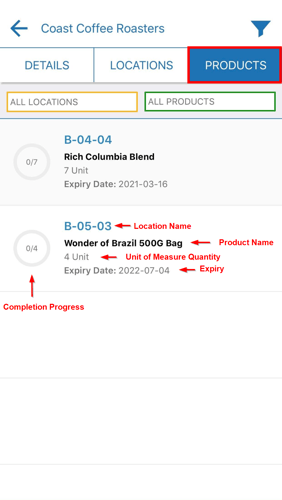
Printing product labels
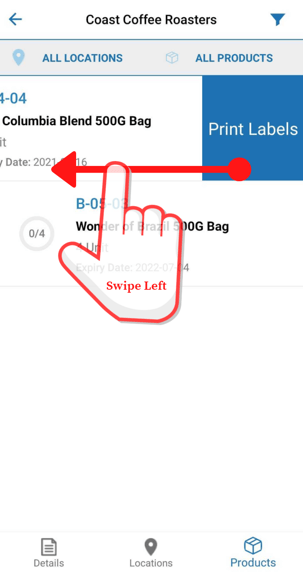
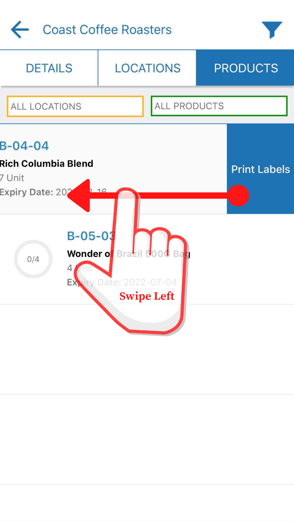
To print all product labels associated with an aggregated product line, swipe left on the desired location in the product list and select Print Labels.
Android
iOS
Product quantity confirmation view
The Confirmation View will either be automatically opened on scanning/entering a product barcode while in the Product list or is opened after tapping on a product in the list.
Within the Confirmation View relevant information about the product is being displayed: warehouse location, product name, expiry date, base unit of measure and custom fields. Custom fields are initially hidden but can be expanded by tapping on the "Show Custom Fields" text.
For more information on how the quantity confirmation view displays information, check out this article: Scan Picking Process - Pack Confirmation View
Android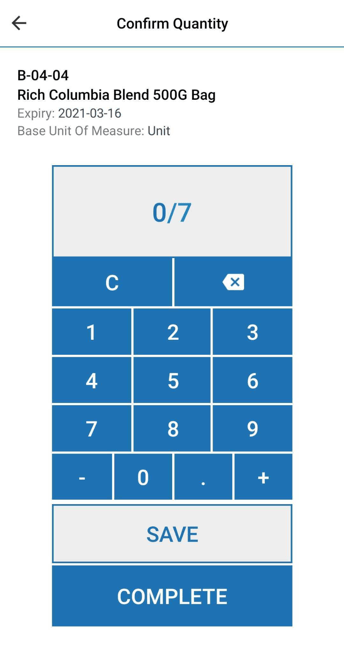
iOS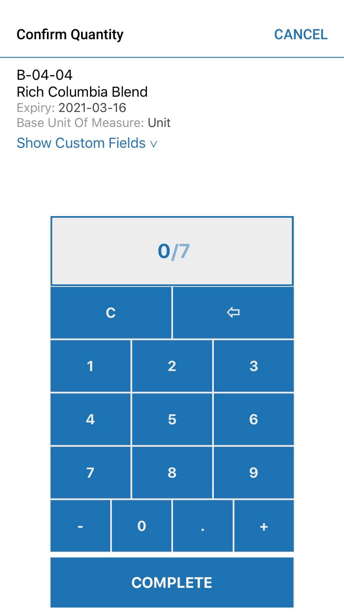
On selecting Complete, the pick quantity information will be stored and the product pick completed, meaning no future alterations to the pick quantity can be made.
Complete Picking & Leaving the Products Pick Sheet View
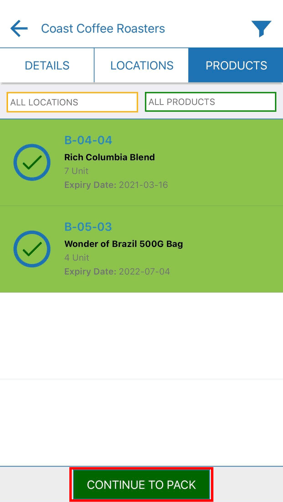
Once all products on the Pick Sheet have been completed, the Continue to Pack button will take the user to the pack process.
Android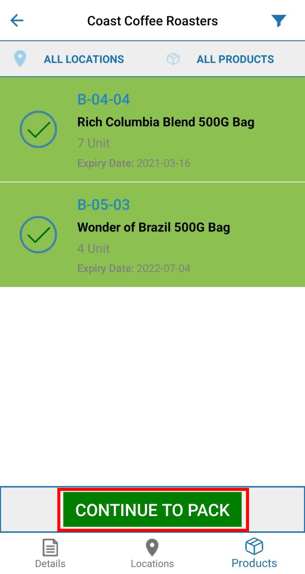
iOS