Table of Contents
- Purpose
- Use Cases and Benefits
- Considerations
- How to create a Template
- How to apply a Template
- How to delete a Template
- How to update the Default Template
Purpose
To create a Wave Pick template with pre-determined filters and settings that can be applied when creating a Wave Pick.
Use Cases and Benefits
- Increased efficiency when creating Wave Picks.
- Easily apply the same logic to Wave Picks you create regularly.
- Ensure consistency when creating Wave Picks.
Considerations
- Wave Pick Templates will only work for Single Customer and Multiple Customer Wave Pick Types. It will not work for the Run Sheet Wave Pick Type.
- For a completely automated Wave Pick workflow see Advanced Automation - Wave Picks
How to create a Template
- Navigate to the Wave Pick page, Warehouse > Wave Picks.
- Click Add Wave Pick.
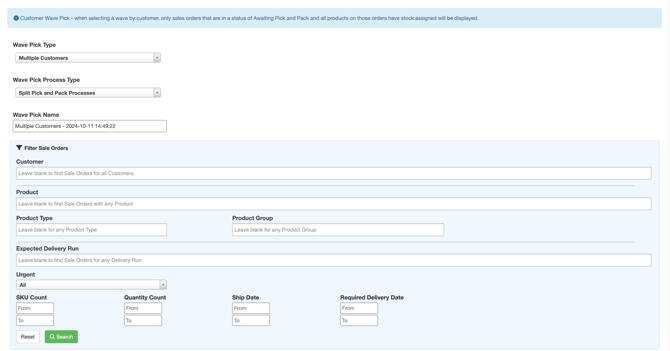
- Select the filters you wish to apply for the Wave Pick, including the Wave Pick name.
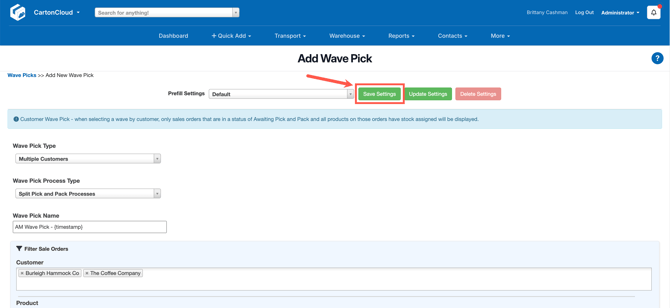
- Click Save Settings.
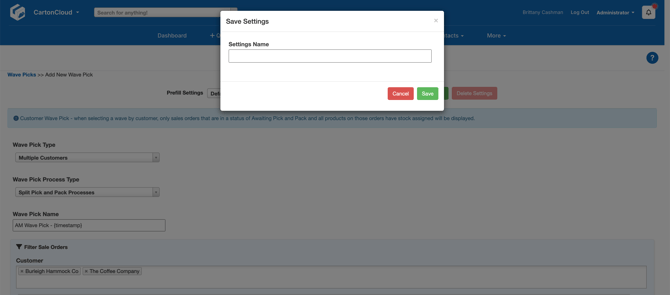
- Enter the name for the Wave Pick template and click Save.
- This will now save the Wave Pick filters as a Template and be available in the Prefill Settings drop-down menu when creating your Wave Pick.
How to apply a Template
- Navigate to the Wave Pick page, Warehouse > Wave Picks.
- Click Add Wave Pick.
- Against the Prefill Settings select the drop-down arrow. Select the template you wish to apply for the Wave Pick.
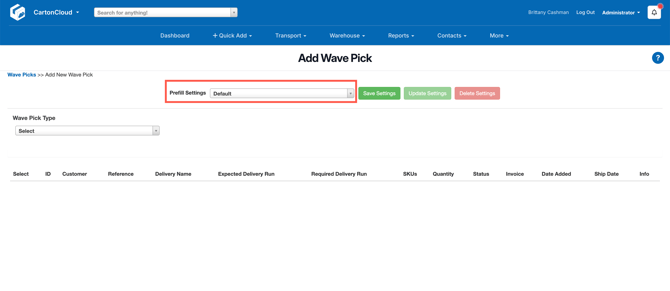
- This will automatically apply the saved filters and search for Sale Orders. You can then select which Sale Orders you wish to add to the Wave Pick.
How to delete a Template
- Navigate to the Wave Pick page, Warehouse > Wave Picks.
- Click Add Wave Pick.
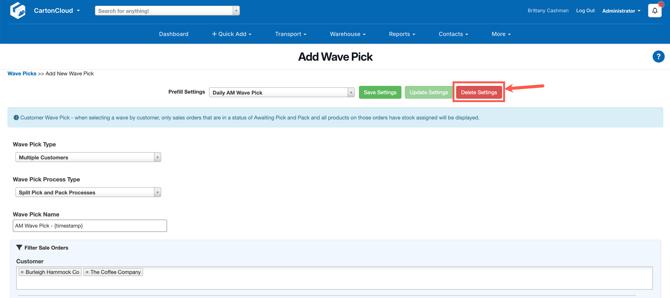
- Against the Prefill Settings select the drop-down arrow. Select the template you wish to delete.
- Once the template is selected, click the Delete Settings button.
How to update a Template
The Default template is the template applied automatically when you create a Wave Pick and no other template is selected. To update the filters and settings for the Default template:
- Navigate to the Wave Pick page, Warehouse > Wave Picks.
- Click Add Wave Pick.
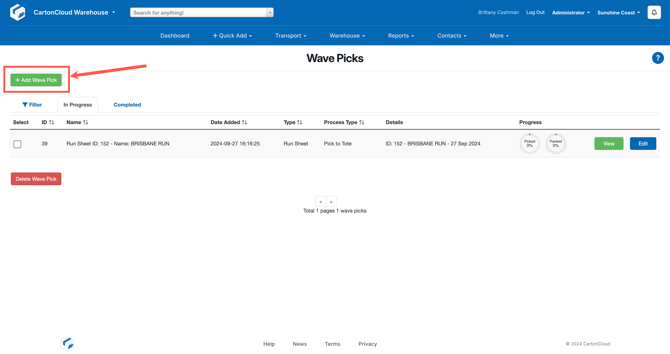
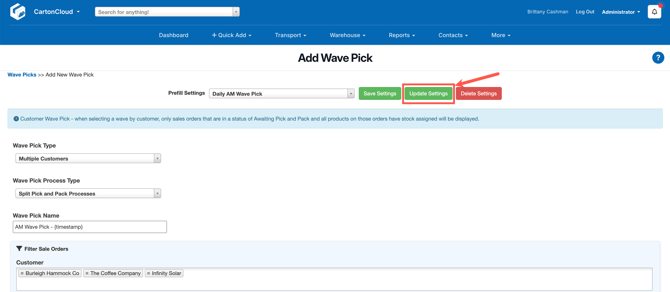
- Select the template you wish to update from the Prefill Settings drop-down. Alternatively, if you are updating the Default template this will already be selected.
- Update the filters and settings.
- Select Update Settings.