
Table of Contents
Purpose
The Warehouse POD (Proof Of Delivery) Module is an Add-On feature available for CartonCloud Warehouse accounts.
The POD functionally allows for pick-up from warehouse orders to be signed for upon collection. This helps to ensure you have a record of when and who collected the order.
It is recommended that a device (tablet or similar) be situated in a central location and logged in as the user who has access to the POD feature (one driver user is allocated with the Warehouse POD module). This enables a seamless process when the order is collected and the driver can sign for the collection easily.
Prerequisities
If you are a Warehouse-only CartonCloud account (do not have access to the Transport module), then the Warehouse POD module is a paid add-on. Please reach out to our Service Desk team here for more information and to get access.
Setup Steps
-
Enable the 'Automatically generate a Consignment from a Sale Order'
-
Enable this setting for the Customer/s you wish to use the Warehouse POD module for.
-
This setting is found at the Customer settings level. See here for more information.
-
-
Set up Transport Products
-
This allows you to enter what is being picked up from the warehouse (e.g a pallet).
-
This is an optional step, but it is advised.
-
See here for steps on creating Transport Products.
-
-
Map Product Units of Measure to Transport Products
-
This allows for a seamless flow from Sale Order to Consignment and ensures the correct Transport Products are added from the Sale Order.
-
See here for steps on how to map Product Units of Measure to Transport Products.
-
-
Set up Driver User
-
Create a new user and assign it to the Driver role.
-
This is the user who will be logged into the device situated in a central location for driver sign off upon collection.
-
See here for steps on how to create a new user.
-
Once the user is created, you will need to select Edit Delivery Runs and assign the Pickup from Warehouse Delivery Run to the user.
-
-
POD Email Notification
-
If you wish the customer to receive the POD notification, you can set this up at the Customer Settings. See here for more information.
-
- Rate Card
- To ensure no transport rates are charged, you will need to follow the steps below:
-
Add a new Rate Card and call it 'No Charge'.
-
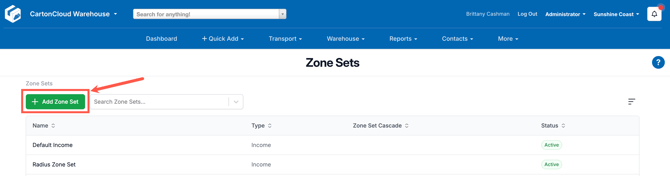
Add a new Zone Set called Warehouse POD and select Income as the Type.
-
- To ensure no transport rates are charged, you will need to follow the steps below:
-
-
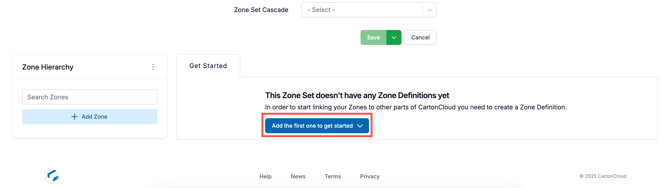
- Assign Zone definitions by selecting Add the first one to get started.
-
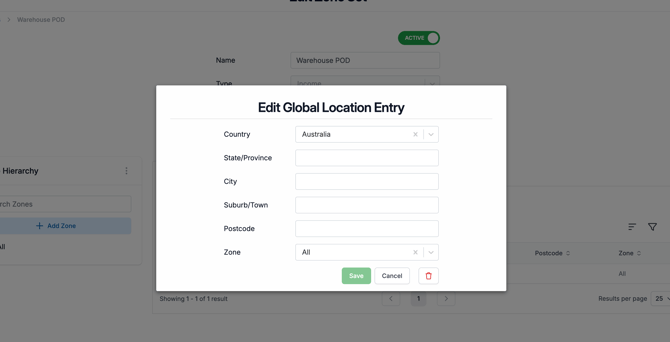
Select +Add Entry.
-
Select the relevant Country and then select All for Zone.
-
Navigate to the Rate Card created in the first step and select the Transport Rates tab.
-
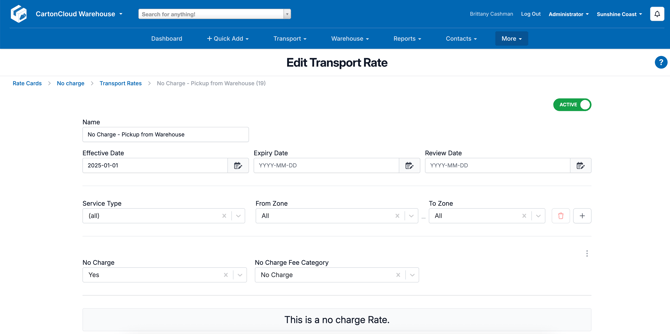
Add a new rate.
-
Ensure you select From and To Zone as All.
-
Select Yes against No Charge.
-
Against the Customer's Rate Card, select Transport Rates > Rate Card Cascade. Select the No Charge Rate Card.
-
- Pick Up Delivery Run
-
-
Navigate to the Delivery Runs page, Transport > Delivery Runs.
-
Select the Pickup from Warehouse Delivery Run.
-
Select the Details tab and click Edit.
-
Click the drop down arrow for Advanced Options.
-
Update the Final Consignment Delivery Status to Collected.
-
Click Save.
-