
Table of Contents
Details
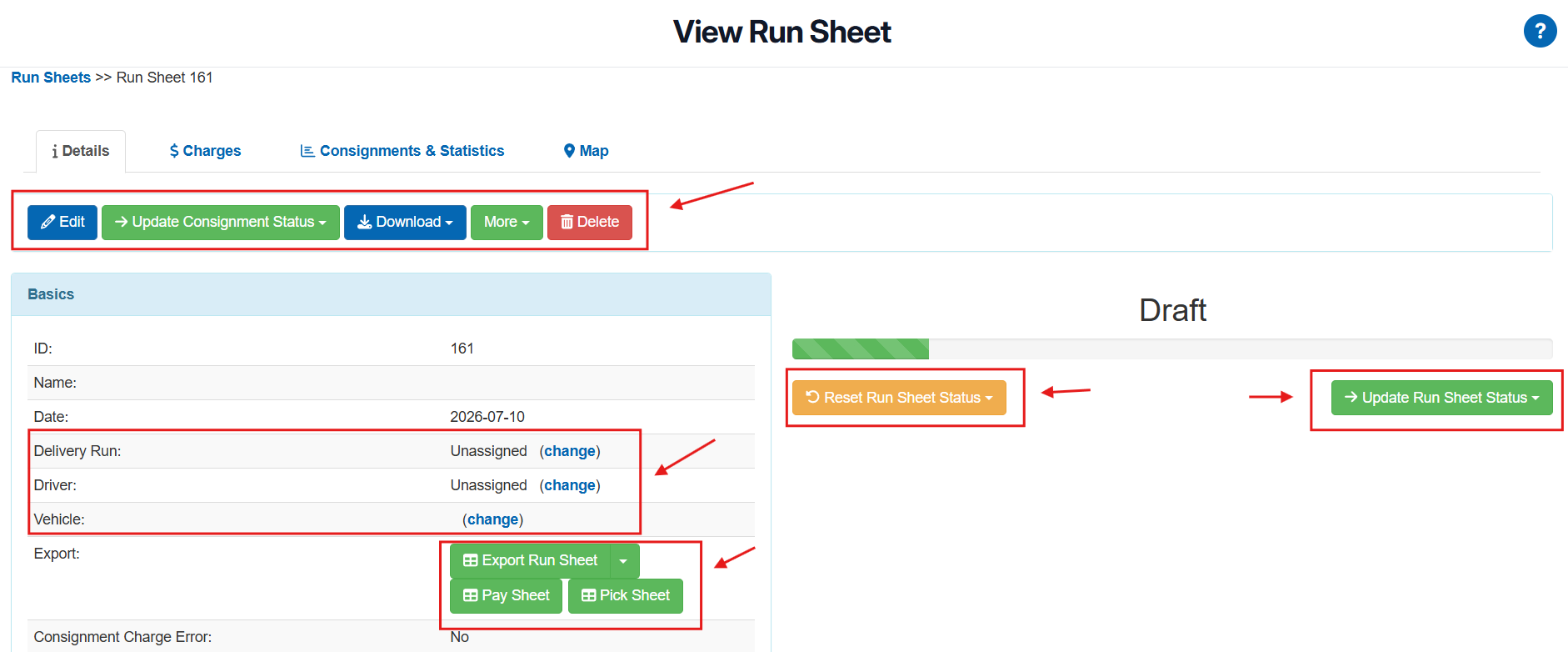
The details tab gives an overview of the Run Sheet. From here you can edit the Run Sheet, update the Run Sheet Status, update Consignment statuses, download documents, delete the Run Sheet and more.
Run Sheet Status
The current status of the Run Sheet is displayed on the Details tab. The status reflects where the Run Sheet sits in the delivery lifecycle — from initial creation through to completion or cancellation.
For a full description of each status, see the Run Sheet Statuses section of this article here.
How to update the Run Sheet status
• Navigate to Transport > Run Sheets and open the relevant Run Sheet.
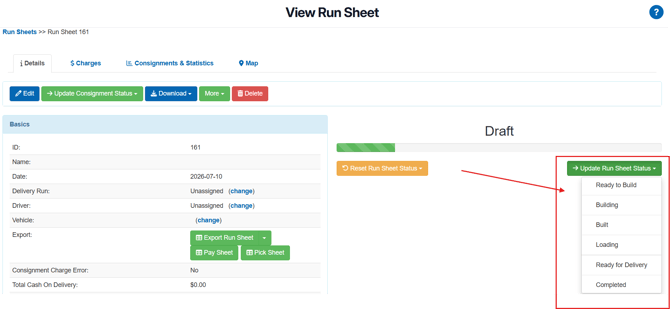
• From the Details tab, click the drop down "Update Run Sheet Status".
• Select the desired status from the status drop-down.
Other functions
|
Function |
Description |
|
|
Edit |
To edit the Run Sheet. |
|
|
Update Consignment Status |
Select the status you want to update the Consignment to from the drop-down arrow. This will update the status of all Consignments on the Run Sheet. If you wish to only update a selection of Consignments, use the Consignments & Statistics tab. |
|
|
Download |
|
|
|
More |
Recalculate Consignment Charges: will recalculate charges for all Consignments on the Run Sheet. Reset Consignment Ordering: will reset the Consignment order to the default order which is based on their addresses. Run Sequence Setup: to set up the sequence of the Run Sheet. |
|
|
Delete |
To delete the Run Sheet. |
Charges
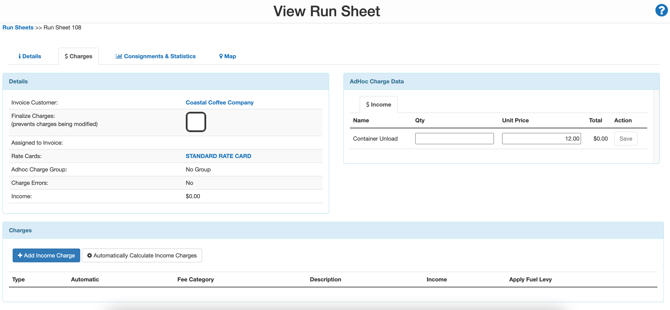
If there is an invoicing customer assigned to the Run Sheet, charges can be assigned to the Run Sheet.To assign an invoicing customer to the Run Sheet:
- Navigate to the Charges tab on the Run Sheet.
- Click edit.

- Select a customer from the Customer (for invoicing only) drop-down menu.

- Scroll down and select Save.
- Upon navigating back to the Charges tab on the Run Sheet you will now be able to add Income and Adhoc Charges to the Run Sheet.
Consignments & Statistics
From this tab, you can see all Consignments on the Run Sheet, add Consignments, remove Consignments and update their status. 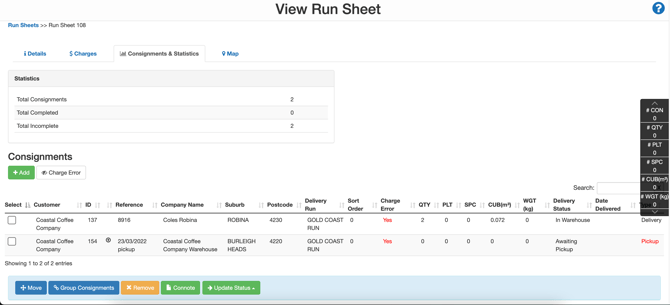
To add a Consignment:
-
Select the green +Add button under the Consignments heading.
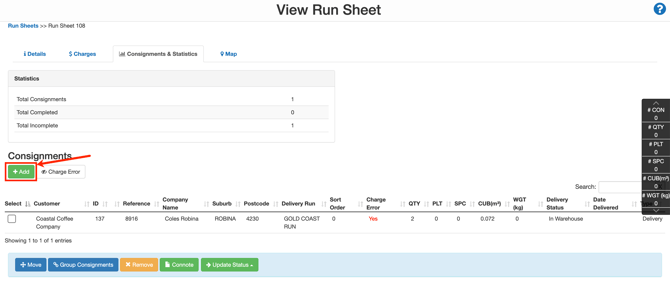
- Use the check box to select what Consignments you would like to add to the Run Sheet.
-
Click Add Selected Consignments.
To move a Consignment:
-
Use the check box to select the Consignment you wish to move.
-
Select Move.
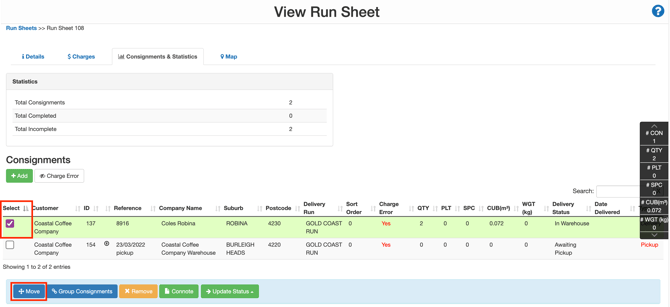
-
Create a new Run Sheet or select an existing Run Sheet in the far right panel.
- Scroll down and select Save.
To group Consignments:
-
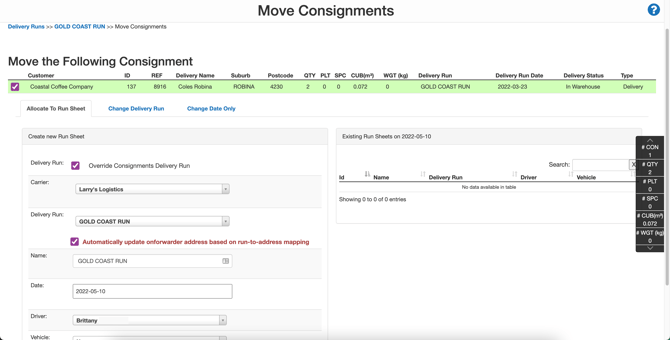
Select the Consignments you wish to group using the checkboxes.
-
Select the blue Group Consignments button.
To remove Consignments:
-
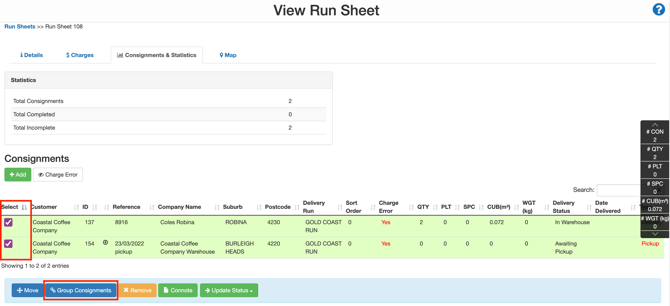
Select the Consignments you wish to remove from the Run Sheet using the checkboxes.
-
Select the yellow Remove button.
To download the Connote:
-
Select the Consignments you wish to download the Connote for using the checkboxes.
-
Select the green Connote button.
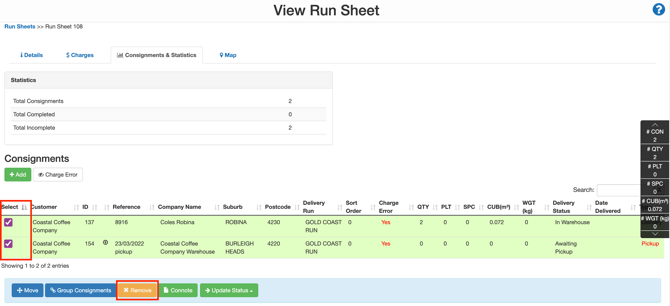
To update the status of the Consignment:
-
Select the Consignments you wish to update the status of using the checkboxes.
-
Select Update Status and select the status you wish to update the Consignment to.

Map
From the Map view, you can change the order of the Run Sheet and see all Consignments on the Run Sheet in a map view.
To rearrange the order of the Run Sheet:
-
Drag and drop the deliveries in the right-hand pane. As you adjust the order the pin numbers against each delivery will change.
-
Click Save Consignment Order to save the new order.
-
Click on the pins to see the Consignment details.