Table of Contents
Wave Pick List View
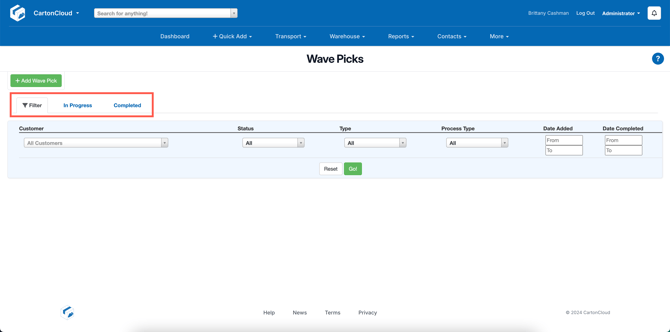
From the Wave Pick screen you can view all 'In Progress' and 'Completed' Wave Picks by utilising the In Progress and Completed tabs. In addition, you can use the Filter tab to filter the Wave Pick list view and find the relevant Wave Pick.
Wave Pick List View filters:
- Customer: the Customer of the Wave Pick. Even if it is a Multi-Customer Wave Pick the Wave Pick will still show if the Customer has Sale Orders on the Wave Pick.
- Status: status of the Wave Pick - In Progress or Completed.
- Type: the Wave Pick type, either Customer or Run Sheet.
- Process Type: the Wave Pick Process Type either, Bulk Pick, Split Pick and Pack Processes, Combined Pick and Pack.
- Date Added: the date the Wave Pick was added.
- Date Completed: the date the Wave Pick was completed.
Edit a Wave Pick in progress
The Wave Pick Type can be edited while the Wave Pick is in progress. This makes it easy to switch between workflows such as Split Pick & Pack and Pick to Tote without deleting or recreating the wave.
To update the Wave Pick Type:
- Select Edit against the Wave Pick.
- From the Wave Type drop down select the Wave Pick Type you wish to update it to.
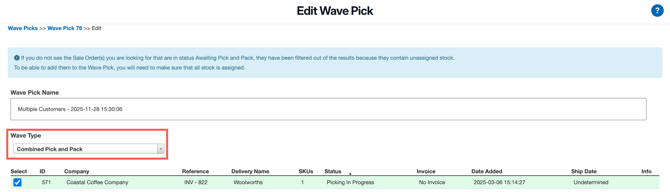
- Select Save.
Note: All picking and packing statuses for items in the wave will be reset.
Edit a completed Wave Pick
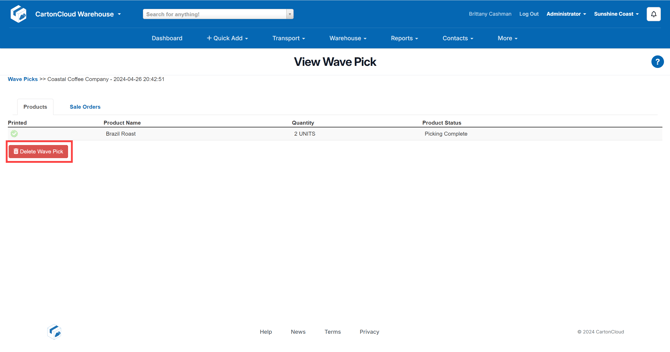
You can not edit Completed Wave Picks only delete them. To delete a completed Wave Pick:
- Select the Completed tab heading.
- Select View against the relevant Wave Pick.
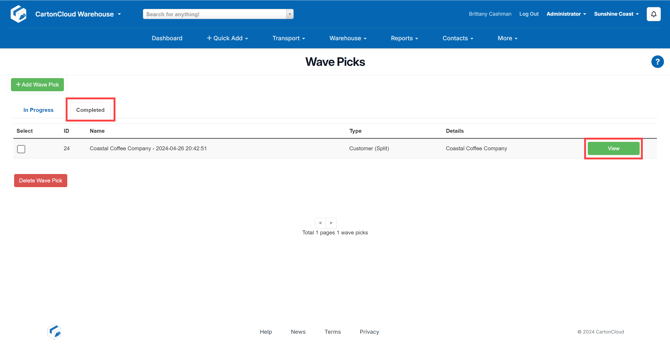
- Select Delete Wave Pick.
Wave Pick History
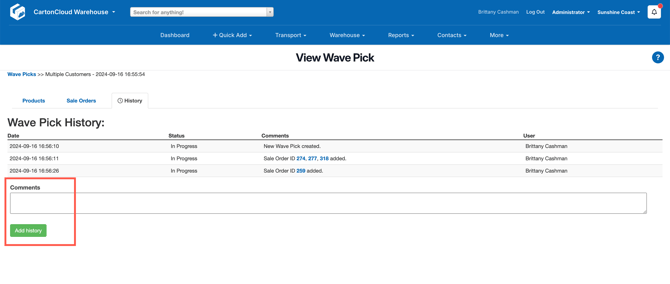
Against the Wave Pick, you can see the history of the Wave Pick, showing when it was created, what orders were added or removed and if notes were added to the Wave Pick. This makes it easier to track changes and provide visibility to other users on the Wave Pick.
To access the History, select the History tab on the Wave Pick:
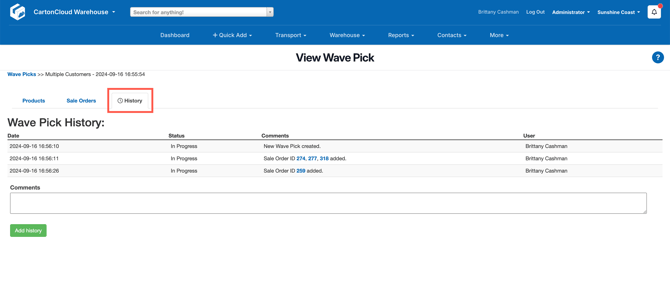
You can also add comments to the history against the Wave Pick, by writing a comment in the Comments box and selecting Add history.