
Table of Contents
Purpose
Within CartonCloud you have the ability of using the warehouse management and transport management system in conjunction to create an optimised packing and shipping process. Utilising the Mobile Pack Screen from the transport management system allows warehouse staff on the floor to be able to enter the shipping quantity, weights and dimensions into the mobile app at the time of pick and pack. In addition, they can automatically print the CartonCloud transport label (and if using an external carrier, print their label) and place on the carton at the time of packing.
Benefits
- Saves time
- Improves dispatch accuracy by removing manual processes
- Streamlines the dispatch process
- Makes the integration into external carriers more efficient
Set up steps
To set up the Mobile Pack Screen for your CartonCloud account, please follow the below steps:
1 - Enable the correct customer settings
- For steps on how to enable the correct customer settings, please see Generating a Consignment from a Sale Order
2 - Map product unit of measure to to the consignment item field (optional)
- For steps on how to map the product unit of measure and consignment item please see Mapping Product Unit of Measures to Consignment Fields/Transport Products
Workflow
Play video from time stamp 5:45
- Once you have finished packing the Sale Order you will be directed to the Mobile Pack Screen.
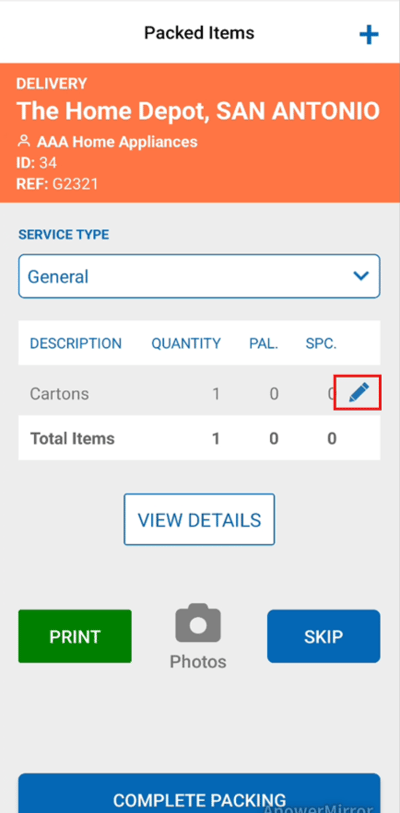
- From here you can update and change the quantity, weights and dimensions by clicking the edit pencil icon against the item.
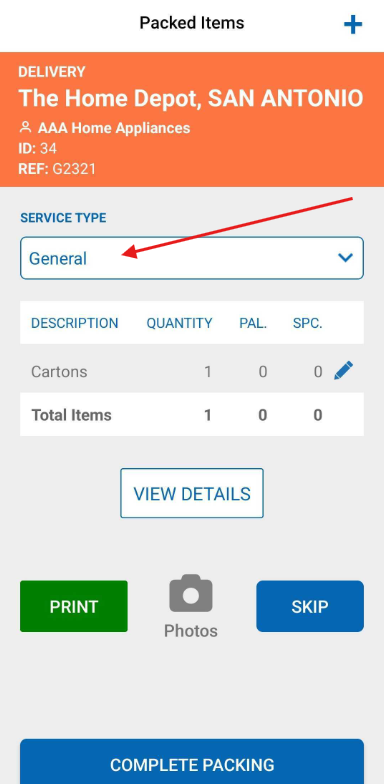
- You can also update the Service Type against the Service Type drop down menu (see Setting up Service Types for more information).
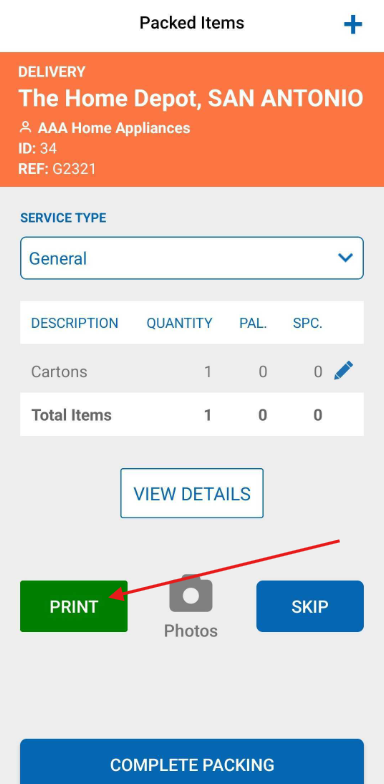
- To print shipping labels click the green Print button.
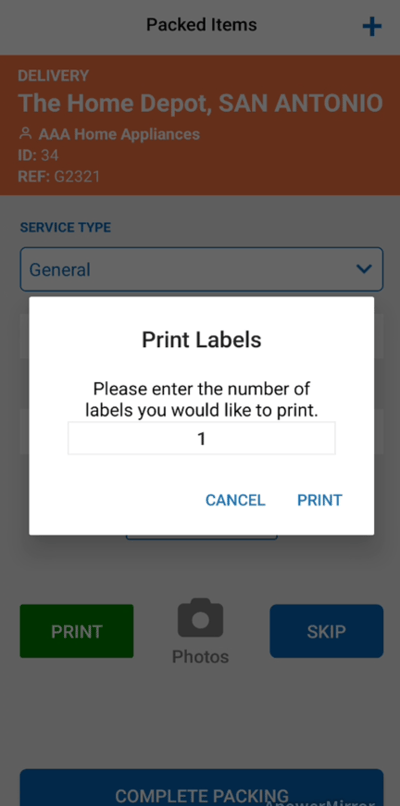
- Enter the number of labels you wish to print and then click Print.
- You can also choose to add an item by clicking the plus icon in the top right hand corner.
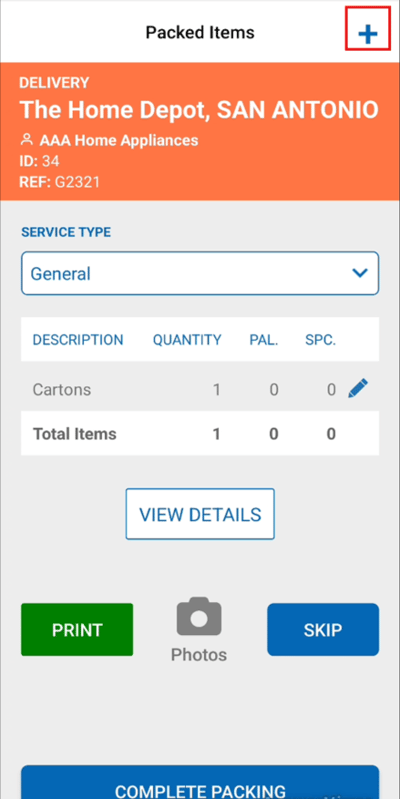
- Fill in the item information and click Add.
- Once you have finished updating and adding any relevant information on the pack screen click Complete Packing.