
Table of Contents
- Setting up a kiosk
- What the driver does
- When the kiosk says see a "staff member"
- Keeping the kiosk locked to the screen
Dock Management is a paid CartonCloud application. Contact the CartonCloud support team for pricing and access.
Let drivers check themselves in on a tablet at your facility — arrivals get timestamped without anyone radioing the office.
Setting up a kiosk
- Mount a tablet somewhere drivers can reach (gatehouse window, dock office counter).
- In Settings → Warehouses, click Copy kiosk link on the warehouse the tablet lives at.
- Open that link in the tablet's browser. You'll see the warehouse's check-in screen.
- For best results, refer to Keeping the kiosk locked to the screen so the screen stays locked to the page.
Each warehouse has its own kiosk link, so the tablet always knows which site it's at.
What the driver does
- Tap Check In
- Type the 5-character check-in code from their paperwork (the BK- part is already filled in)
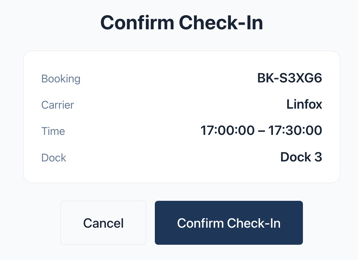
- Confirm their booking details
- Done — the screen shows which dock to proceed to, or asks them to wait for direction if no dock is assigned yet
The booking flips to Arrived on your calendar in real time, with the arrival time stamped — your team sees a notification the moment it happens.
When the kiosk says "see a staff member"
The kiosk only checks in bookings scheduled today at this warehouse. Wrong day, wrong site, an already-checked-in code, or a code it doesn't recognise all show a friendly message directing the driver to staff — who can find the booking in search and use Mark Arrived instead.
Keeping the kiosk locked to the screen
A check-in tablet should stay on the kiosk page, stay awake, and not let drivers wander into other apps. Both iPad and Android do this natively, no extra software needed for a single tablet.
Stop the screen sleeping (do this first, both platforms)
- iPad: Settings → Display & Brightness → Auto-Lock → Never
- Android: Settings → Display → Screen timeout → set to the longest option. To keep it truly always-on, plug the tablet into power and enable Developer Options (Settings → About → tap Build Number seven times), then Developer Options → Stay awake while charging.
Lock it to the kiosk page
- iPad — Guided Access: Settings → Accessibility → Guided Access → On, and set a passcode. Open the kiosk link in Safari, then triple-click the side/home button and tap Start. The iPad is now locked to that screen; triple-click and enter the passcode to exit. This limits the device to a single app and disables the hardware buttons until the passcode is entered.
- Android — Screen Pinning: Settings → Security → Screen Pinning → On (require PIN to unpin). Open the kiosk link in Chrome, open the recent-apps view, and pin the kiosk. Most Android devices support this built-in pinning to keep one app in the foreground.