
Table of Contents
- Opening the list
- Choosing a date range
- Filtering and searching
- Sorting
- Choosing your columns
- Bookings awaiting approval
- Exporting to a spreadsheet
Opening the list
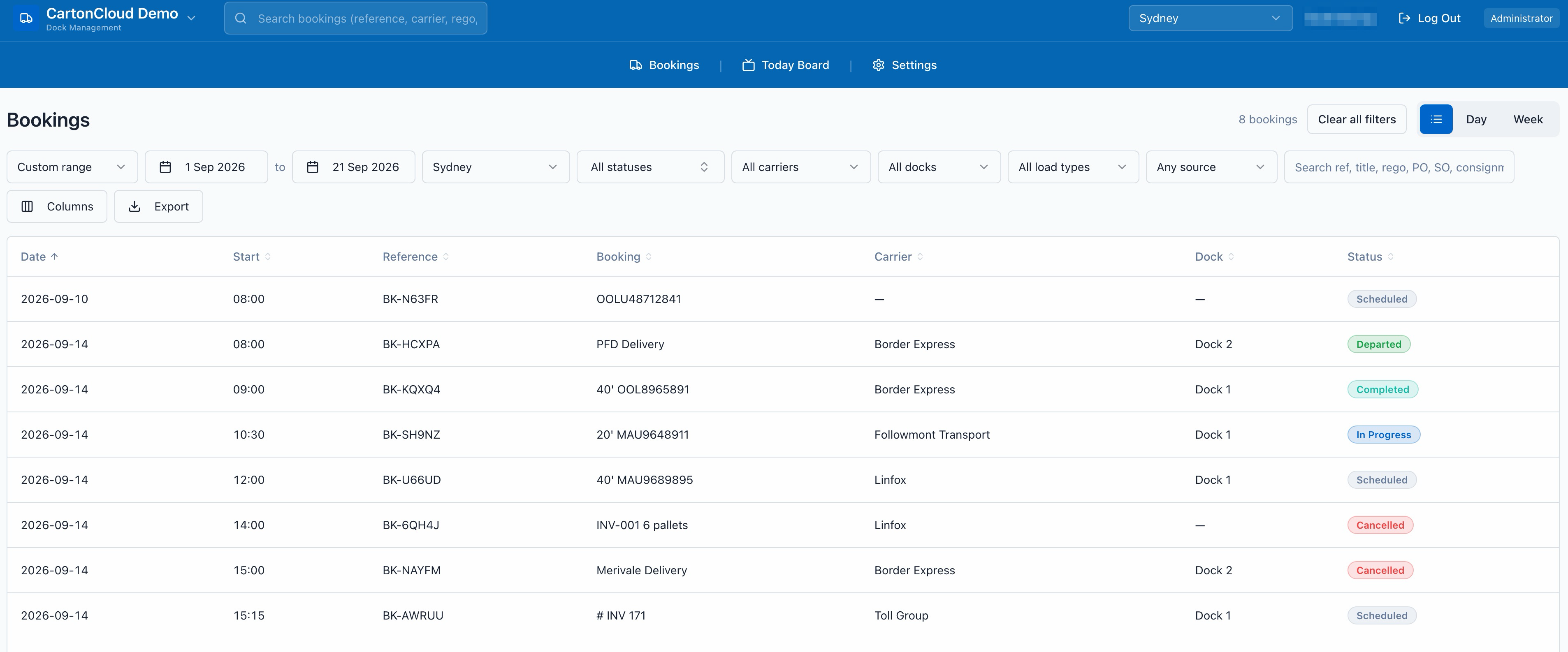
Click the list icon in the List / Day / Week toggle at the top right of the calendar. Use the same toggle to go back to Day or Week.
Click any row to open the booking, exactly as you would a card on the calendar.
Choosing a date range
The list opens on Today, because the most common use is the morning check of what is coming in.
Use the range picker for Tomorrow, Next 7 days, This week, Last 7 days, or Custom range to pick your own start and end dates.
Filtering and searching
Filter by site, status, carrier, dock, load type, and how the booking was made.
Created via is the useful one for spotting what carriers have booked themselves, as opposed to what your team entered or imported.
The search box matches booking references, titles, truck regos, and linked purchase order, sales order and consignment references.
The count above the table tells you how many bookings match. Clear all filters puts everything back to the default.
Sorting
Click any column heading to sort by it, and click again to reverse it. The list opens sorted by date, then start time.
Choosing your columns
Seven columns are shown by default: Date, Start, Reference, Booking, Carrier, Dock and Status. There are sixteen to choose from, including End time, Rego, Warehouse, Load type, Pallets, PO, SO, Consignments, Arrived and Created via.
Click Columns and tick the ones you want. Columns always appear in the same order no matter which order you turn them on, so the table never rearranges itself unexpectedly. Reset to defaults puts you back to the seven.
Your choice is remembered for next time and is yours alone, so it does not change what anyone else sees. It is saved in the browser you are using, which means a different computer or a cleared cache starts from the default seven again.
This is separate from the Today Board columns under Settings → Bookings → Today Board, which are shared across your whole organisation.
Bookings awaiting approval
If you have booking approval switched on, carrier bookings that are still waiting on you show a Pending approval marker beside their status, so nobody reads the list as though every booking is confirmed. Approve bookings as you normally would.
Exporting to a spreadsheet
Click Export and choose Export visible columns or Export all columns.
Either way you get a CSV of exactly the rows currently shown, in the order you are looking at them, so your filters and your sort carry across. The file is named with the date range, for example dock-bookings_2026-09-21_2026-09-27.csv.
The all-columns export adds three fields the table does not show: whether the booking is pending approval, the booking notes, and when the booking was created.
If your filters match nothing, the Export button is greyed out.