
Table of Contents
- Purpose
- Task list
- How to assign a task
- How to see who the task is assigned to
- How to take over a task
- Filters
- Sorting
- Grouping
- Searching for orders that are Packed or Dispatched
Purpose
A unified place for users to see what tasks need to be performed in order of priority.
Task List
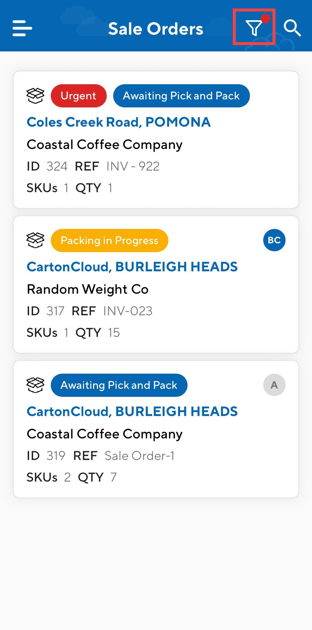
The Task List lists all current tasks.
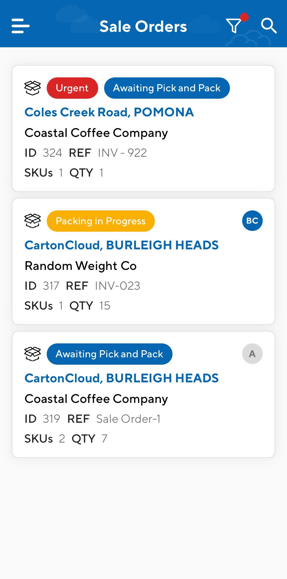
How to assign a task
The task will be automatically assigned to you when you click into the order from the Task List.
- From the Task List, select the task you wish to assign yourself.
- Click Start Task.
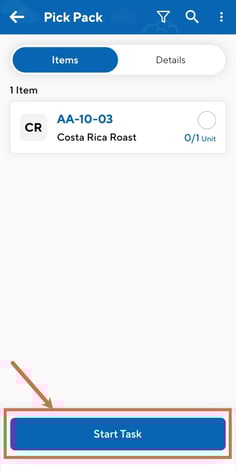
You can also scan a product barcode to start the task immediately without needing to press 'Start Task'.
How to see who the Task is assigned to
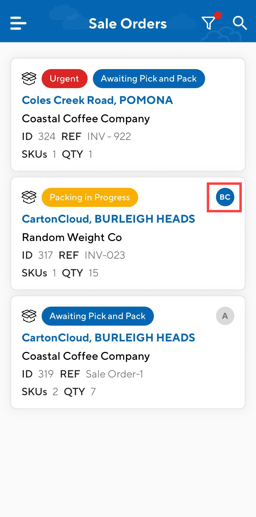
You can see who is assigned to the task from the initials on the Task List view. If the Task is assigned to you the initials will be blue and if it is for someone else the initials will be grey. In the web app, you can see on the details screen (under specifics) who the task is assigned to. The history will show if the person assigned to the task has changed.
How to take over a Task
A task must be started by another user to have the option of 'Take Over Task'
Use cases for take over Task:
- User has been assigned a Task and has started it but is unable to complete packing so another user needs to take over the assigned packer role.
- User started a Task one one device but during the picking process the device loses power, user will be able to grab another device and take over the Task and complete it.
How to steps
- Click on the Task you wish to take over.
- Click Take Over Task.
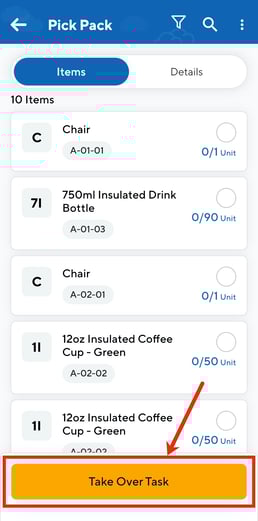
- You will be prompted with a confirmation message, click OK.
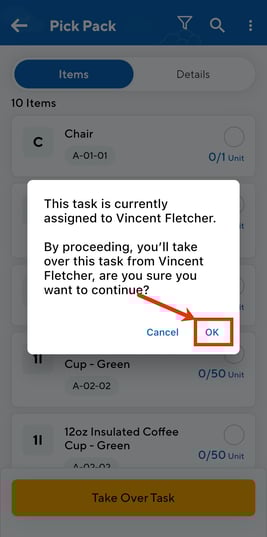
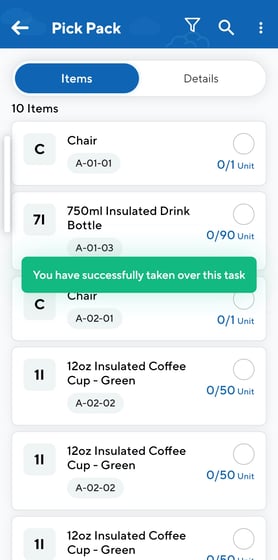
- You will now be assigned to the Task.
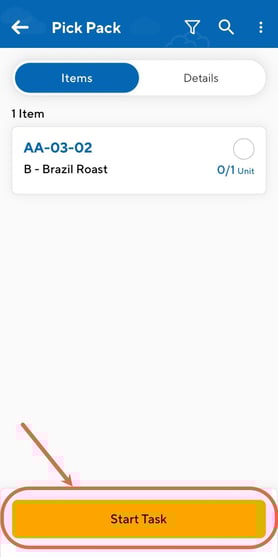
If the Task is assigned to someone else but they have not yet started the Task then 'Start Task' will appear in orange rather than 'Take Over Task'. You will need to click Start Task to take over the task.
Filters
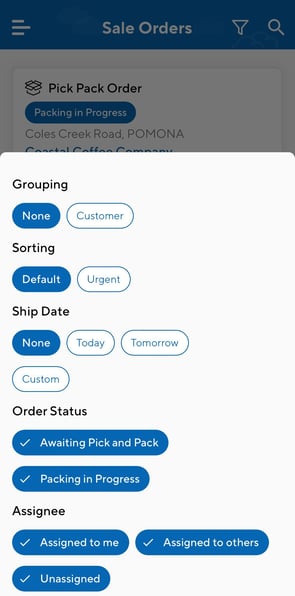
You can filter tasks by order status - Awaiting Pick and Pack or Packing in Progress, Ship Date or Assignee.
- Click the filter icon in the top right corner.
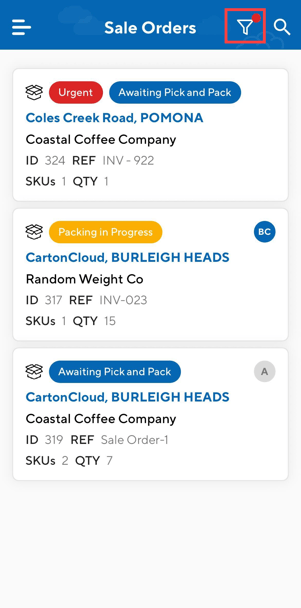
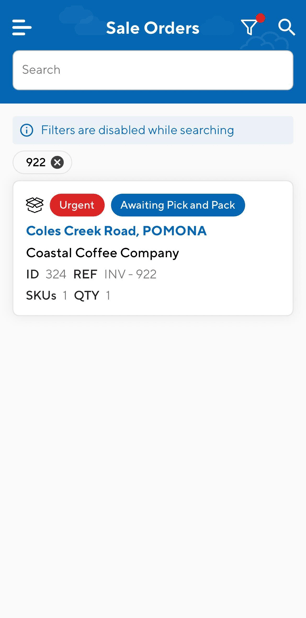
Note, when searching the filters selected will not be applied.
Sorting
- Click the filter icon in the top right corner.
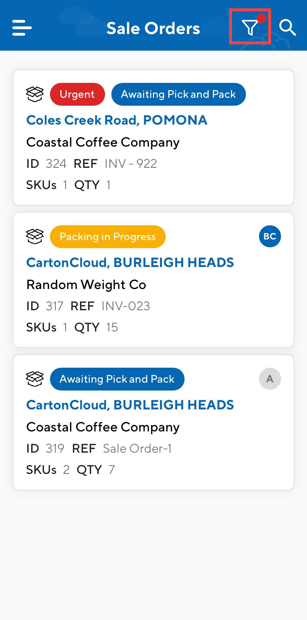
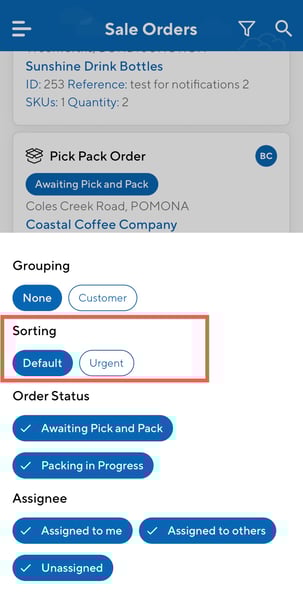
- Select Default or Urgent. Urgent will show the orders marked as Urgent at the top of the list.
Grouping
- Click the filter icon in the top right corner.
- Select None or Customer. To group by customer will show orders grouped by the customer in CartonCloud.
Searching for orders that are Packed or Dispatched
On the list view you can search for orders that are in a Packed or Dispatched status by using the order reference. This allows the user to confirm order details including the delivery address and items picked. In addition, the user can print labels and submit adhoc charges.