
Table of Contents
Purpose
As part of a POD submission through the CartonCloud mobile apps, drivers may want to include an invoice photo. This can be done as an alternative to collecting a signature for consignments where a signature is required to successfully submit the POD, or in addition to a signature to provide additional information.
Submitting an invoice photo
To submit an Invoice Photo as part of a POD, proceed as normal to the "Record POD" view after selecting a consignment from the job list. There you will find the "Add Invoice Photos" section and upon tapping any of the "+" buttons will be presented with a choice of either taking a photo or choosing an existing photo from your device's photo library.
Once you have either taken a photo or chosen an existing one, confirm your selection by selecting "Use Photo".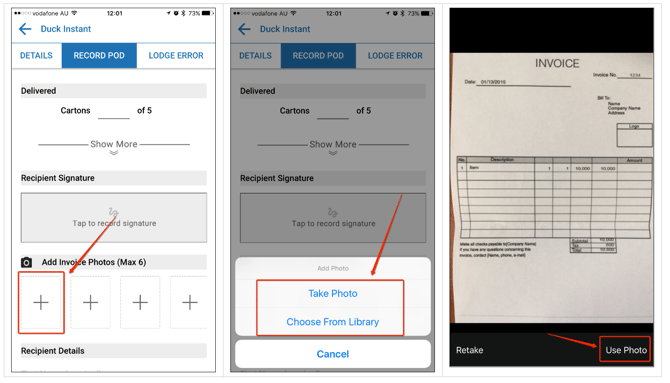
The chosen Invoice Photo will then be visible in the Invoice Photo section.
Should you want to delete the photo again at this stage, simply tap the photo preview and select "Yes" when asked if you want to delete this photo.
Proceed as normal with filling out any other required POD data and select "Save POD" once completed. The POD (including the Invoice Photo if selected) will then be uploaded to CartonCloud and the consignment marked completed.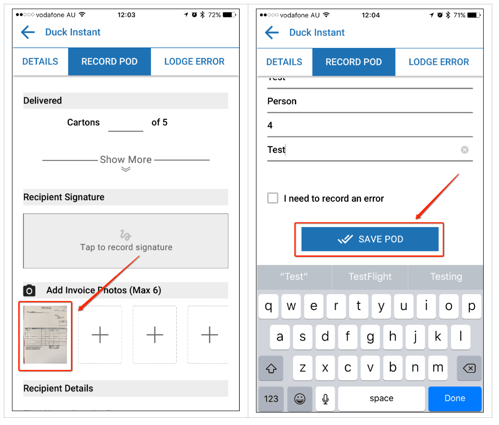
Invoice Photos allow drivers to record PODs without having to submit a signature, therefore the consignment status will automatically change to completed once a POD including either a signature OR an invoice photo is received (if the consignment requires a signature POD).
Accessing an invoice photo
Choose the relevant consignment and open its "View Consignment" screen. There you will notice several options related to an Invoice Photo POD.
Firstly, the consignment has been marked delivered as an Invoice Photo POD has been received. Secondly, the "Customer Invoices" and "History" tabs will provide you with more information about the POD and access to the Invoice Photo itself.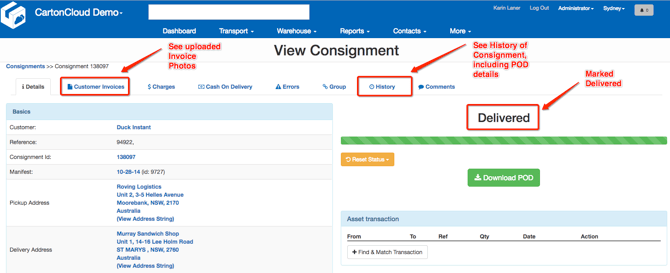
Customer Invoices Tab
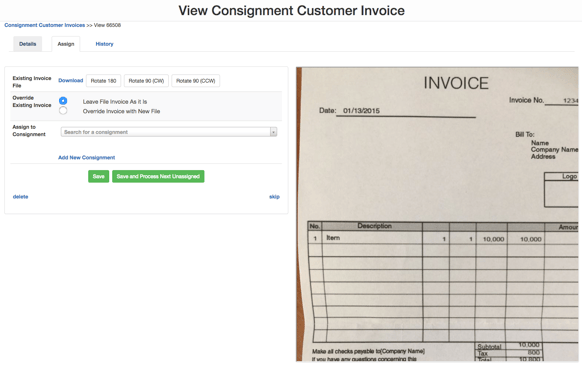
Within the Customer Invoices Tab the uploaded Invoice Photo can be easily accessed and modified. Optional actions include downloading the Invoice Photo, or viewing, unassigning, assigning or deleting it.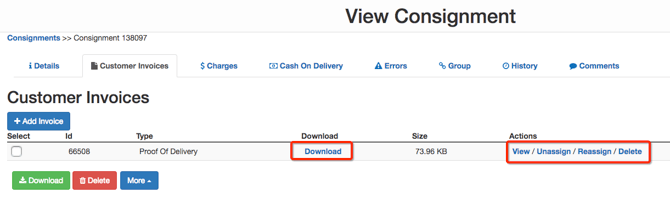
On selecting any of the Actions a number of tabs give access to editing and viewing functionalities.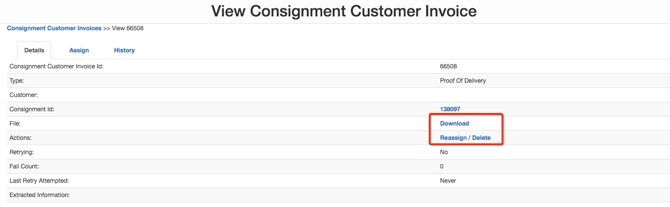
History Tab
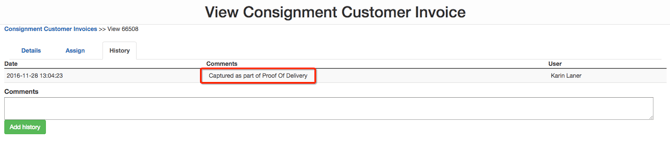
As for any POD submission, details about an Invoice Photo POD can be accessed via the History tab.