Table of Contents
Purpose
When configuring your Storage Charges in the Rate Card there are a number of different storage charge methods you can utilise. Each charge method has a different use case and set up configuration.
Storage Charge Methods
Please note that before selecting a Storage Charging Method, charges are calculated on either the Product Type of the Warehouse Location or the Product Type of the Product. This can be configured within the Rate Card under the Charge Product Type Option.
Product: charges storage based on the Products Product Type. For example, if you have an ambient product temporarily stored in a chilled location but want to charge still the ambient rate, you would use this setting.
Warehouse Location: charges storage based on the Warehouse Locations Product Type. For example, you would use this setting if you have an ambient warehouse but charge differently for racked locations vs block-stacking locations; you would use this setting. Otherwise, all products will be charged as ambient regardless of their location.
Per Location (default)
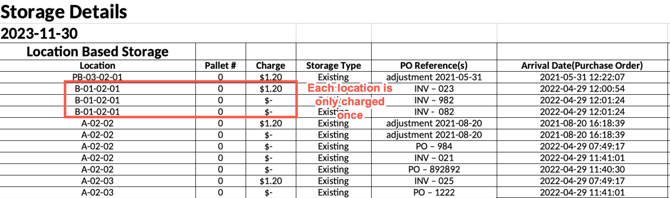
Storage charges are calculated based on the number of Warehouse Locations that are used. In the case where multiple products are stored on a single pallet, the system will just charge the location once. Bulk locations may be used to store multiple 'pallets' in a single location and therefore charge multiple pallets of storage.
Per-Location charges do not take into account the quantity of product in a location, simply the number of unique locations used.
Note, to ensure all pallets and products are charged correctly; it is recommended that large quantities of products are split into individual pallets (therefore, into different locations).
Configuration required to enable the charging method: No
Where to add the storage charge: Rate Card
Use Case: This method is recommended when most of the warehouse is racked, and multiple products are stored within individual locations.
Charge Product Type Option Impact: Yes - will charge by the Product Type option selected.
How it appears on the Invoice Summary:

Per Location (and bulk location pallets)
Calculated similarly to Per-location (default), however, the product quantity is taken into account when calculating storage charges. This means large quantities of stock can be loaded into locations without being split into individual pallets.
Notes:
-
Both Single Pallet and Multiple Pallet locations take quantity into account, meaning if you load 2 Pallets worth of stock into a Single Pallet Location (which isn't possible, but the software allows this to happen), then it'll charge 2 x pallets for that location.
-
The determination of the Number of Pallets comes from the "Oversize Unit ".
Single Pallet Locations:
If you are using this charging method for single pallet locations, CartonCloud will default by the number of pallets in the location (even if this exceeds one). However, if you wish only to allow one charge for each location, you can change this from the Organisation Settings .
The option is called: "If any Per Location Storage Charge Methods are used - Should all stock on Single Pallet Locations be combined into a single charge?"
-
No (Default) - The location can be charged once for each SKU stored. For example, a client storing 4 different products on a Single Pallet Location will be charged for the location 4 times. If stock quantities greater than 1 pallet are loaded onto the location, (ie: a product is configured as 40 boxes per pallet, and 45 boxes are loaded into the location), the location will be charged for the number of pallets stored, ie: 2 pallets.
-
Yes - All stock on a Single Pallet location is combined into a single charge. For example, a client storing 4 different products on a Single Pallet location will only be charged for the location once. If stock quantities greater than 1 pallet are loaded onto the location, (ie: a product is configured as 40 boxes per pallet, and 45 boxes are loaded into the location), the location will still only be charged once.
Configuration required to enable the charging method: Yes
To utilise the Per Location (and bulk location pallets) storage charge method, you must first configure the Product settings. Then, depending on your warehouse and storage set-up, you may need to change the Organisation Settings.
Product Settings
-
Navigate to the Products page, Warehouse>Products.
-
Select the applicable Product.
-
Select the green Edit button at the top of the screen.
-
Scroll down to Storage Charge Method and select Per Location (and bulk location pallets).
-
Select the green Save button.
And further configuration from the Organisation Settings
If you would like to prevent single pallet warehouse locations from being charged more than once:
-
Navigate to Organisation Settings, More>Organisation Settings.
-
Select the Invoice tab.
-
Scroll down to the Storage section.
-
Select Yes from the drop-down option under If "Per Location (and bulk location pallets)" Storage Charges are used - Should all stock on Single Pallet Locations be combined into a single charge?
Where to add the storage charge: Rate Card
Use Case: This method is recommended in warehouses where bulk products are stored and multiple products do not share locations.
Charge Product Type Option Impact: Yes - will charge by the Product Type option selected.
Volume Based
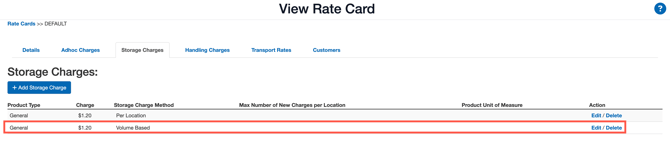
It is calculated based on the total amount of product volume in the warehouse during the given time period.
The number of warehouse locations used does not impact the storage charges.
Configuration required to enable the charging method: Yes
To utilise Volume Based storage charge method, you will first need to configure the Product settings:
-
Navigate to the Products page, Warehouse>Products.
-
Select the applicable Product.
-
Scroll down to Storage Charge Method and select Volume Based.
-
Within the Product Volume (in Cubic Meters) box, enter the volume.
-
Select the green Save button.
Where to add the storage charge: Rate Card
Use Case: This method is most commonly used as it can accurately track the actual storage space being utilised.
Charge Product Type Option Impact: Yes - will charge by the Product Type option selected.
How it appears on the Invoice Summary:

Weight Based
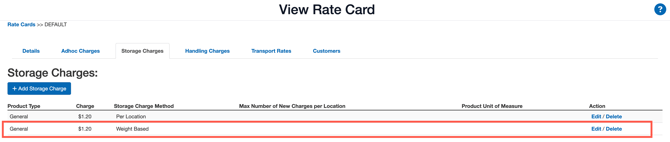
It is calculated based on the total amount of product weight in the warehouse during the given time period.
Configuration required to enable the charging method: Yes
To utilised Weight Based storage charge method, you will first need to configure the Product Settings:
-
Navigate to the Products page, Warehouse>Products.
-
Select the applicable Product.
-
Scroll down to Storage Charge Method and select Weight Based.
- Within the Product Weight (in Kilograms) box, enter the weight
Where to add the storage charge: Rate Card
Charge Product Type Option Impact: Yes - charge by the Product Type option selected
How it appears on the Invoice Summary:

Per Item
This method calculates individual storage rates for products at their base unit of measure.
Configuration required to enable the charging method: Yes
To utilise the Per Item storage charge method, you will first need to configure the Product Settings:
-
Navigate to the Products page, Warehouse>Products.
-
Select the relevant Product.
-
Click the green Edit button at the top of the screen.
-
Navigate to Storage Charge Method.
-
Select Per Item from the drop-down menu.
-
The Per Item Storage Charge box will appear. Enter the rate.
-
Scroll down and select the green Save button.
Where to add the storage charge: Against the Product
Use Case: This method is helpful if you store odd-shaped items (meaning that pallet storage calculation methods are inaccurate) and stock needs to be separated from one another (meaning that volume-based storage calculation methods are incorrect). For example, a fridge may have a separate storage charge of $4.50 per fridge per week, while a microwave may have a storage charge of $1.20 per microwave per week.
Charge Product Type Option Impact: No impact - always charges based on item fees loaded against the Product.
How it appears on the Invoice Summary:

Per Pallet (based on quantity)
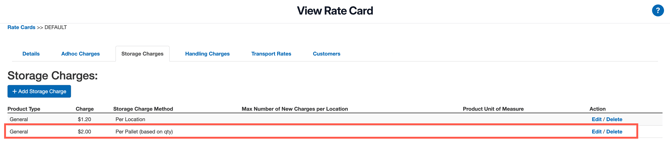
The total quantity of each Product is aggregated across all warehouse locations, and then the number of pallets are calculated and rounded up to the nearest whole number. Finally, the unit of measure conversion for the pallet quantity is utilised to determine the number of pallets. For example, if 6 cartons = 1 pallet and you have 8 cartons of one product for a storage period, CartonCloud will round up and charge 2 pallets for that storage period.
Configuration required to enable the charging method: Yes
To utilise the Per Pallet (based on quantity) storage charge method, you must first set up the Product Unit of Measure for pallet for each applicable Product using the charging method.
Where to add the storage charge: Rate Card
Use Case: This method is most commonly used as it can accurately track the actual storage space being utilised.
Charge Product Type Option Impact: No impact - the charge will always be based on the Product Type of the Product.
How it appears on the Invoice Summary:

Per Unit of Measure
This storage charge method calculates storage rates for products based on the Unit of Measure specified. This is similar to Per Item storage charging; however, you can have different charges for each different Unit of Measure. Additionally, you can choose to aggregate the stock by location or warehouse and round up or down to the closest Unit of Measure.
When selecting this charging method, you will need to choose a Unit of Measure Aggregation option:
The below will depend upon what Rate Type is selected (if the Unit of Measure is rounding up or down)
The below examples assume we have a product in which 6 bottles = 1 case. Therefore, there is no Unit of measure rounding up or down in the below example.
|
Location |
Storage Quantity |
Aggregate by SKU by location |
Aggregate by SKU across entire the warehouse |
|
AA-01-01 |
5 bottles |
Combine 7 bottles together (5+2) which converts to 1 Bottle + 1 Case Charge 1 Case + 1 Bottle |
Combine 12 bottles together (5+2+5), which converts to 2 cases. Charge 2 Cases |
|
AA-01-01 |
2 bottles |
|
|
|
AA-01-04 |
5 bottles |
Charge 5 Bottles |
|
|
Total Charge |
|
6 bottles + 1 case |
2 cases |
Configuration required to enable the charging method: Yes
To utilise the Per Unit of Measure storage charge method, you will first need to configure the:
Product Settings:
-
Navigate to the Products page, Warehouse>Products.
-
Select the relevant Product.
-
Click the green Edit button at the top of the screen.
-
Navigate to Storage Charge Method.
-
Select Per Unit of Measure from the drop-down menu.
-
You will also need to select the Unit of Measure Aggregation option. This will override the setting you configure on the Rate Card.
-
As per rate card default setting: this will apply the aggregation set up against the Rate Card.
-
Per SKU, Per Location (and Bulk Location Pallets): Aggregate all products on an SKU in one location.
-
Per SKU, Across the Entire Warehouse: Aggregate all products on an SKU across the entire warehouse.
-
-
Scroll down and select the green Save button.
If you are updating this in bulk via Product export/import you will need to update the file with either of the below:
Unit Of Measure Aggregation:
|
Unit of Measure Aggregation Option |
Product Export Value |
|
As per rate card default setting |
Default |
|
Per SKU, Per Location (and Bulk Location Pallets) |
Location |
|
Per SKU, Across the Entire Warehouse |
Warehouse |
Rate Card Settings:
To set a default aggregation option for all Products on the Rate Card you can do so from the Rate Card settings.
-
Navigate to the relevant Rate Card, More>Rate Cards.
-
Select the blue Edit button at the bottom of the screen.
-
Scroll down to the Default Unit Of Measure Storage Aggregation option.
-
Select the relevant aggregation option.
Where to add the storage charge: Rate Card
Charge Product Type Option Impact: No impact - the charge will always be based on the Product Type of the Product.
How it appears on the Invoice Summary: