
Table of Contents
Purpose
When conducting a stock recall (this could be batch, serial number, or production date) and you need to be able to trace all relevant Sale Orders.
Solution - Stock Movement Report
- Using the Reports tab at the top of the application, select Stock Movement Report.
- From here, you will be able to generate a report with the relevant Sale Orders in relation to the specific batch number.
- Select Customer or Product from the Filter By drop-down menu. Depending on how many products from the one customer you need to recall will determine the option you select here.
- Select the relevant customer or product you wish to create the report for from the Select the Customer or Select the Product drop-down menu.
- Select Physical Movement from the Movement Type drop-down menu.
- Select All from the Product Status drop-down menu.
- Click Add All Columns to include Batch as a column.
- Select the tick box next to Search with specified Batch and type in the relevant batch number.
- Select the date ranges you wish to include in the report.
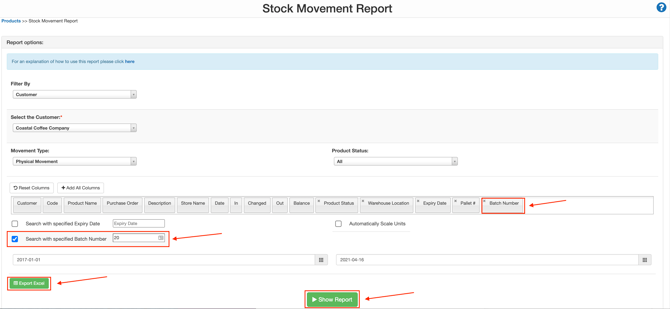
- Select Show Report. All relevant Sale Orders will now be displayed on the page.
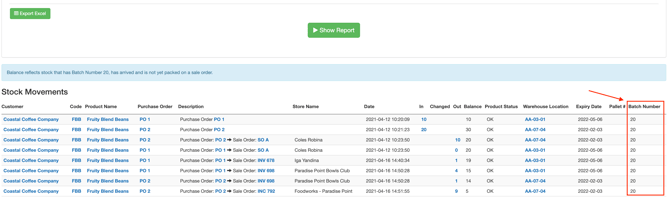
- You can then export the report by selecting the Export Excel button.
- You can then manually select each Sale Order from the Show Report screen to trace where the stock was delivered to.
