Table of Contents
Purpose
On the Sale Order task list on the mobile app, user are able to filter the list by the Sale Order's ship date.
The below documentation is only relevant if you are using Picking Legacy. It is highly recommended that you update your app and use the latest Picking mode on the mobile app. See Accessing Picking Mode for steps on how to access the latest Picking mode.
Picking Legacy
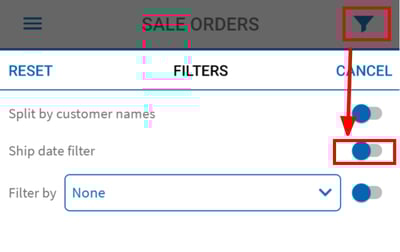
Filter access
To access the ship date filter, select the filter (funnel) button in the top bar while in the Sale Order list.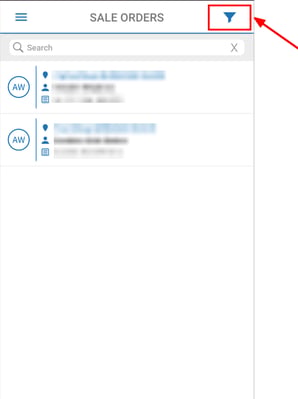
Filter options
Once the ship date filter has been activated, a number of options are available.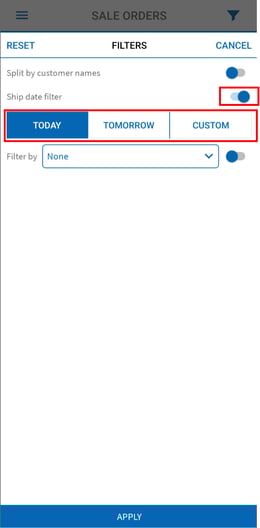
Today
This filter will show all Sale Orders with a ship date of up to and including today's date.
Tomorrow
This filter will show all Sale Orders with a ship date of tomorrow only.
Custom
This filter allows the user to manually select a date range to filter on. Both the selected start and end date are included in the filtered date range.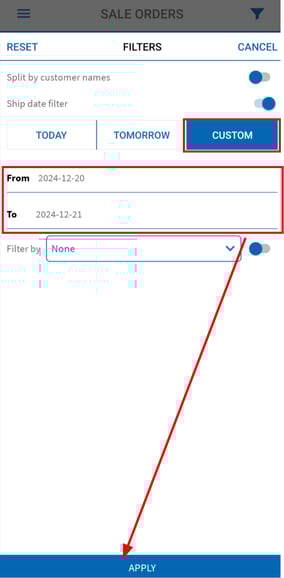
Applied filter
Once a ship date filter has been applied, a banner will be displayed at the top of the sale order list, highlighting the ship date filter that has been applied.
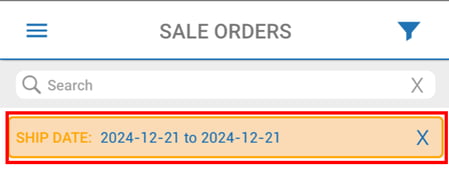
The applied filter can be cancelled by either tapping the X button on the banner or by once again opening the filter view and either adjusting the filter or switching off the ship date filter altogether.