
Table of Contents
Purpose
If you are planning to use CartonCloud's WMS across multiple warehouse sites (for example, Sydney, Brisbane, Melbourne) then you will need to create a Warehouse in the system for each site. You will then be able to create pallet and bulk storage locations within each Warehouse and grant your Customers access to only the relevant Warehouse if required.
Activating additional warehouses will incur additional charges. Please contact accounts@cartoncloud.com for further information.
How to steps
- Navigate to the Warehouses page by typing Warehouses into the Search for anything bar.
- Click +Add Warehouse
- Name the Warehouse and add the Address.
- Click Save.
-
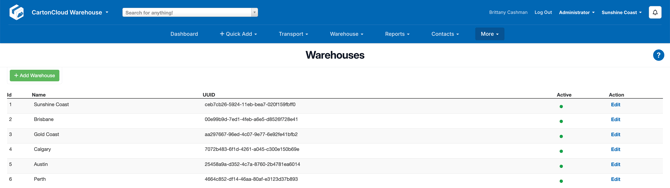
Once saved, you will be able to see all your Warehouses listed.
-
Once a new warehouse has been created, you will need to give users (including yourself) access to the warehouse.
-
Navigate to Contacts > Users.
-
Select the user you wish to give access to the warehouse.
-
Click Edit.
-
Select the Warehouse you wish to give them access to, then scroll to the bottom of the page and select Save.
-
A new menu option will appear in the top right of the browser, allowing you to select which warehouse you want to operate within.
Any warehouse actions you take within CartonCloud from now on will occur within the currently selected Warehouse. Be sure to always have the correct Warehouse selected for the action you are taking.