Table of Contents
Dock Management is a paid CartonCloud application. Contact the CartonCloud support team for pricing and access.
Admin only — everything here lives in Settings.
Warehouses
Add a warehouse for each physical site under Settings → Warehouse Management. Each warehouse has:
- A name (what staff and carriers see)
- A CartonCloud warehouse ID (so linked orders match the right site)
- A default flag — new bookings without a dock land here
Every dock, booking, and kiosk belongs to a warehouse, and the warehouse selector in the top bar filters the whole app by site.
A warehouse with bookings can't be deleted — reassign or remove its bookings first.
Dock doors
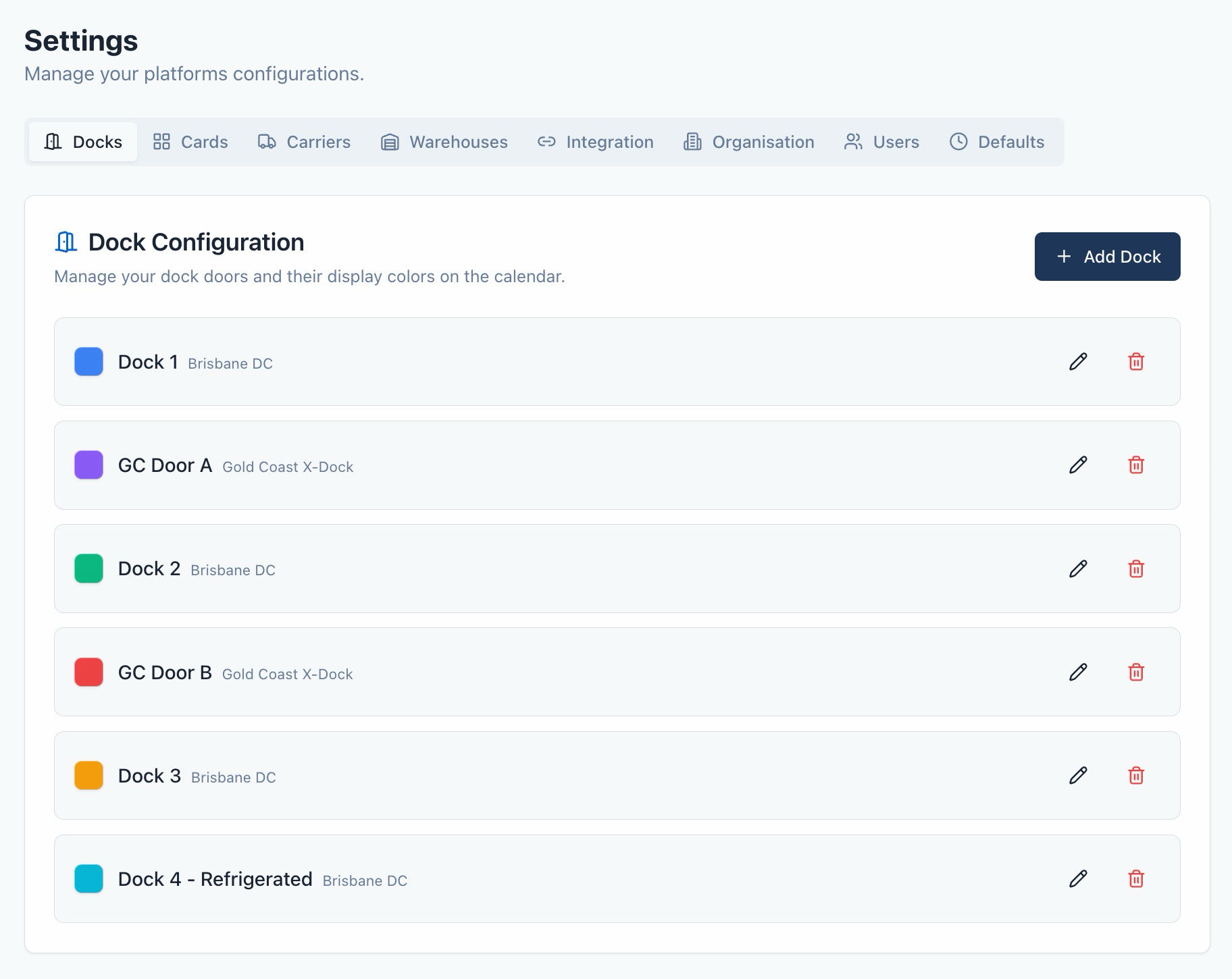
Under Settings → Dock Configuration, create a door for every loading position. Give each a name and a colour — the colour appears on calendar cards so the team can read the day at a glance. Doors can be deactivated when out of service without losing their history.
Working hours
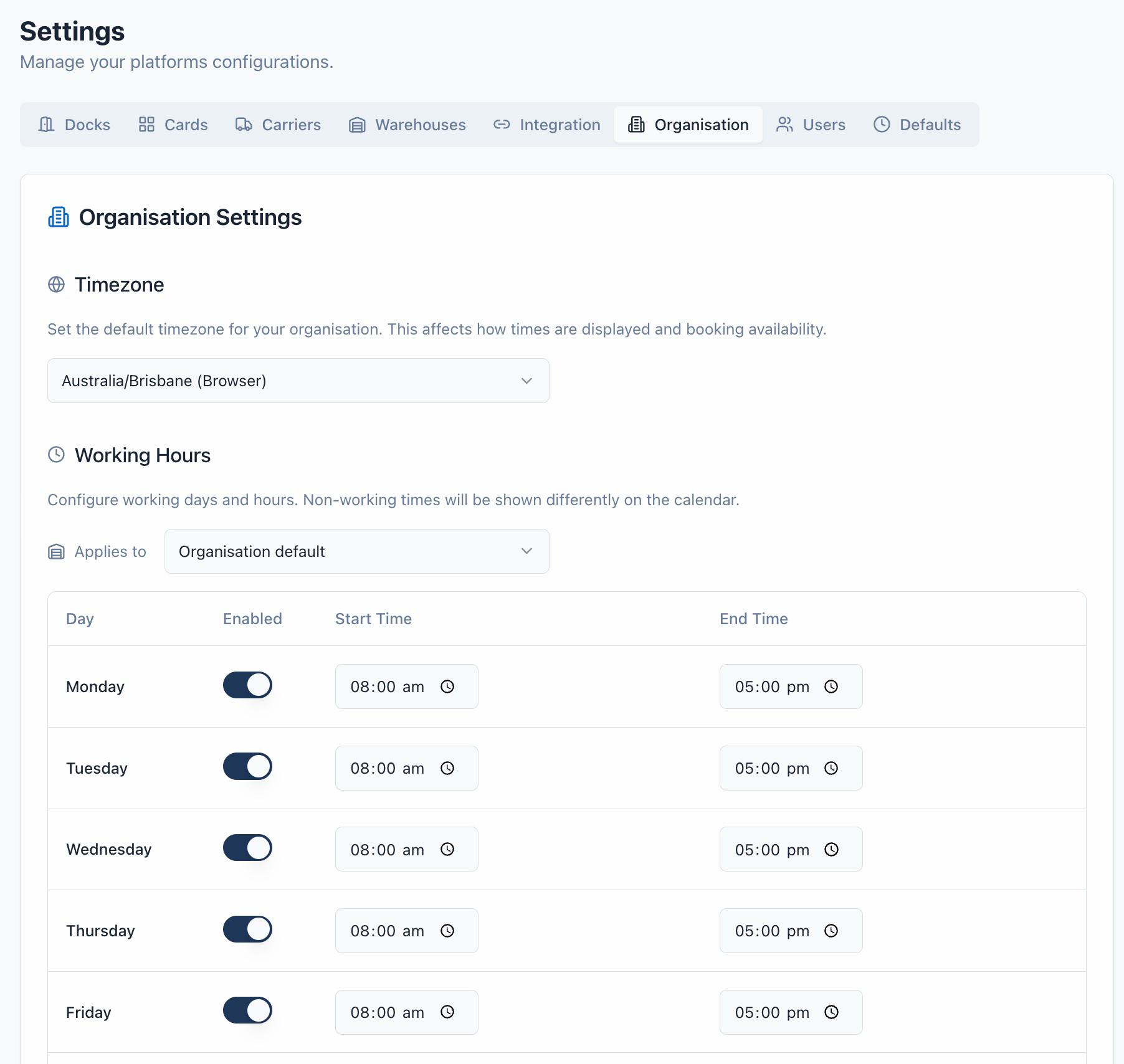
Set your operating hours per day of the week in Settings → Organisation. These hours:
- Shade the calendar outside hours (staff can still book there deliberately)
- Limit the time slots carriers can choose on your booking link
Different hours per site? Select a warehouse at the top of the working hours editor and switch off Use organisation default hours to give that site its own schedule. Sites without their own schedule simply follow the organisation default.