
Table of Contents
- Purpose
- Enable pick order
- Import / export warehouse locations
- Import error
- Applying the pick order when picking on the mobile app
Purpose
Within CartonCloud it is possible to create an order within your Warehouse Locations that you wish to pick Sale Orders by. This requires you to update the pick_order field on each Warehouse location to assign it a numbered order in respect to all other locations that you wish to pick it by.
Products will then display on Sale Orders in the order where the first row is the Warehouse Location with the lowest pick_order number when compared to all other warehouse locations on the Sale Order.
Enable pick order
Please note that the pick order is not applied in the Products tab when viewing a Wave Pick.
Firstly, you will need to enable the pick_order field against Warehouse Locations. If this setting is not enabled, you will not be able to see the 'pick_order' column in the below location export. To do this:
- Navigate to Organisation Settings, More>Organisation Settings.
- Select the Warehouse tab.
- Tick Sort Pick/Pack List by Warehouse Locations Pick Order.
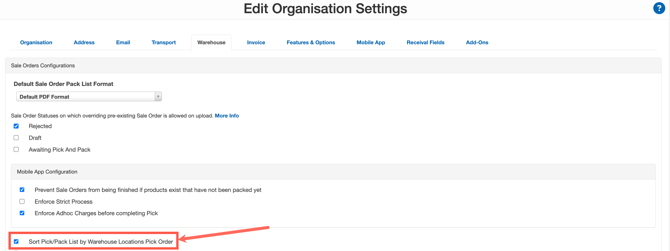
- Scroll down and select Save.
Import / export warehouse locations
This method of adjusting Warehouse Locations data requires exporting a CSV file, updating it, and then importing the CSV back into the CartonCloud web app.
To export Warehouse Locations to be updated navigate to the Warehouse Locations page by selecting Warehouse in the main menu, then selecting Warehouse Locations in the drop-down box.
Start by Exporting your Warehouse Locations by selecting the More button, then Export to CSV in the drop-down menu.
Open the downloaded file using a spreadsheet program such as Excel.
From here, provide a numbered order against your Warehouse Locations based on the order you wish to pick.
In the example below, if products from A-01-03 and A-01-04 were on the same Sale Order, the product in A-01-04 would appear higher on the list, as it has a lower pick_order number.
We suggest incrementing the pick order in amounts of 10 as this will allow you to add in locations in between the current locations later. If a pick_order cell is left empty, the system will place it after warehouse locations with a number greater than 0.
Once completed, save the CSV file, and then import it back into CartonCloud by selecting the More button, then Import CSV in the drop-down menu, then selecting the CSV file you just saved.
If the import is successful, the warehouse locations will be updated and a Success banner will be displayed. From here you will need to scroll to the bottom of the confirmation page and click Confirm Import (if you do not, the changes to warehouse locations will not be applied).
Now when you create Sale Orders, products will be listed in the pick path sequence you have just set.
Import error
If the import is unsuccessful due to an issue such as formatting, an Error banner will be displayed and the error will be described.
If you receive an error, you can find out information about why it's occurred by following the same actions as the animation below.
In the case below, a pick_order of -1 was given to a Warehouse Location, which is outside of the allowed range.
Applying the pick order when picking on the mobile app
See here for steps on how to apply the pick order when picking on the mobile app.