
Table of Contents
StockSync
The StockSync plugin for Shopify allows CartonCloud to send the onhand quantity from CartonCloud to Shopify to update Shopify inventory information.
This is useful if you require stock on hand in CartonCloud to update Shopify inventory.
The Shopify store owner is responsible for configuring the StockSync settings.
Prerequisites
- Before setting up Stock Sync by FTP you must first ensure you have installed and paid for Shopify StockSync plugin.
Generic guide on how to set up StockSync File Feed
- Log into your Shopify account.
- Using the top search bar, select Apps and then type in StockSync.
- Select StockSync.

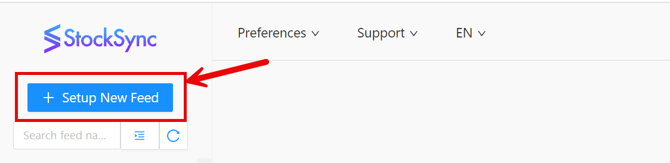
- On the StockSync page, select +Setup New feed. Or if you have not created a feed before select +Create New.
- On the Create New Feed screen, from the Choose an action on how to import products from supplier drop down select Update - Existing products.
- On the Confirm to proceed prompt, select Yes.
- Edit the title Update Profile X to CartonCloud StockSync.
- Select the Connections menu and then FTP.
- On the Confirm to proceed prompt, select Yes.
- Edit the title Update FTP - X to CartonCloud StockSync.
- Update the fields specified as below:
- Step 1 - Feed Manager
- FTP
- Add username (provided by the CartonCloud Integrations team).
- Add password (provided by the CartonCloud Integrations team).
- Add Host: ftp.cartoncloud.com.
- Add Directory and File name (only add the filename provided by the CartonCloud Integrations team).
- For After Process - Select Delete My File.
- Select Test Connection.
- If everything is correctly set, this response should appear - Connection Successful.
- File Setting
- File Format: select CSV.
- Column Separator: select the comma ,
- File Encoding: select Auto.
- First Row is Header: select Yes.
- Skip feed rows: leave blank.
- FTP
- Select Next.
- Step 2 - Matching Column
- Note: if drop down values do not appear, zoom out to 30 - 50%.
- Product Identifier:
- Store field: select the field you utilised, most of the time this is SKU (Variant's SKU). In the box underneath the Store field, remove any value that may be here and select ProductCode.
- Select the settings cog to see if any additional product identifier settings are required.
- Store Product Fields:
- Store field: select Availably Quantity. In the box under Store field, select AvailableQuantity.
- Select the settings cog to see if any additional product identifier settings are required.
-
- If you have multiple Locations (Location IDs) in your Shopify Store:
- Navigate back to Shopify, select Settings > Locations and view the number of locations.
- Under the Store Product Field(s), select the settings cog.
- Select the Inventory Location for the warehouse
- See here to check if any additional settings need to be configured for your store and workflow setup.
- Note, if you believe Product Options (Variations), or Metafield are required to be able to sufficiently identify products, please contact the CartonCloud Integrations team here.
- If you have multiple Locations (Location IDs) in your Shopify Store:
-
- Select Next. The response, CartonCloud StockSync settings updated, should appear.
- Step 3 - Filter
- Products can be filtered if you do not wish the StockSync process to update certain inventory values. You can leave the Store Product - Store Field Name as “Published” and leave the default value of “Any”. You can apply any rules to Store Products, or to data in the Incoming Feed.
- The below settings can be configured to suit the setup you require:
- Ignore variants with "Track inventory"
- Ignore variants with zero quantity
- Ignore variants with quantity
-
- Select Next. The response, CartonCloud StockSync settings updated, should appear.
- Step 4 - Advanced Settings
- Auto Publish/Unpublish:
- Auto publish/ unpublish: can be left as Do not apply.
- Auto archive products: can be left as Do not apply.
- Out of Stock Strategy:
- Note, the below settings have significant impact on your Shopify store set up and integration. Please ensure you follow the Download Export Product advice prior to turning on either of the below settings. It is also highly recommended that you read the following articles - Out of Stock Strategy (OOS) and Store Product Filter.
- Set out of stock to ZERO quantity: can be turned on with care if the above articles are read, however, this setting is generally not turned on (note, it is highly recommended that the above articles are read before enabling this setting).
- Select Finish.
- Auto Publish/Unpublish:
If any of the generic settings above do not meet your requirements, please read the article - Setting up the feed with Stock Sync. If a pop up window appears prompting you with links to articles, it is highly recommended that you read the articles.
- Step 5 - Turning on the StockSync
- From the Dashboard, select the desired Feed Name to turn on.
- If the Feed Name reads 'FTP - 1' change this to 'CartonCloud Sync'.
- Select Turn on under the Schedule.
- On the Feed Detail screen, select Preview Sync.
- The Processing screen will appear until the preview is available.
- Select Feed Details, select Activity Logs List.
- Select the Details link > select the Change Logs > and click Not in Store links to download the test results.
- Refresh the screen until you receive a file. If the file does not appear, it may be empty. This would indicate the SKUs in CartonCloud have not been identified via StockSync in Shopify, so an update to resolves this would be needed.
- Explore the file to confirm:
- The Before Qty (what is in Shopify) and
- The After Qty (what will be updated from CartonCloud)
- And confirm this is the desired outcome for Products and Variants (if applicable).
- To set a schedule, first check what time zone your Shopify is in and what time zone CartonCloud are using in scheduling file creation.
- The default time zone should be aligned with the Warehouse time zone.
- Select Turn on here or Start Process.
- On the Automate this feed screen, slide the Schedule is enabled toggle to turn it on.
- Se the Schedule Frequency to Daily.
- Update the Schedule Time to 11:50.
- Select Ok.
- The Dashboard will now show an active Stock Feed with a frequency and time in the schedule.
- Monitor to see Inventory On Hand Quantities in CartonCloud are reflected in Shopify as expected.