
Table of Contents
- Overview
- Prerequisites
- Cost
- Available workflow
- How to create a Self-Managed Xero Integration
- Examples
- Testing
- Disconnecting a Self-Managed Xero Integration
- Disabling a Self-Managed Xero Integration
- Editing a Self-Managed Xero Integration
- Managing Self-Managed Integrations
- Troubleshooting Steps
Overview
Self-Managed Integrations allow you to create integrations from within your own CartonCloud account. Within the Self-Managed Integrations, you can choose the platform you wish to integrate with. One such platform is Xero.
With the Self-Managed Xero Integration, a Xero Invoice can create a Sale Order in CartonCloud and the Xero invoice will attach to the Sale Order in CartonCloud. This allows your customers to set up a seamless workflow between their Xero account and CartonCloud. You can choose what invoice status triggers the order to be created in CartonCloud and how the order is mapped to the CartonCloud warehouse.
You can configure the integration yourself or you can have your customer set the integration up from their CartonCloud login. This allows for greater security as your customer doesn’t have to share their Xero login details with you. Please note, that you must first enable the Customer to create their own Self-Managed Integrations from the Organisation and/or Customer Settings. Please see How to enable Customers to create their own Self-Managed Integrations for more information.
Prerequisites
- This is a paid integration; please ensure you read the included costs below.
- Your customer must have an Xero account
- If you are a Customer user, ensure your CartonCloud account owner has given you permission in your account to create your own Self-Managed Integrations. Please reach out to your account owner for this access.
- You will need your customer’s Xero login credentials. If your customer does not wish to share these details with you, you can have the customer create the integration themselves (see How to enable Customers to create their own Self-Managed Integrations for more information).
- Product codes in Xero must match the product codes in CartonCloud
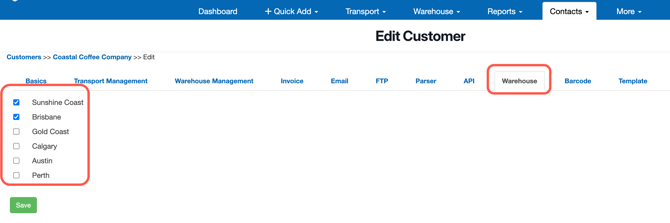
- The Customer in CartonCloud must have access to the Warehouse the orders are being mapped to from Xero
- The delivery address in Xero must be a valid address (e.g includes postcode, state, street name and number etc.)
Cost
We offer volume-based discounts—reach out to our support team here to discuss pricing options.
Available Workflow
-
Xero Invoice creates a Sale Order in CartonCloud
-
The Xero Invoice PDF will be attached to the Sale Order in CartonCloud
How to create a Self-Managed Xero Integration
- Navigate to the Integrations page by typing in Integrations in the Search for Anything bar or More>Self-Managed Integrations.
- If an Admin user, select the customer you wish to create the integration for.
- Click Xero from the Self-Managed Integrations menu selection.
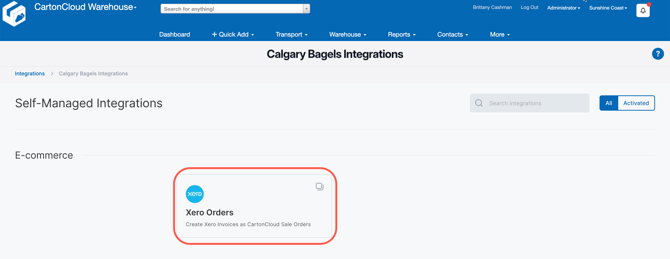
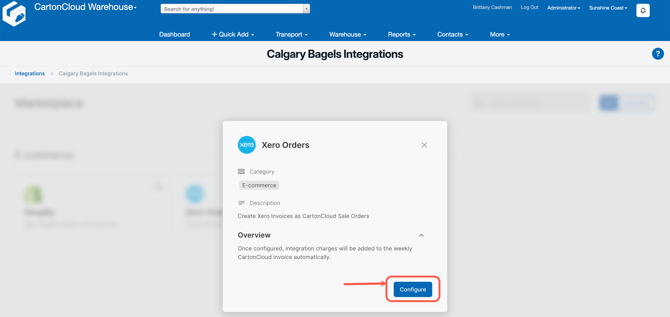
- Click Configure.
-
The configuration box will now appear, follow the below steps to configure the integration.
-
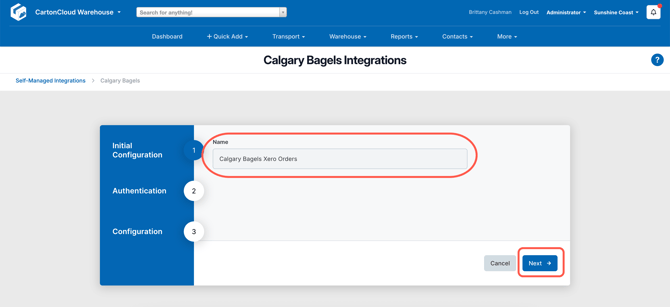
(1) Initial Configuration
- Fill in the Name field. Ensure the name includes the name of the customer. If you are creating a Xero integration for multiple customers you will need to be able to easily identify the different integrations.
- Click Next.
-
-
(2) Authentication
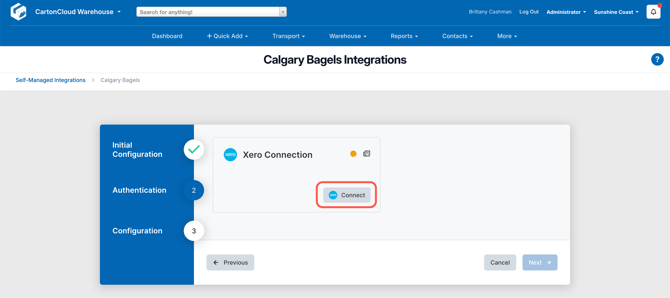
- You will now need to connect CartonCloud to the correct Xero account. You will require your customer's Xero login credentials for this step.
- Click Connect against the Xero tile. Enter the Xero login credentials and click Login. Once the status dot icon has turned green the connection has been successful.
-
(3) Configuration
-
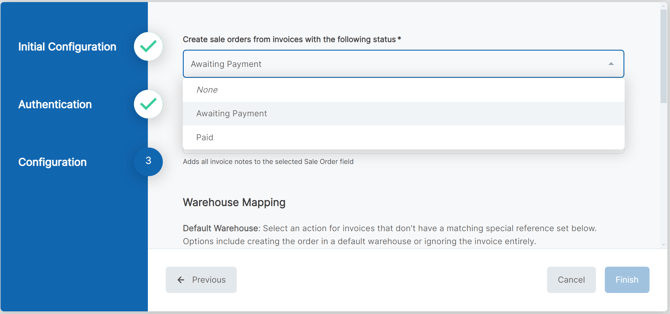
Select the invoice payment status that will trigger a Sale Order being created in CartonCloud.
- Awaiting Payment
- Paid
-
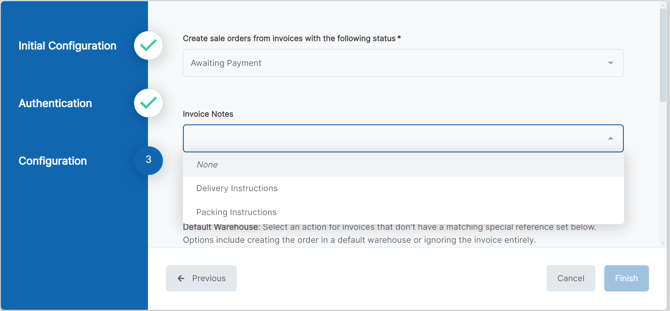
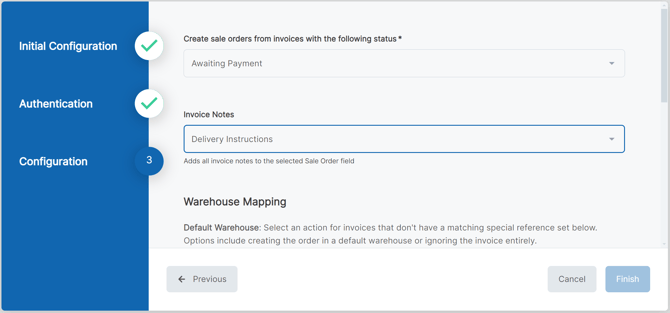
- Select if you wish to include the Invoice Note field from Xero on the Sale Order in CartonCloud. You can choose where you would like to store this information against the Sale Order. Note, that you can only select one field to store the note field information against.
- None
- Delivery Instructions
- Packing Instructions
- You will now need to map which Xero orders will go to which CartonCloud warehouse. The below describes the different options you have to map the Xero orders to CartonCloud.
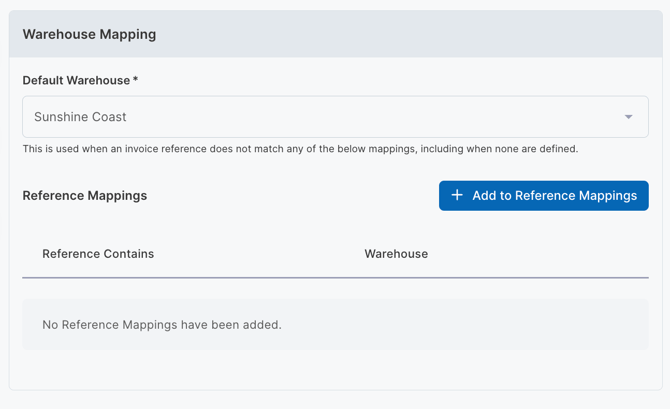
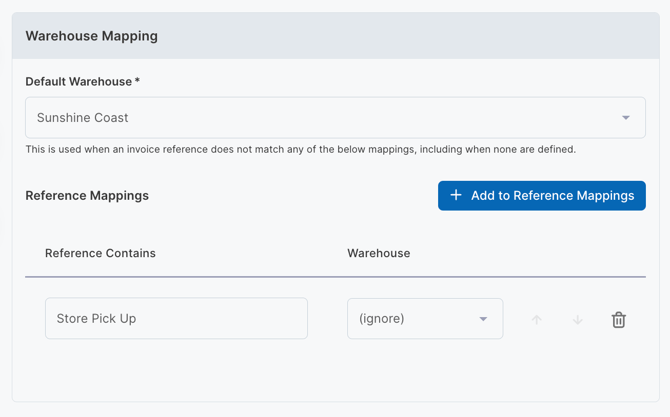
- Default Warehouse: if you choose to set a default warehouse all orders will go to this warehouse unless you add reference mapping and the order matches this reference mapping. You can also choose to ignore the default warehouse and only apply the reference mapping. This means only orders with specific references specified in the mapping will come across to CartonCloud.
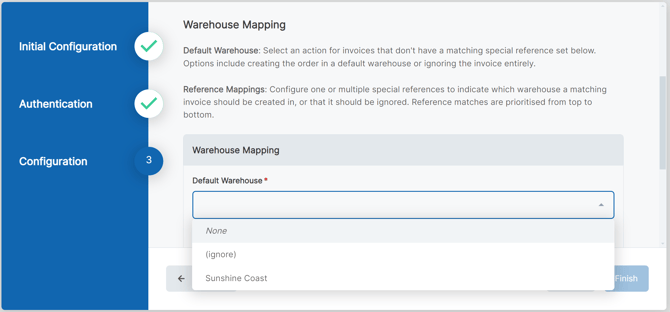
- Reference mapping: you can add particular reference mapping to determine what orders will come across to CartonCloud and what warehouse they will go to. You will need to specify the reference and then the warehouse it must go to. You can then order the reference mappings in order of priority using the arrows next to the mappings.
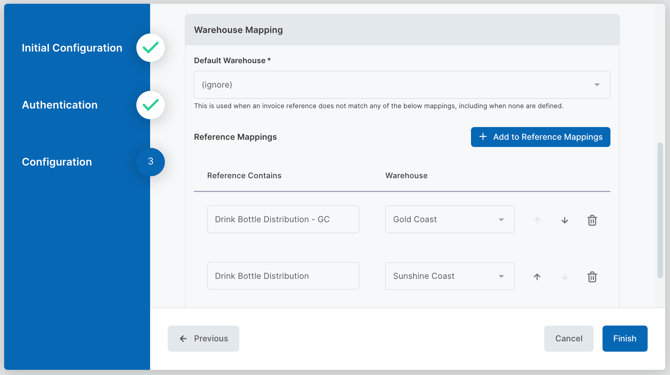
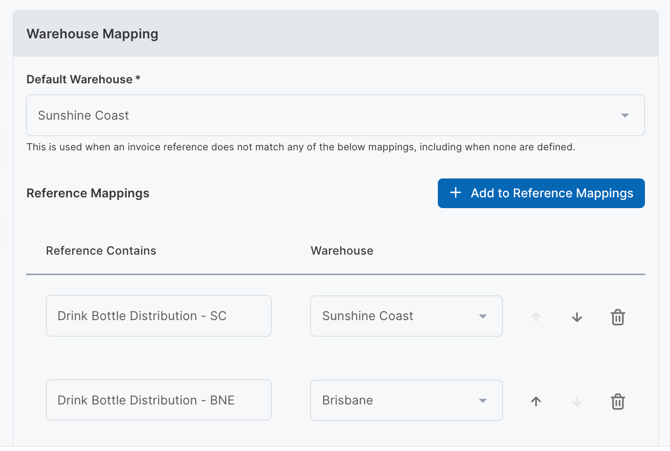
- Please note that the reference field is ‘Reference Contains’ which means if that reference is contained within another word it will be sent to that warehouse. For example, if you want orders with ‘Drink Bottle Distribution’ in the reference to go to the Sunshine Coast warehouse and orders with ‘Drink Bottle Distributions - GC’ to go to the Gold Coast warehouse then you will need to put the Gold Coast reference mapping first. This will prevent all orders with ‘Drink Bottle Distribution’ from going to the Sunshine Coast warehouse. This set-up is shown below:
- Click Finish.
Examples
In the below examples, it is assumed that Drink Bottle Distribution is the CartonCloud account owner and Sunshine Drink Bottles is the customer. These configurations are set up for Sunshine Drink Bottles.
Example 1
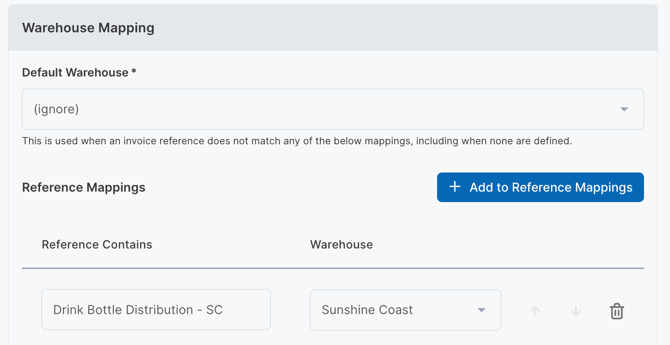
Use case: I sometimes use a Drink Bottle Distribution warehouse for some of my orders, but I deliver most of them myself.
Example 2
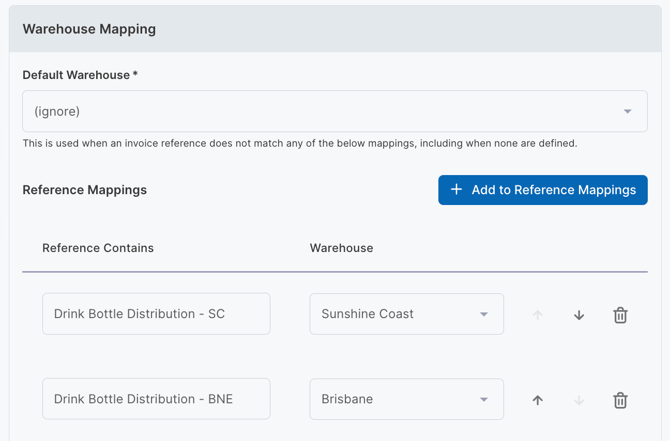
Use case: I mostly use a Drink Bottle Distribution Warehouse for all of my orders, but I use two different warehouses. If I don't put any special wording in the reference, I want the orders to be ignored.
Example 3
Use case: I always use a Drink Bottle Distribution Warehouse for all of my orders, but I use two different locations of these warehouses. If I don't put any special wording in the reference, I still want the order to be captured so it does not get missed (you will need to choose which warehouse it gets created in).
Example 4
Use case: I do not use a special reference because all my orders go to one Drink Bottle Distribution Warehouse
Example 5
Use case: I mostly only use a single Drink Bottle Distribution warehouse, but sometimes I have one or two orders I do not want them to fulfil
Testing
Once you have created the Self-Managed Xero Integration it is suggested that you test the integration with a test order. Place an order in Xero with the reference you have specified and the payment status. Once you have done this the Sale Order will be created in CartonCloud.
If you have any questions or issues please contact support via CartonCoud Help.
Disconnecting a Self-Managed Xero Integration
If you need to cancel and disconnect the integration you will need to:
- Navigate to the Integrations page.
- Select the relevant Customer.
- Click Xero Orders.
- Scroll down to Instances.
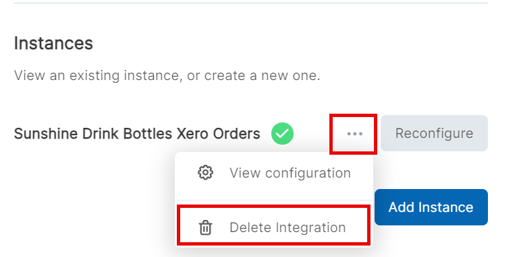
- Select the three-dot configuration icon and select Delete Integration.
- This will remove the integration and stop the billing of the integration to your account.
Disabling a Self-Managed Xero Integration
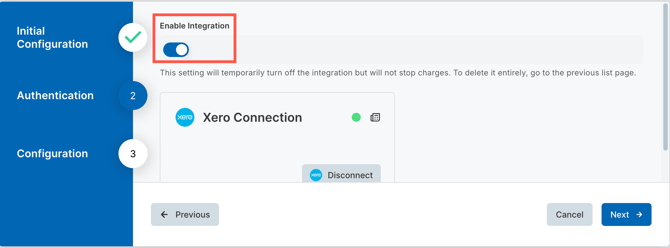
The integration can be temporarily disabled without being deleted. This allows you to pause the integration with Xero orders while retaining all configuration settings. You can then later re-enable the integration without needing to reconfigre or reconnect the Xero account.
This is useful for troubleshooting, testing or business downtime without losing setup.
To disable the integration:
- Navigate to the Integrations page.
- Select the relevant Customer.
- Click Xero Orders.
- Click Reconfigure.
- Click Next.
- Toggle 'Enable Integration' off.
Editing an existing Self-Managed Xero Integration
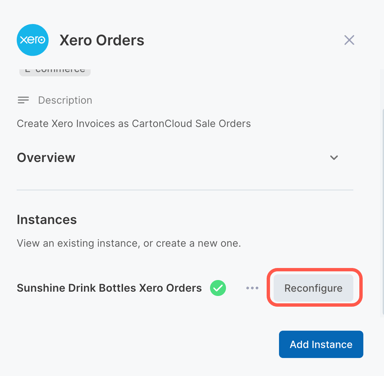
To edit an existing Self-Managed Xero Integration:
- Navigate to the Integrations page.
- Select the relevant Customer.
- Click Xero Orders.
- Scroll down to Instances.
- Select Reconfigure.
Managing Self-Managed Integrations
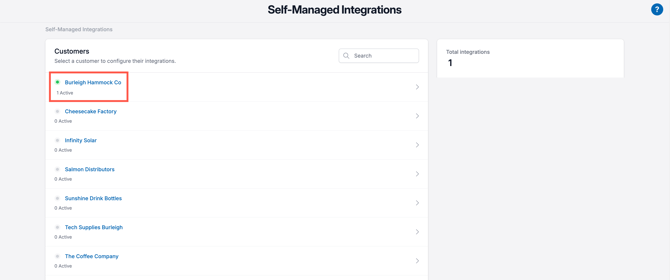
Because Self-Managed Integrations are a paid feature, it is important you are able to manage and keep track of the number of active integrations your customer's have. This is useful if you wish to pass on the cost to your customer and reconcile your invoices.
If a Customer has a live integration they will have a green dot icon against their name. It will also display the number of active integrations for that customer below their name.
Troubleshooting Steps
If you are experiencing issues with your Self-Managed Integration and orders are not coming through to CartonCloud please complete the following checks:
- Check the Paring Log for why the orders are failing. See Parsing Log for information on how to read the Parsing Log and diagnose the issue.
- Check that the reference text exactly matches what you have setup in Step 3 of the connection.
- If you are still not able to resolve the issue please reach out to the Service Desk team with screenshots here - CartonCoud Help.