
Table of Contents
- Overview
- Prerequisites
- Key Considerations
- Cost
- How to create a Self-Managed MYOB AccountRight Integration
- Disconnecting a Self-Managed MYOB AccountRight Integration
- Editing a Self-Managed MYOB AccountRight Integration
- Managing Self-Managed Integrations
Overview
Self-Managed Integrations allow you to create integrations from within your CartonCloud account. With the Self-Managed MYOB AccountRight Integration, MYOB AccountRight Item orders or Item invoices can create Sale Orders in CartonCloud. You can choose whether the integration imports orders or invoices.
The integration uses the MYOB Ship Via field to determine which CartonCloud warehouse each order is assigned to. Once the CartonCloud Sale Order is Dispatched, the carrier name, tracking number and tracking URL can be written back to the MYOB invoice when Complete Fulfilment through CartonCloud is enabled. If the integration imports orders, CartonCloud first converts the MYOB order into an invoice before adding the tracking details.
You can configure the integration yourself, or you can have your customer set the integration up from their CartonCloud login. See How to enable Customers to create their own Self-Managed Integrations.
Prerequisites
- This is a paid integration. Please read the Cost section below.
- Your customer has a MYOB AccountRight company file based in Australia or New Zealand.
- The user connecting MYOB can log in to my.MYOB and is an Administrator user of the MYOB company file.
- Sales are entered in MYOB using the Item layout (Item orders or Item invoices). Each line that must be picked in the warehouse uses an inventory item.
- The Item Number of each MYOB item matches the product code in CartonCloud exactly. See Add a Product.
- The customer card in MYOB holds complete, accurate addresses (street, suburb, state, postcode and country) for the delivery locations your customer ships to.
- If you plan to route orders to different warehouses, the Ship Via (shipping method) values your customer uses in MYOB are agreed upfront.
- The Customer in CartonCloud has access to every Warehouse that MYOB orders will be mapped to.
- If you are a Customer user, your CartonCloud account owner has given you permission to create your own Self-Managed Integrations. Please reach out to your account owner for this access.
The Ship Via field is only available in the AccountRight desktop application. It is not shown when you use AccountRight in a web browser. If your customer only uses AccountRight in a browser, they cannot set Ship Via on a sale. Use a default warehouse instead of Ship Via mappings.
Key Considerations
- Each integration imports either Item orders or Item invoices, not both.
- Each integration connects to one MYOB company file. To connect a second company file, create a second integration.
- Company files based outside Australia and New Zealand are not supported.
- Deleting a sale in MYOB does not cancel or update the Sale Order in CartonCloud.
- Pickup orders are not supported. Every imported Sale Order is created as a delivery (shipping) order. If this is important to your workflow, please reach out to the Service Desk team to discuss a possible workaround.
- No time zone conversion is applied. The MYOB Promised Date is used as the Required Date on the Sale Order.
- Tracking is only written to MYOB once the Sale Order reaches Dispatched. A Sale Order that is only Packed does not update MYOB.
- Tracking is appended to the invoice comment. The integration does not close the invoice or mark it paid. The original comment is kept as a prefix.
Cost
We offer volume-based discounts—reach out to our support team here to discuss pricing options.
How to create a Self-Managed MYOB AccountRight Integration
- Navigate to the Integrations page by typing Integrations in the Search for Anything bar, or go to More > Self-Managed Integrations.
- If you are an Admin user, select the customer you want to create the integration for.
- Select MYOB AccountRight from the Self-Managed Integrations menu.
- Click Configure.
- The configuration box appears. Follow the steps below to configure the integration.
(1) Initial Configuration
- Fill in the Name field. Include the customer's name (for example, "Coastal Homewares – MYOB") so you can identify each integration if you set up MYOB for several customers.
- Click Next.
(2) Authentication
- Click Connect against the MYOB tile.
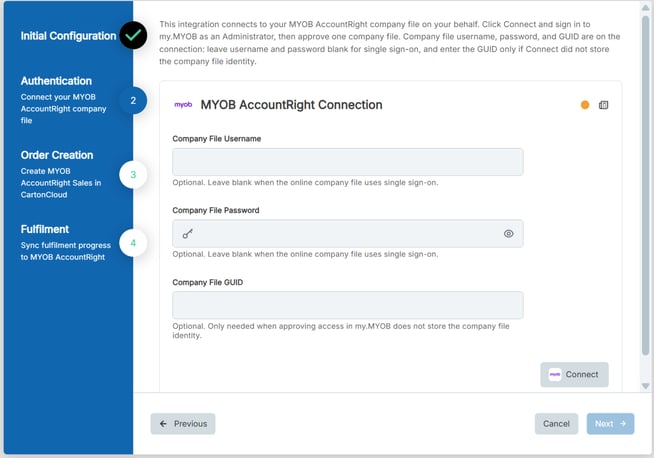
- Log in to my.MYOB with the email address and password of an Administrator user of the company file.
- Select the company file you want to connect.
- Click Allow access to authorise CartonCloud to read sales, customers and items and to update invoices.
- CartonCloud returns you to the configuration box. The status dot turns green once the connection is successful.
- Click Next.
(3) Order Creation
-
Here you will need to set up configurations to enable order creation from MYOB to CartonCloud.
- Company country: This is applied automatically from your MYOB company file settings.
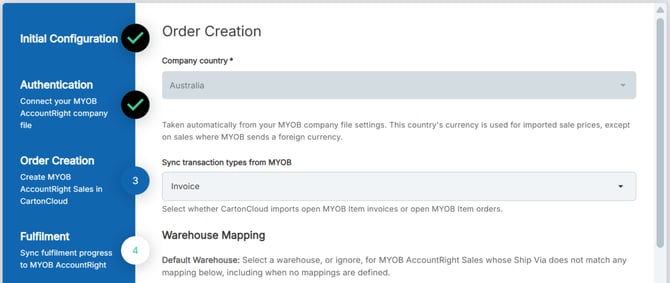
- Import type: Select Invoices to import Closed (paid) Item invoices, or Orders to import Open (paid or unpaid) Item orders.
- In Orders mode, Item orders with a status of Open (paid or unpaid) are imported. In Invoices mode, only Item invoices with a status of Closed (fully paid) are imported. Unpaid invoices are not imported.
- In Orders mode, Item orders with a status of Open (paid or unpaid) are imported. In Invoices mode, only Item invoices with a status of Closed (fully paid) are imported. Unpaid invoices are not imported.
- Default Warehouse: Select the CartonCloud warehouse for sales that do not match any Ship Via mapping. Select (ignore) if you only want sales with a mapped Ship Via value to be imported.
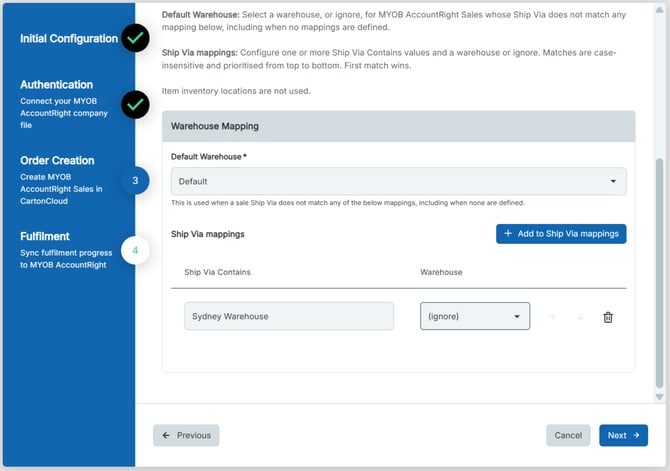
- Ship Via mappings: Click to add a mapping. In Ship Via Contains, enter the text to look for in the MYOB Ship Via field, then select the CartonCloud warehouse the order goes to, or (ignore) to skip those sales.
- Matching ignores upper and lower case, and the entered text only has to appear somewhere within the Ship Via value. For example, "BNE" matches "Star Track BNE".
- Mappings are checked from top to bottom and the first match wins. Use the arrows next to each mapping to put the most specific mappings at the top.
- Click Next.
Example: Your customer uses Ship Via values "Couriers Please BNE", "Couriers Please MEL" and "Own Van". Add "BNE" mapped to your Brisbane warehouse, "MEL" mapped to your Melbourne warehouse, and "Own Van" mapped to (ignore). Couriers Please BNE sales go to Brisbane, Couriers Please MEL sales go to Melbourne, and Own Van sales are not imported.
(4) Fulfilment
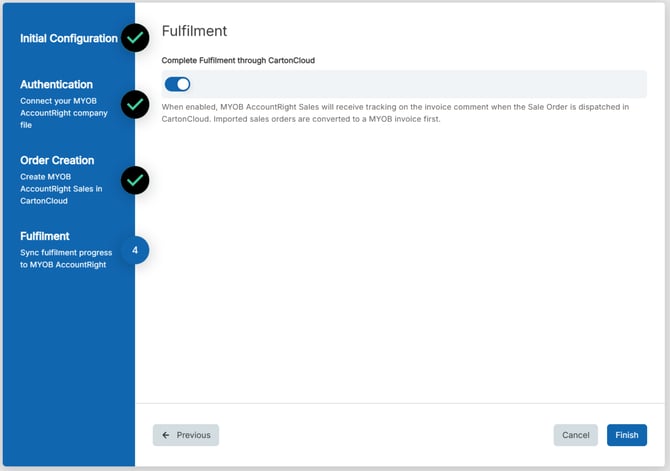
- Complete Fulfilment through CartonCloud: Enable this so that CartonCloud writes tracking details to the MYOB invoice when the Sale Order is Dispatched. In orders mode, it also converts the MYOB order to an invoice at dispatch.
- Click Finish.
Disconnecting a Self-Managed MYOB AccountRight Integration
If you need to cancel and disconnect the integration:
- Navigate to the Integrations page.
- Select the relevant Customer. CartonCloud
- Click MYOB AccountRight.
- Select the three-dot configuration icon and select Delete Integration.
- This removes the integration and stops the billing of the integration to your account.
Editing a Self-Managed MYOB AccountRight Integration
To edit an existing Self-Managed MYOB AccountRight Integration:
- Navigate to the Integrations page.
- Select the relevant Customer.
- Click MYOB AccountRight.
- Select Reconfigure. CartonCloud
- Update the settings you need and click Finish to save your changes.
Managing Self-Managed Integrations
Because Self-Managed Integrations are a paid feature, it is important to keep track of the number of active integrations your customers have. This is useful if you pass the cost on to your customer and reconcile your invoices.
If a Customer has a live integration, a green dot icon shows against their name, and the number of active integrations for that customer shows below their name.