Table of Contents
- Overview
- Prerequisites
- Limitations
- How to Set Up the Etsy Self-Managed Integration
- Disconnecting an existing Self-Managed Etsy Integration
- Editing an existing Self-Managed Integration
- Managing Self-Managed Integrations
Overview
Self-Managed Integrations allow you to create and manage integrations directly within your CartonCloud account.
With the Self-Managed Etsy Integration, Etsy receipts in Paid status can create Outbound Orders in CartonCloud, and once dispatched, update the Etsy order to Completed while sending shipment tracking details back to Etsy (if fulfilment is enabled).
You can configure the integration yourself or you can have your customer set the integration up from their CartonCloud login. See How to enable Customers to create their own Self-Managed Integrations.
Prerequisites
- This is a paid integration, please ensure you read the included costs below.
- Your customer has an Etsy account and a configured Etsy shop.
- The SKU in Etsy matches the product codes in CartonCloud.
- The Customer in CartonCloud has access to the Warehouse the Etsy orders will be mapped to.
- If you are a Customer user, you must ensure your CartonCloud account owner has given you permission in your account to create your own Self-Managed Integrations. Please reach out to your account owner for this access.
Limitations
- Changes to Etsy orders (e.g item quantity changes) will not be made in CartonCloud. Once CartonCloud has the order from Etsy, the order will not be updated if the order is changed within Etsy.
- Deleting a Sales Order in Etsy does not notify CartonCloud.
- Dates and datetimes are not converted between time zones.
- Mapping of requested batch numbers is not supported.
- Pickup orders are not currently supported. If this is important to your workflow, please reach out to the Service Desk team to discuss a possible workaround.
Cost
We offer volume-based discounts—reach out to our support team here to discuss pricing options.
How to create a Self-Managed Etsy Integration
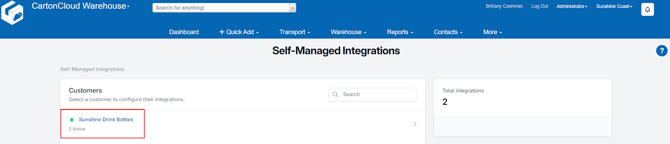
- Navigate to the Integrations page by typing in Integrations in the Search for Anything bar or More > Self-Managed Integrations.
- If an Admin user, select the customer you wish to create the integration for.
- Select Etsy from the Self-Managed Integrations menu selection.
- Click Configure.
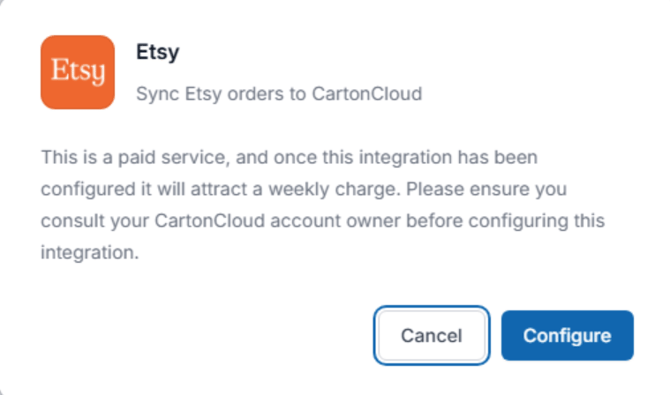
- The configuration box will now appear, follow the below steps to configure the integration.
(1) Initial Configuration
- Fill in the Name field.
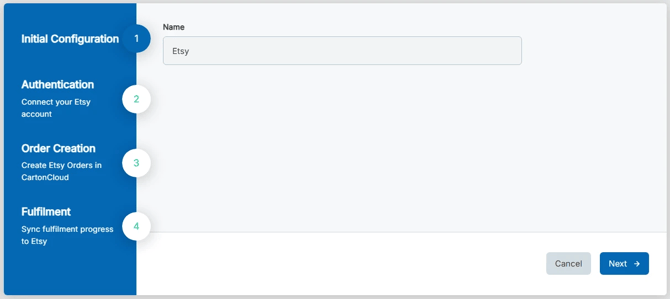
- Click Next.
(2) Authentication
- You will now need to connect CartonCloud to Etsy.
- Click Connect.
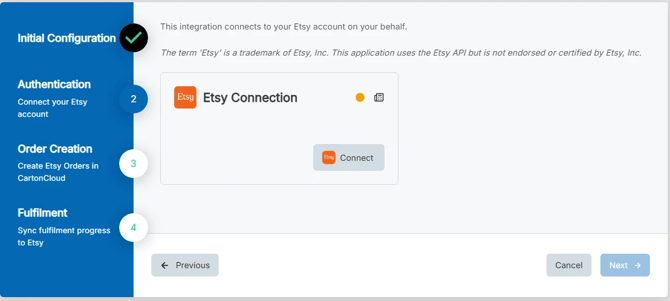
- You will be redirected to Etsy to authorize the connection.
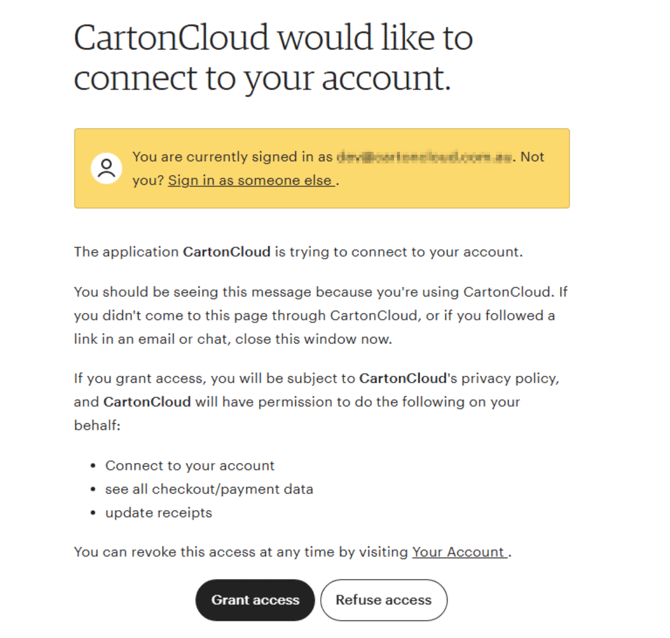
- Once the connection is successful, you will see a confirmation screen. You can close the page and return to the CartonCloud Self-Managed Integration setup page.
- Click Next.
(3) Order Creation
- Here you will need to map which Etsy orders will go to which CartonCloud warehouse.
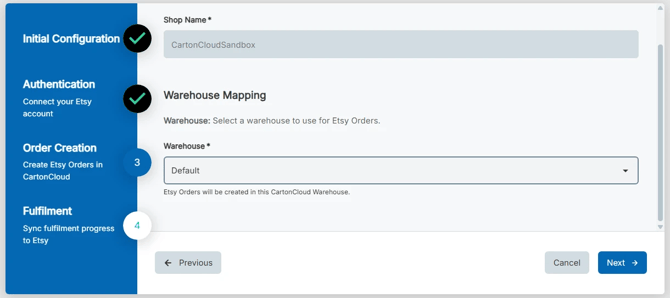
- Click Next.
(4) Fulfilment
- Complete Fulfilment through CartonCloud: When enabled Etsy Orders will be marked as Complete when the Sale Order is dispatched in CartonCloud.
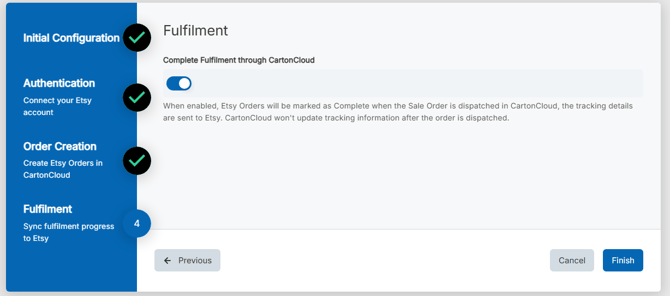
- Click Finish.
Disconnecting an existing Self-Managed Etsy Integration
If you need to cancel and disconnect the integration you will need to:
- Navigate to the Integrations page.
- Select the relevant Customer.
- Click Etsy.
- Select the three-dot configuration icon and select Delete Integration.
- This will remove the integration and stop the billing of the integration to your account.
Editing an existing Self-Managed Etsy Integration
To edit an existing Self-Managed Etsy Integration:
- Navigate to the Integrations page.
- Select the relevant Customer.
- Click Etsy.
- Select Reconfigure.
Managing Self-Managed Integrations
Because Self-Managed Integrations are a paid feature, it is important you are able to manage and keep track of the number of active integrations your customers have. This is useful if you wish to pass on the cost to your customer and reconcile your invoices.
If a Customer has a live integration they will have a green dot icon against their name. It will also display the number of active integrations for that customer below their name.