Table of Contents
- Overview
- Prerequisites
- Key Considerations
- Cost
- How to create an Amazon Self-Managed Integration
- Amazon Address PII Handling
- Disconnecting an existing Self-Managed Amazon Integration
- Editing an existing Self-Managed Integration
- Managing Self-Managed Integrations
Overview
Self-Managed Integrations allow you to create and manage integrations directly within your CartonCloud account.
With the Self-Managed Amazon Integration, Amazon orders automatically create Outbound Orders in CartonCloud, including customer details, products, and delivery requirements. Once the Outbound Order is dispatched in CartonCloud, shipment confirmation and tracking details are synced back to Amazon Seller Central.
You can configure the integration yourself or you can have your customer set the integration up from their CartonCloud login. See How to enable Customers to create their own Self-Managed Integrations.
Prerequisites
- This is a paid integration, please ensure you read the included costs below.
- Your customer has an Amazon Seller Central account.
- You know which Amazon Marketplace you are connecting (e.g. Australia, United States, Canada)
- The Seller SKU in Amazon matches the product codes in CartonCloud.
- The Customer in CartonCloud has access to the Warehouse the Amazon orders will be mapped to.
- If you are a Customer user, you must ensure your CartonCloud account owner has given you permission in your account to create your own Self-Managed Integrations. Please reach out to your account owner for this access.
Key Considerations
- One Integration Per Marketplace
- The authorisation process requires connecting the integration to a specific marketplace (e.g., Australia). However, order routing does not filter by the authorised marketplace. Instead, Supply Source Mapping is used to ensure that only the correct orders flow through to CartonCloud.
- The authorisation process requires connecting the integration to a specific marketplace (e.g., Australia). However, order routing does not filter by the authorised marketplace. Instead, Supply Source Mapping is used to ensure that only the correct orders flow through to CartonCloud.
- Required Date Timezones
- Amazon stores shipping dates as date and time values. CartonCloud converts these to a date by removing the time component when setting:
-
-
- Required Collection Date
- Required Delivery Date
- If your Amazon marketplace timezone differs from your CartonCloud warehouse timezone, the required date may appear one day earlier or later.
-
- Supported Marketplaces
- We currently support Australia, United States and Canada marketplaces. If your marketplace is not listed above, please reach out to the Service Desk team for assistance.
- We currently support Australia, United States and Canada marketplaces. If your marketplace is not listed above, please reach out to the Service Desk team for assistance.
- One-Time Fulfillment / Tracking Sync
- The integration can only confirm a shipment once tracking details are available on the consignment. It will confirm a single package shipment back to Amazon for each consignment. Once confirmed, no further updates will be sent to Amazon for that shipment.
This means no further updates are sent once the fulfillment sync has occurred — i.e., the first time tracking details are available and the Sale Order is in Dispatched status.
- The integration can only confirm a shipment once tracking details are available on the consignment. It will confirm a single package shipment back to Amazon for each consignment. Once confirmed, no further updates will be sent to Amazon for that shipment.
Cost
We offer volume-based discounts—reach out to our support team here to discuss pricing options.
How to create a Self-Managed Amazon Integration
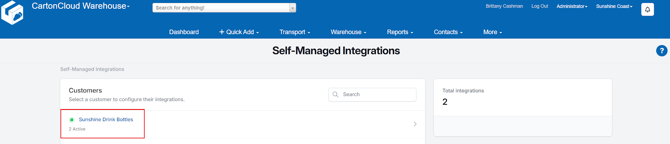
- Navigate to the Integrations page by typing in Integrations in the Search for Anything bar or More > Self-Managed Integrations.
- If an Admin user, select the customer you wish to create the integration for.
- Select Amazon from the Self-Managed Integrations menu selection.
- Click Configure.
- The configuration box will now appear, follow the below steps to configure the integration.
(1) Initial Configuration
- Fill in the Name field
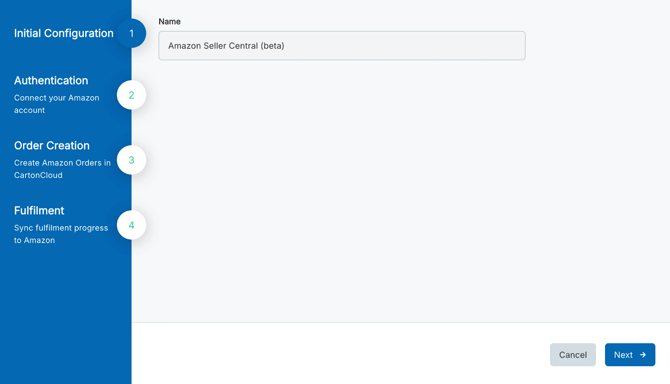
- Click Next.
(2) Authentication
- Select your Marketplace country, then click Connect.
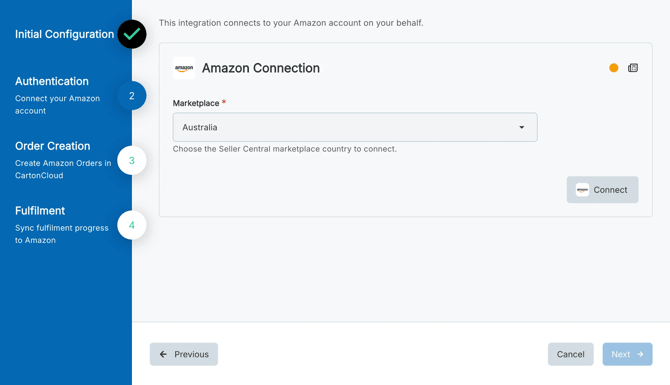
- You will be redirected to Amazon Seller Central to authorize the connection.
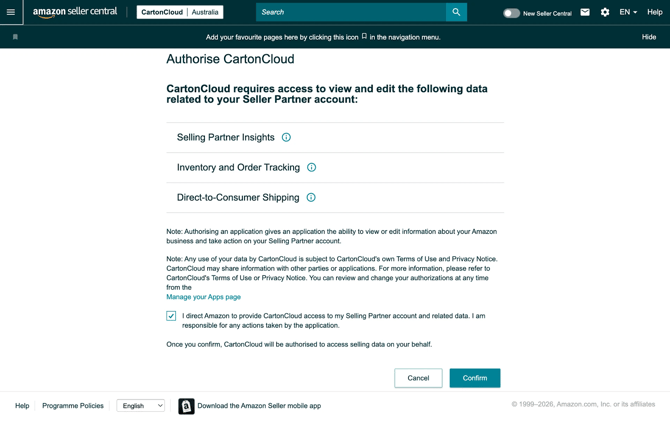
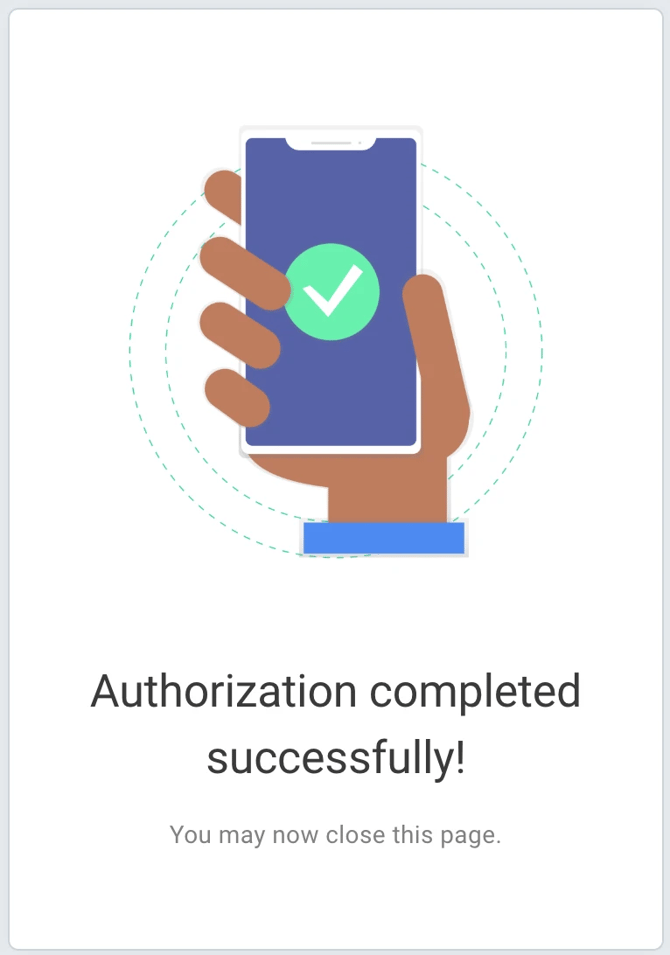
- Once the connection is successful, you will see the below confirmation screen. You can close the page and return to the CartonCloud Self-Managed Integration setup page.
- Click Next.
Do not change the Marketplace on an active connection, as this will cause an error. To switch to a different Marketplace, you must first disconnect the existing connection.
(3) Order Creation
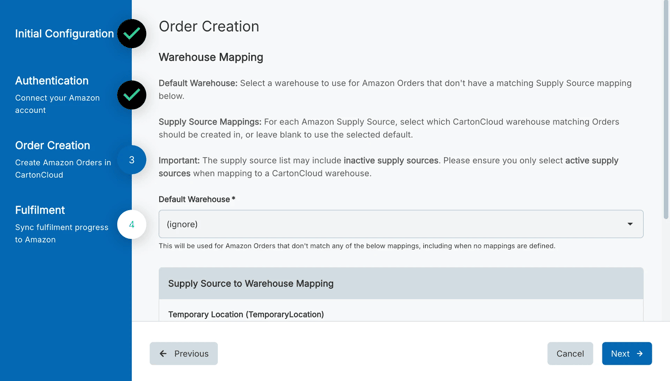
- You will now need to map which Amazon orders will go to which CartonCloud warehouse.
- The below describes the different options you have to map the Amazon orders to CartonCloud:
- Default Warehouse: Select a CartonCloud warehouse to use for Amazon orders that doesn't have a matching Supply Source to Warehouse Mapping.
If you choose to set a default warehouse all orders will go to this warehouse unless you add Supply Source to Warehouse Mapping. You can also choose to ignore the default warehouse and only apply the warehouse mappings. This means only orders with specific references specified in the warehouse mapping will come across to CartonCloud.
-
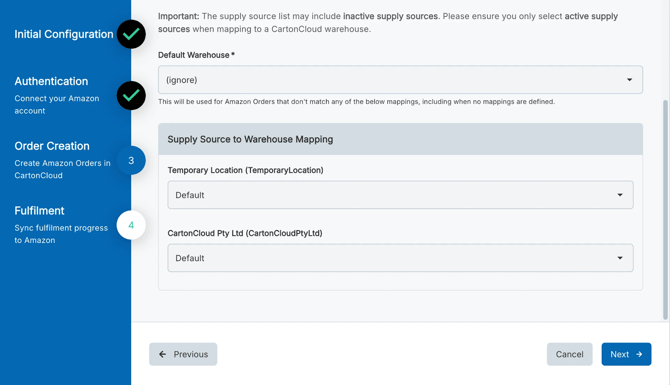
- Supply Source to Warehouse Mapping: You can configure Supply Source to Warehouse mapping to control where orders should be routed to.
For each Amazon Supply Source, select which CartonCloud warehouse matching Orders should be created in, or leave blank to use the selected default.
- Click Next.
The supply source list may include inactive supply sources. Please ensure you only select active supply sources when mapping to a CartonCloud warehouse.
(4) Fulfilment
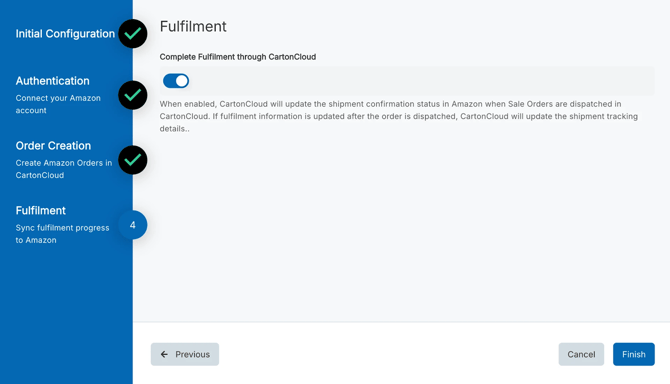
- Fulfilment is enabled by default, but you can disable it if you do not want CartonCloud to send shipment confirmations and tracking information back to Amazon.
- When fulfilment is enabled, CartonCloud automatically updates the shipment confirmation status in Amazon when Sale Orders are dispatched in CartonCloud and tracking details are available on the Consignment.
- Click Finish.
Amazon Address PII Handling
CartonCloud automatically removes personally identifiable information (PII) from delivery addresses that originate from Amazon.
This ensures your integration remains compliant with Amazon’s data handling policies.
This functionality only applies to addresses originating from Amazon.
When is address information cleared?
CartonCloud removes personal details from Amazon addresses once all related activity is complete.
This happens when both order and delivery activity meet the conditions below:
Sale Order Criteria
All sale orders associated with the address must meet at least one of the following:
- The sale order was dispatched 30 or more days ago, or
- The sale order is in a rejected state and was last modified 7 or more days ago
Consignment Criteria
All consignments associated with the address must meet at least one of the following:
- The consignment delivery run date was 30 or more days ago, or
- The consignment is cancelled and was last modified 7 or more days ago
What Address Fields Are Removed?
When PII is cleared, the following fields are permanently removed:
- Contact Name
- Company Name
- Street Address
- Street Address Line 2
- Telephone
- Latitude and Longitude (geocoded coordinates)
Once cleared:
- The address remains inactive
- The address stays hidden from searches
- The data cannot be restored
Disconnecting an existing Self-Managed Amazon Integration
If you need to cancel and disconnect the integration you will need to:
- Navigate to the Integrations page.
- Select the relevant Customer.
- Click Amazon.
- Select the three-dot configuration icon and select Delete Integration.
- This will remove the integration and stop the billing of the integration to your account.
Editing an existing Self-Managed Amazon Integration
To edit an existing Self-Managed Amazon Integration:
- Navigate to the Integrations page.
- Select the relevant Customer.
- Click Amazon.
- Select Reconfigure.
Managing Self-Managed Integrations
Because Self-Managed Integrations are a paid feature, it is important you are able to manage and keep track of the number of active integrations your customers have. This is useful if you wish to pass on the cost to your customer and reconcile your invoices.
If a Customer has a live integration they will have a green dot icon against their name. It will also display the number of active integrations for that customer below their name.