
Table of Contents
Purpose
The Scan Order/Tote screen lets users scan a Tote (coming soon) or order barcode to navigate directly to the pack screen for packing. This supports various workflows, including mobile picking with computer packing and wave picking.
Use Cases
-
Allows for an efficient way for packer users to navigate to the pack screen.
-
If a user wants to pick on mobile and pack on the computer.
-
If a user is using paper pick sheets, they can pick on paper, bring back to the desktop, and pack the order.
-
To run Wave Picks.
-
In preparation for CartonCloud’s new feature of Pick to Tote this will enable users to quickly navigate to packing orders from a Tote.
Prerequisites
-
The order must be in a status of ‘Packing in Progress’ for it to appear on the Scan Order / Tote screen.
-
You need to scan the order barcode. The order barcode is the order id.
-
Once CartonCloud’s new feature of Pick to Tote is available, there will be a field called Tote barcode which specifies the Tote has been used and that can be scanned to bring up the associated Sale Order.
-
Only available for Sale Orders in the CartonCloud Warehouse module.
Process
-
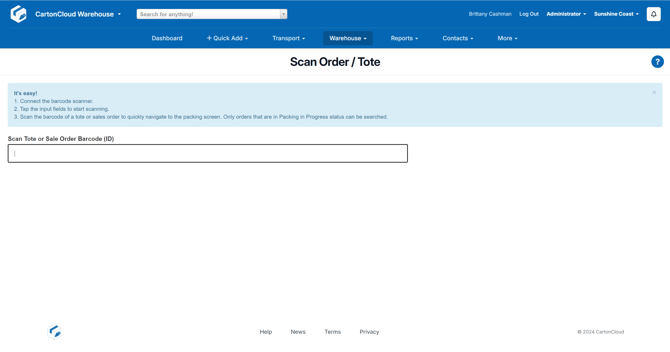
Navigate to the Scan Order / Tote screen, Warehouse > Scan Order / Tote.
-
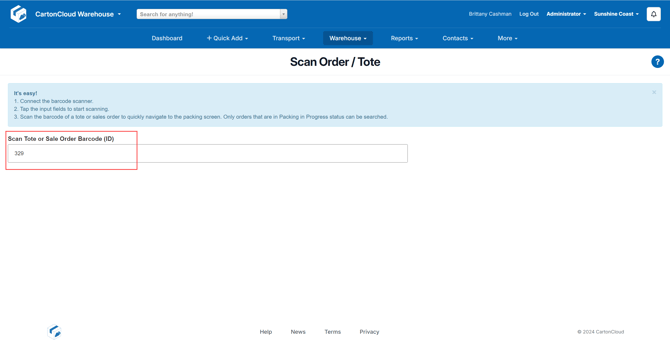
Scan the order barcode (order id) into the input field.
-
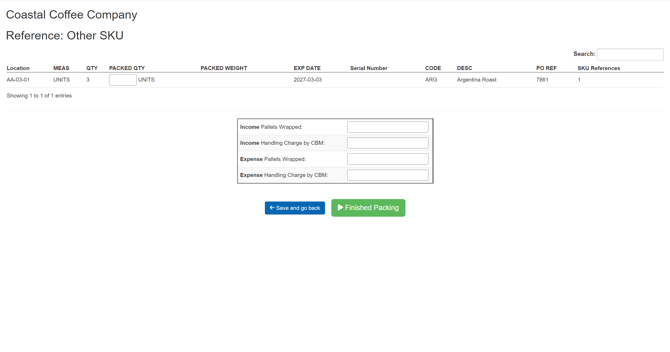
You will then be directed to the pack screen for the order you have scanned.
-
You will now be able to pack the order on the web app.