
Table of Contents
Moving stock with the web app and a scanner
Navigate to the Scan-Move Purchase Order Products page by selecting Warehouse in the main menu followed by Scan Allocate / Move.
Ensure the scanner you are using is paired to the computer and turned on.
Now select the only field on the page to enter data into. Scan the location you are moving from or the pallet label.
Next, scan the location you are moving the stock to.
A success status will appear provided the move occurred without fault.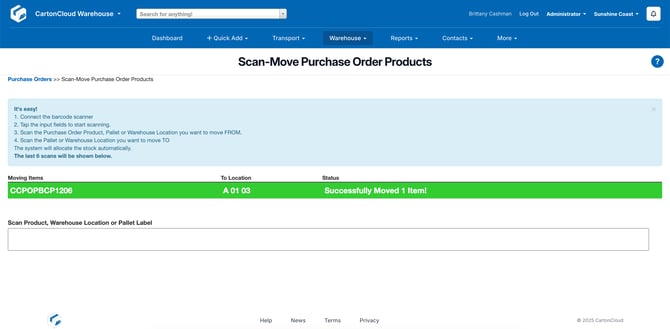
Moving stock with the web app and no scanner
This is the same process as above when moving stock with the Web App and a Scanner. However, instead, you will need to:
- Manually type the Purchase Order Product, Warehouse Location or Pallet Label to move from into the box and press enter
- Then type in the target locations and press enter
A success status should appear provided the move occurred without fault.