
Table of Contents
- Purpose
- Loading sale order adhoc charges
- Where to submit sale order adhoc charges
- Editing and saving adhoc charges
- Running adhoc charge timers
Purpose
Within the CartonCloud mobile apps, pickers can choose to submit Adhoc Charges against Sale Orders, assuming that Adhoc Charges for the Sale Order have been configured in the web app.
Loading Sale Order Adhoc Charges
Sale Order Adhoc Charge details get loaded when the user selects a Sale Order from the list of Sale Orders. Existing values for Adhoc Charges will not be deleted on re-loading a Sale Order unless a newer Adhoc Charge value is available in the CartonCloud system. Running timers are never deleted when refreshing from the server.
This makes it possible to preload Adhoc Charges for Sale Orders in the web app that will appear on the picker's mobile app on loading a Sale Order and entering the Adhoc Charge view for a Sale Order.
For more information on how to Adhoc Charges in the CartonCloud web app, check out these articles: Adhoc Charge Setup, View Rate Card.
Where to Submit Sale Order Adhoc Charges
Sale Order Detail View
On viewing a Sale Order's details, if there are adhoc charges available, an additional menu tab will be available. Simply swipe from right to left on the tab bar and you will see the Adhoc Charges option. Tap this button and all relevant adhoc charges will be displayed.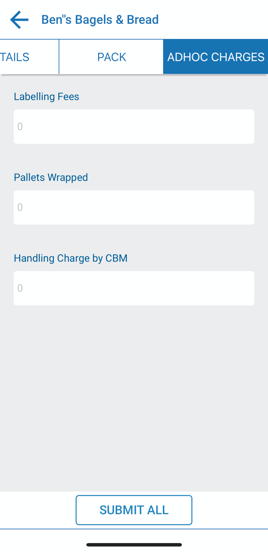
On Finishing Packing
On selecting Finish Packing from the bottom bar when viewing a Sale Order, if there are Adhoc Charges available for this Sale Order, an additional Adhoc Charge view will be shown to allow the user to adjust and save Adhoc Charges for the completed Sale Order.
For more information on the Sale Order, Packing Process check out this article: Scan Picking Process
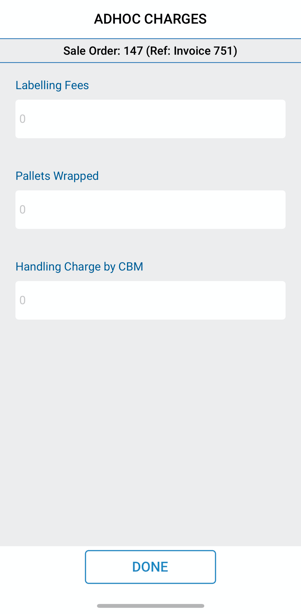
If the Sale Order has been set up to automatically generate a Consignment for the Sale Order upon finishing packing, the Adhoc Charges view will be displayed before the Consignment label printing view or the Consignment items vide (depending on settings configured) is displayed. On closing the Adhoc Charges view, the label printing view will be displayed.
If you do not wish to see the adhoc charges view upon completing a pick you can disable this function in Organisation Settings by following the below steps;
-
Navigate to Organisation Settings, More>Organisation Settings.
-
Select the Warehouse tab
-
Under the Sale Order Configurations heading and then the sub-heading Mobile App Configuration, untick the Enforce Adhoc Charges before completing Pick box to disable the function.
Editing & Saving Adhoc Charges
Check out this article with more information on the different types of adhoc charges and how to edit & save them: Consignment Adhoc Charges - Editing & Saving Adhoc Charges
Running adhoc charge timers
Check out this article with more information on how running adhoc charge timers are being displayed and what actions might be required on leaving a Sale Order detail view with a running timer: Consignment Adhoc Charges - Running Adhoc Charge Timers
Note: The above-mentioned article is talking about Adhoc Charges for Consignments but the handling of running Adhoc Charge timers is equivalent to the Sale Order behaviour.