Table of Contents
Purpose
Within the CartonCloud mobile apps, drivers can choose to submit Adhoc Charges against Run Sheets, assuming that Adhoc Charges for the Run Sheet have been configured in the web app.
Loading run sheet adhoc charges
Run Sheet Adhoc Charge details get loaded when the user refreshes the Consignment list. Existing values for Adhoc Charges will not be deleted on refreshing Consignments unless a newer Adhoc Charge value is available in the CartonCloud system. Running timers are never deleted when refreshing from the server.
This makes it possible to preload Adhoc Charges for Run Sheets in the web app that will appear on the driver's mobile app on refreshing Consignments and entering the Adhoc Charge view for a Run Sheet.
For more information on how to Adhoc Charges in the CartonCloud web app, check out these articles: Adhoc Charge Setup, View Rate Card.
Where to Submit Run Sheet Adhoc Charges
First step to be able to submit Run Sheet Adhoc Charges is to display Run Sheets in the consignment list.
For more information on how to split the consignment list by Run Sheets, check out this article: Consignment Sorting And Filtering - Run Sheet
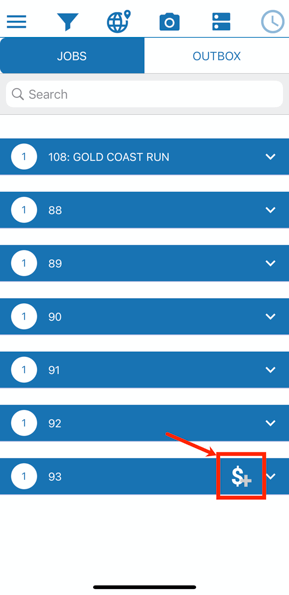
Once the consignment list is separated by Run Sheets, any Run Sheet that has the option of submitting Adhoc Charges against it will display an appropriate Adhoc Charge button on the right-hand side, next to the up/down arrow.
An Adhoc Charge timer can be kept running while navigating away from a Run Sheet Adhoc Charge View. It will keep running until stopped or until the Run Sheet is no longer visible in the job list.
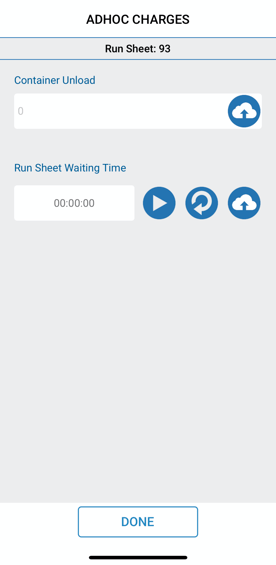
On selecting the Run Sheet Adhoc Charge button, the Adhoc Charge view will open and present the available Adhoc Charge options.