
Table of Contents
Purpose
This article explains how to return previously dispatched goods back into the warehouse using the Return To Stock (RTS) process. This is done by creating a linked Purchase Order from a completed Sale Order, allowing returned stock to be received and tracked correctly in your warehouse system.
Prerequisites
Before following this process:
-
The goods must have already been dispatched from the warehouse via a completed Sale Order.
-
You must have appropriate user permissions to view and create Sale Orders and Purchase Orders.
-
The product(s) being returned must be part of the original Sale Order.
Benefits
-
Accurately returns goods to available stock levels in CartonCloud.
-
Ensures clear traceability by linking the return to the original Sale Order.
-
Allows you to reprocess or redeliver returned goods using the same product data.
Use Cases
Use this process when:
-
Goods have been delivered but rejected by the customer.
-
A driver has returned undelivered items.
-
Stock was sent in error and needs to be returned to inventory.
Steps
- Navigate to Warehouse > Sale Orders.
- Search for the relevant order.
- Open the dispatched Sale Order.
- Click Create RTS Purchase Order at the top of the Sale Order page.
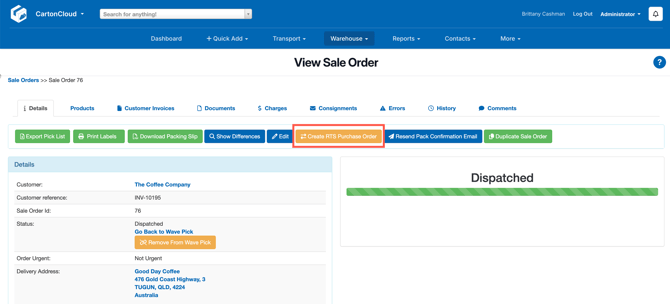
- A new Purchase Order will be generated, with a reference formatted as:
Original Sale Order Reference + "-RTS"(e.g. SO-12345-RTS) - The returned Purchase Order will automatically include all products from the original Sale Order.
- If needed, adjust the product quantities or remove any lines not being returned.
- Receive the returned goods using the standard Purchase Order receipting process.
- If the returned goods need to be sent out again, you can duplicate the original Sale Order.