Table of Contents
Purpose
When creating or editing a Rate Card you will need to set up and configure the appropriate charges. The below explains each charge field and the setting within the Details tab of the Rate Card. 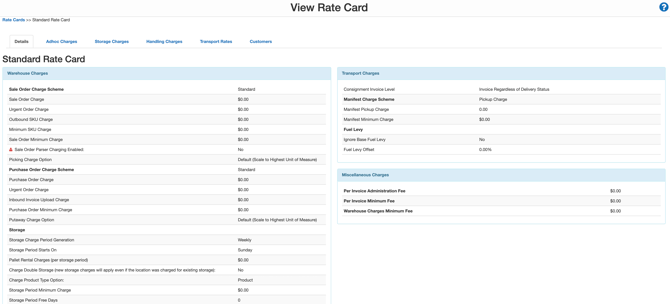
Warehouse Charges
Sale Orders
|
Name |
Description |
|
Sale Order Charge Scheme |
The default method of charging used: Standard - Charges Per-Order Fees, Handling Fees Etc Percentage of Value - Charges % of the Sale Order Value. For instance, if the value of the Sale Order is $200, and the % of Sale Order Value is 5%, a $10 charge would be applied for picking/packing. |
|
Sale Order Charge Percentage |
Note: Only displays if "Percentage Of Value" is selected above. |
|
Sale Order Charge |
A Per-Order Administration Fee |
|
Urgent Sale Order Charge |
The additional charges to be applied to the order if the customer selects that the order is Urgent |
|
Outbound SKU charge |
The charge for each different SKU (different product) added to the order. For example, picking 100 boxes of one product would normally be faster than picking 1 box each of 100 products, so the SKU charge is implemented to cater for this. |
|
Minimum SKU Charge |
If the picking (handling) fees for a particular SKU (Product Code) come out to less than this amount, the Minimum SKU charge will be applied and increase the charge for the Picking. For example, if you have a Minimum SKU Charge of $5. And then you pick 1 x Product SKU (ITEM-12345), which would be a picking fee of $2.00 - the Minimum SKU Charge of $5 will apply and add another $3.00 to the picking fees. The Minimum SKU Charge applies "PER SKU". So if you have two products being picked, you may end up with two additional charges if each product does not meet the Minimum SKU charge. |
|
Sale Order Minimum Charge |
The minimum charge for a Sale Order. For example, if the minimum charge is set to $10, and all other charges added together come to $7, then the minimum charge would push the total price up to $10. |
|
Sale Order Parser Charging Enabled |
This provides an override to how Warehouse Handling Fees and Stock Selection are calculated when importing a Sale Order via Parser. Under this scenario, the picking charges will be calculated based on the Units of Measure specified in the import file. For example, if a client requested that 6 Units of a product should be sent, and that product has a conversion which is 6 Units Per Carton, then normally the system would charge a Carton Picking Fee. However, with Sale Order Parser Charging Enabled, the system will force the charges to be for 6 units. |
|
Picking Charge Option |
|
|
Sale Order Invoice Level |
Dictates at what status a Sale Order will be Invoiced to the customer:
|
Purchase Orders
|
Name |
Description |
|
Purchase Order Charge Scheme |
The default method of charging used:
|
|
Purchase Order Charge Percentage |
Note: Only displays if "Percentage Of Value" is selected above. |
|
Purchase Order Charge |
A Per-Order Administration Fee |
|
Inbound Invoice Upload Charge |
Charges for uploading an Invoice file, or Document, into CartonCloud on behalf of the customer |
|
Urgent Purchase Order Charge |
The additional charges to be applied to the order if the customer selects that the order is Urgent |
|
Purchase Order Minimum Charge |
The minimum charge for a Purchase Order. For example, if the minimum charge is set to $10, and all other charges added together come to $7, then the minimum charge would push the total price up to $10. |
|
Putaway Charge Option |
See Purchase Order Handling Fee Algorithm |
Storage Charges
|
Name |
Description |
|
Storage Charge Period Generation |
The period for which you wish to charge storage. Storage is typically charged Weekly, but you could set this to a value such as 1 day to calculate storage charges daily. Other options include Monthly/Fortnightly and a new option of Disable if you require no storage to be charged. |
|
Storage Starts On |
Based on the selection of the Storage Charge Period, options are Day of the week (Mon-Sun for Weekly/Fortnightly) or Date of the Month (1-28 for Monthly) |
| Split Month Discount | With this set to yes, you have the option to provide customers a discount for if/when stock comes into a warehouse location later in the first month, leaves early in its final month of storage or for both. |
| Discount applicable for |
|
| Days before split occurs | The number of days into the storage period after which the split should occur. This will define when stock is considered in the split period and the discount is applied. For example, if you set the days to 20, any stock that comes in after 20 days of the month will be considered in the second split period and receive the percentage discount off the storage rates. |
| Percentage discount | The percentage discounted from the storage rates. The percentage is only applied to stock that is allocated to a warehouse location post the day the split occurs. |
|
Pallet Rental |
If you charge clients an additional fee for Pallet Rental such as CHEP for example, this can be entered here. This fee will apply for every warehouse location that is in use for the Storage Charge Days nominated. e.g. if 7 then this pallet rental value will be charged once every 7 days. |
|
Double Charge Storage |
New storage charges are applied even if the location was charged for existing storage. This means that if a location was in use at the start of the storage period, and then new stock arrived and went into the same location, it will be charged again as 'New Storage'. This also applies if the location was in use at the beginning of the storage period, then went empty (stock went out), and then more stock was put into the location. By enabling 'Double Charge Storage', you'll charge the location once for the existing product, and again for the new stock coming in. |
|
Charge on Split |
Charge storage immediately when splitting or partially moving stock. If disabled (default), stock which is split or partially moved inside the warehouse within a given storage period does not begin charging for those new locations until the next storage period begins. The locations will only begin charging on the next storage period and are labelled as "Existing" Storage. If this is enabled, split and partially moved stock commences storage charges as "New" storage immediately upon the movement in exactly the same way as new stock entering the warehouse for the first time would be charged as New storage. Note that full stock movements do not trigger additional storage, the additional charges will only come into play if the stock is split between two or more locations. |
|
Charge Product Type Option |
Both Products and Warehouse Locations have a product type which controls the Storage Rates used. If, for example, you have an ambient product but temporarily store it in a Chilled location, you would probably still want to charge the Ambient Rate. In this circumstance, the Charge Product Type should be set to 'Products', as the Products product type is used to determine the charges. However, if you operate a warehouse which is all ambient, but you charge differently for Racked Locations vs Block Stacking (for example), you would want to charge based on the Warehouse Locations Product Type, rather than the Products Product Type - as all products will be 'Ambient' but you may have some locations setup as 'Block Stack' or 'Racked'.
Note: Not all Storage Charge Method take this setting into effect, for example, Item based Storage charges charge the same rate irrespective of the Product Type of the Warehouse Location the product is stored in. For a complete list of which charging methods are affected by this setting, refer to: Rate Card - Storage Charges |
|
Storage Period Minimum Charge |
The minimum charge for a Storage Period. For example, if the minimum charge is set to $600, and all storage charges added together come to $500, then the minimum charge would push the total price up to $600. |
|
Storage Period Free Days |
The number of free days storage to give to stock. For example, if you set this to 3 and stock arrived into your Warehouse on a Monday, then storage would begin charging on the Thursday. See "Setting the number of free days within a Storage Period" for more info. |
|
Default Unit Of Measure Storage Aggregation |
The default storage aggregation option if using unit of measure storage charge method. This can be overridden at the product settings. See here for more information. |
|
If any Per Location Storage Charge Methods are used - should all stock on a Single Pallet Locations be combined into a single charge? |
Yes - If using Per Location or Per Location (and bulk pallets) storage charge method and stock is in a single pallet capacity warehouse location, then storage charges will be calculated on the assumption that there is only 1 pallet in the location, even if multiple pallets are present. This means there will be only one pallet charge for the location even if there are multiple pallets in the location. No - If using Per Location or Per Location (and bulk pallets) storage charge method and stock is in a single pallet capacity warehouse location and there are more than 1 pallet in the location, treat each pallet individually and charge for each pallet in the location. This means that each pallet that is in that location will be charged. |
Transport Charges
Consignments
|
Name |
Description |
|
Consignment Charge Scheme |
The default method of charging used for new Consignments. You can modify this manually on a per-consignment basis, but by default consignments added through the web interface, or imported from a manifest will use this Charge Scheme.
|
|
Consignment Rate Per Hour |
Default per-hour rate used if the Consignment is using Hourly Charge Scheme |
|
Consignment Rate Per Km/Mile |
Default per-(Km/Mile) rate used if the Consignment is using "Distance-Based" Charge Scheme |
|
Consignment COD Collection Charge |
Charges for collecting Cash On Delivery. Note: Cash On Delivery is charged when a "Cash On Delivery" is saved against the consignment |
|
Consignment Group Charging |
Whether to charge Groups or the Individual Consignments within Groups. For example, you may have two consignments of 1 carton each which have been grouped together into a single consignment of 2 cartons. You can choose whether to charge the Group itself or the Children within the Group. This is important if you have minimum delivery charges, as a group would incur only 1 minimum, however, the two consignments would incur two minimums. Yes - Charge Consignment Groups No - Charge Individual Consignments |
|
Consignment Invoice Level |
Dictates at what stage a Consignment will be Invoiced to the customer. "Completed" means any final delivery status (ie: it cannot progress further): "Delivered", "Collected", or any of the Error Statuses such as "Lost", "No Stock / Never Arrived" etc.
|
|
Charge for Returns |
As per Consignment Types, should "Return" type consignments be charged to the customer or ignored. |
|
Consignment Minimum Charge |
The minimum charge for a Consignment. For example, if the minimum charge is set to $10, and all other charges added together come to $7, then the minimum charge would push the total price up to $10. |
|
Apply Fuel Levy to Minimum Charges |
Whether fuel levy should be applied to Minimum Charges. Using the example above, should Fuel Levy be applied to the additional $3 charged. |
Fuel Levy
In CartonCloud there are multiple levels at which the fuel levy can be adjusted as listed below.
Additionally, control over whether a fuel levy is applied at all is controlled by the Transport Rate.
|
Level |
Description |
|
Base Fuel Levy (Master %) |
|
|
Rate Card Fuel Levy Offset |
|
|
Transport Rate Fuel Levy / Offset |
|
Rate Card Fuel Levy Options
|
Name |
Description |
|
Fuel Levy Offset |
The amount of difference that should be applied to the standard Fuel Levy Fuel Levy offsets can be set on both the Rate Card and Transport lane and will be added together if set on both |
|
Ignore Base Setting |
If you just want to fix the fuel levy for a customer, then setting "Ignore Base Setting" to Yes will cause the Fuel Levy Offset to be applied to a base fuel levy of 0. |
Miscellaneous Charges
For these to appear on the Summary sheet sent to customers, this option under the customer invoice settings must be enabled. To find, go to Customers, Edit Customer, Invoice Tab, then scroll down.
|
Name |
Description |
|
Per Invoice Administration Fee |
An administration fee applied to every Invoice generated, this appears as a separate line item on the Invoice (separate from Freight, Warehousing, Storage etc). |
|
Per Invoice Minimum Fee |
A minimum amount applied to the whole invoice generated, if this amount is not met by the total invoice amounts, an additional charge amount will then be loaded to the invoice to bring the total charged on the invoice up to the amount specified here. |
|
Warehouse Charges Minimum Fee |
A minimum amount applied to the warehouse charges generated (this is Handling Pick Page Charges and Storage Charges), if this amount is not met by the total warehouse charges amount, an additional charge amount will then be loaded to the invoice to bring the total charged on the invoice up to the amount specified here. |