
Table of Contents
What is a rate card
A Rate Card determines what prices your Customer will be charged for your Warehouse and/or Transport services. It also contains the settings that determine how the charges will be applied. Every Customer in CartonCloud has a Rate Card associated with it. By default, the Rate Card associated will be the Default Rate Card, however, you will be able to change this.
For an overview of how charging in CartonCloud works, see the Customer Charges / Rate Cards Overview page which is part of our setup guide.
Add a rate card
For instructions on how to add a Rate Card please see Add/Duplicate a Rate Card for more information.
Edit a Rate Card
- Select the relevant Rate Card.
- Scroll down and select the blue Edit button.
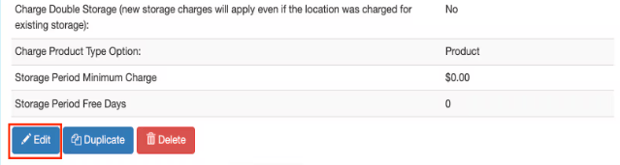
See Rate Card Charge Descriptions for information on what each field is.
Delete a Rate Card
Rate Cards can not be deleted unless they have never been associated with a Customer. If the Rate Card has never been associated with a Customer then you have the ability to delete it however, once it has been associated with a Customer you will not be able to delete it.
To delete a Rate Card that has not been associated with a Customer:
- Navigate to the relevant Rate Card.
- On the Details tab, scroll down and select the red Delete button.
Rate Cards Page
To navigate to the Rate Cards page:
- Select More from the top menu bar and then Rate Cards.
- From here you will be able to add new Rate Cards, export Rate Cards, see all Rate Cards and the number of Customers associated to them.
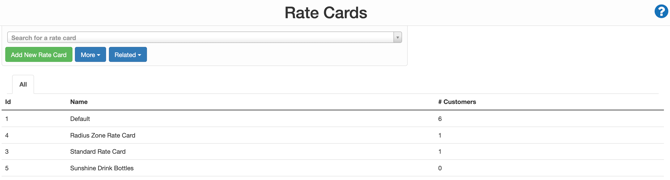
| Button | Explanation |
| Add New Rate Card | To add a new Rate Card. See Add/Edit Rate Card for more information. |
| More | Export Rate Cards: Allows you to export the details for your entire list of Rate Cards. This can then be updated in bulk and reimported. See below for more information. |
| Related | Provides options for importing/exporting information from your rate cards which can then be updated in bulk. |
Export Rate Cards
- Navigate to the Rate Cards page and select More > Export Rate Cards.
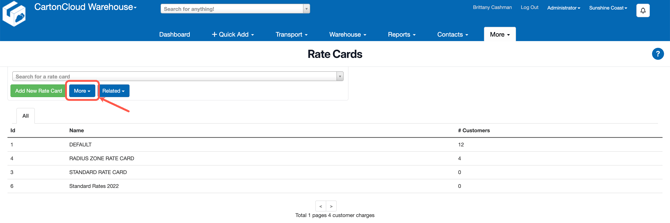
- Open the file and make the necessary changes to the file.
- Save the file.
- Select More>Import Rate Cards.
- Select Choose File and Upload File.