
Table of Contents
Purpose
If your Consignment Notes are often more than one page and you are using a QR code to automatically receive and attach a proof of delivery (POD) from onforwarders/carriers to the Consignment within CartonCloud you will need to modify your Consignment Note template to ensure the QR code is on both pages.
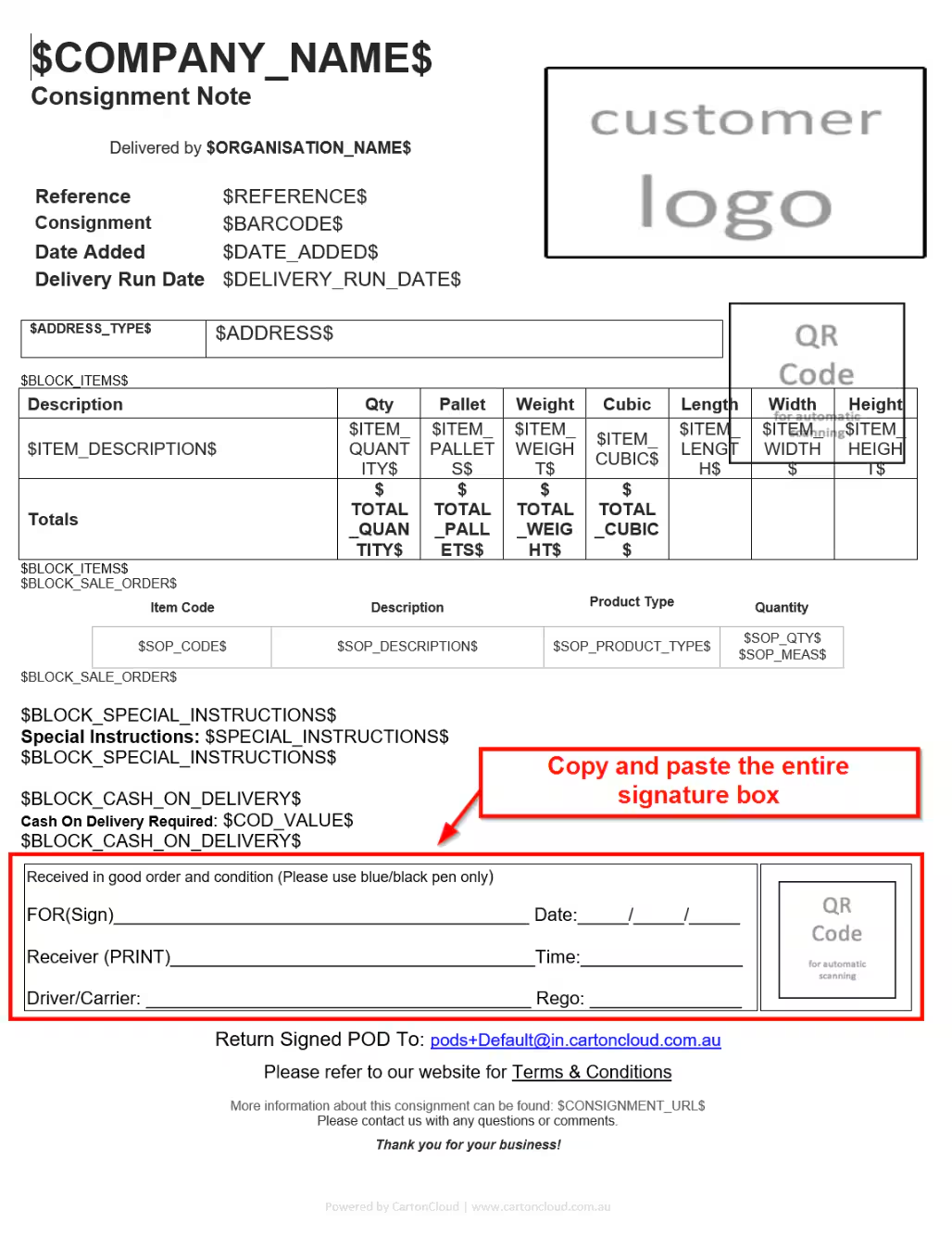
If the POD contains more than one page, only the first page will send and attach to the Consignment as the QR code is only located on the first page. To rectify this issue, the QR code can be strategically placed on the signature box of the Consignment Note template to ensure it is visible on all pages.
How to change the Consignment Note template so the QR code is on multiple pages
Ensure you have followed the steps on Using QR codes to automatically attach a POD to a Consignment before proceeding with the below steps.
Follow the below steps to modify the Consignment Note template:
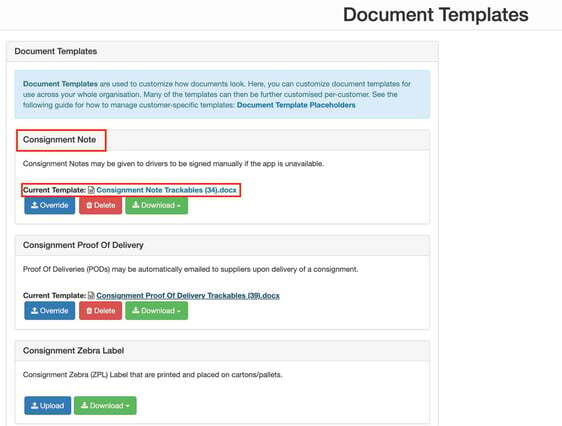
- Navigate to Document Templates by typing Document Templates in the Search for anything bar.
- Download your current Consignment Note template.
- Using the below template (that has the QR code in the signature box), copy and paste the new signature box onto your existing template.
- Save your new template that now includes the QR code in the signature box.
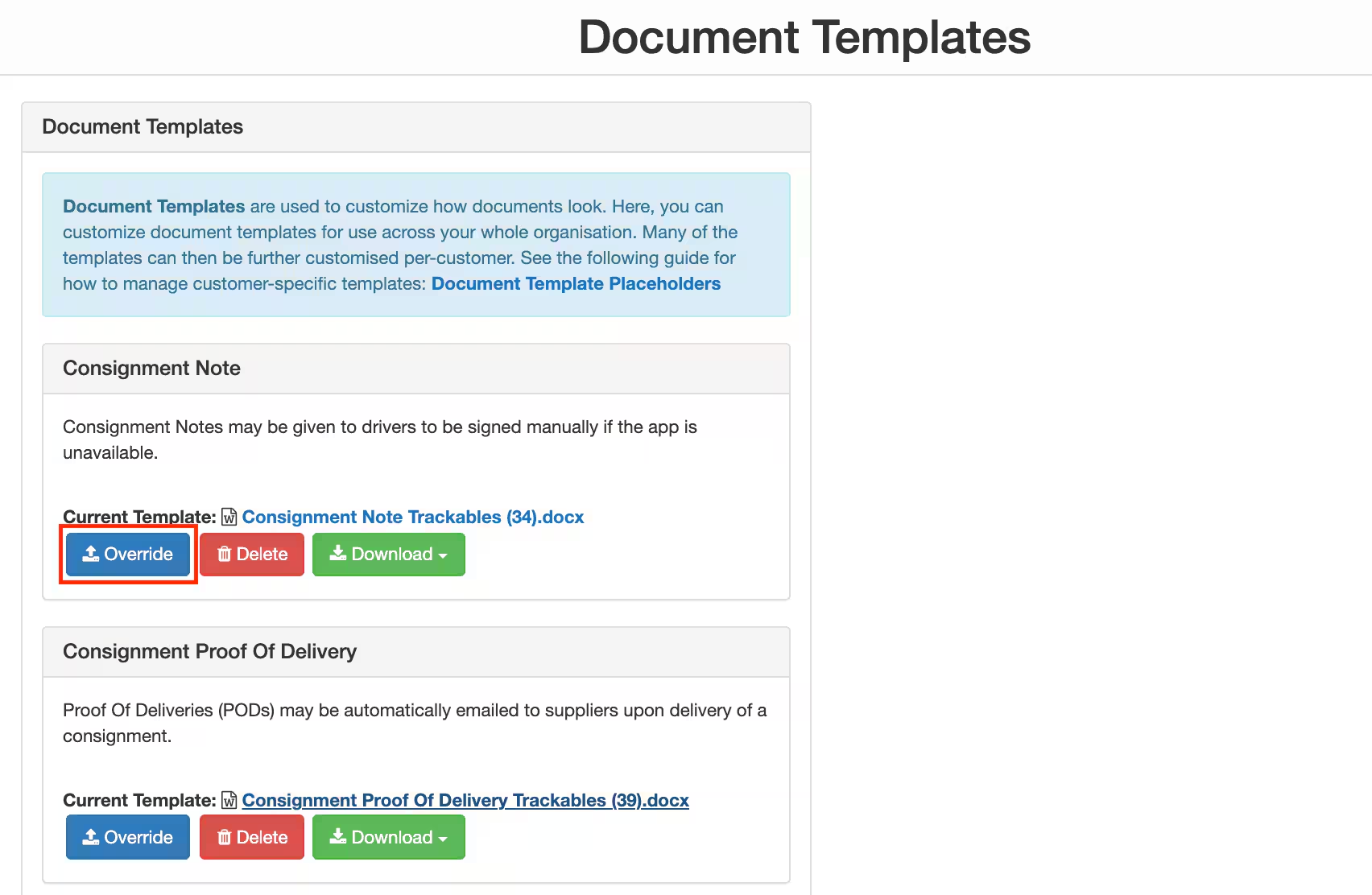
- On the Document Template page, select Override for the Consignment Note template.
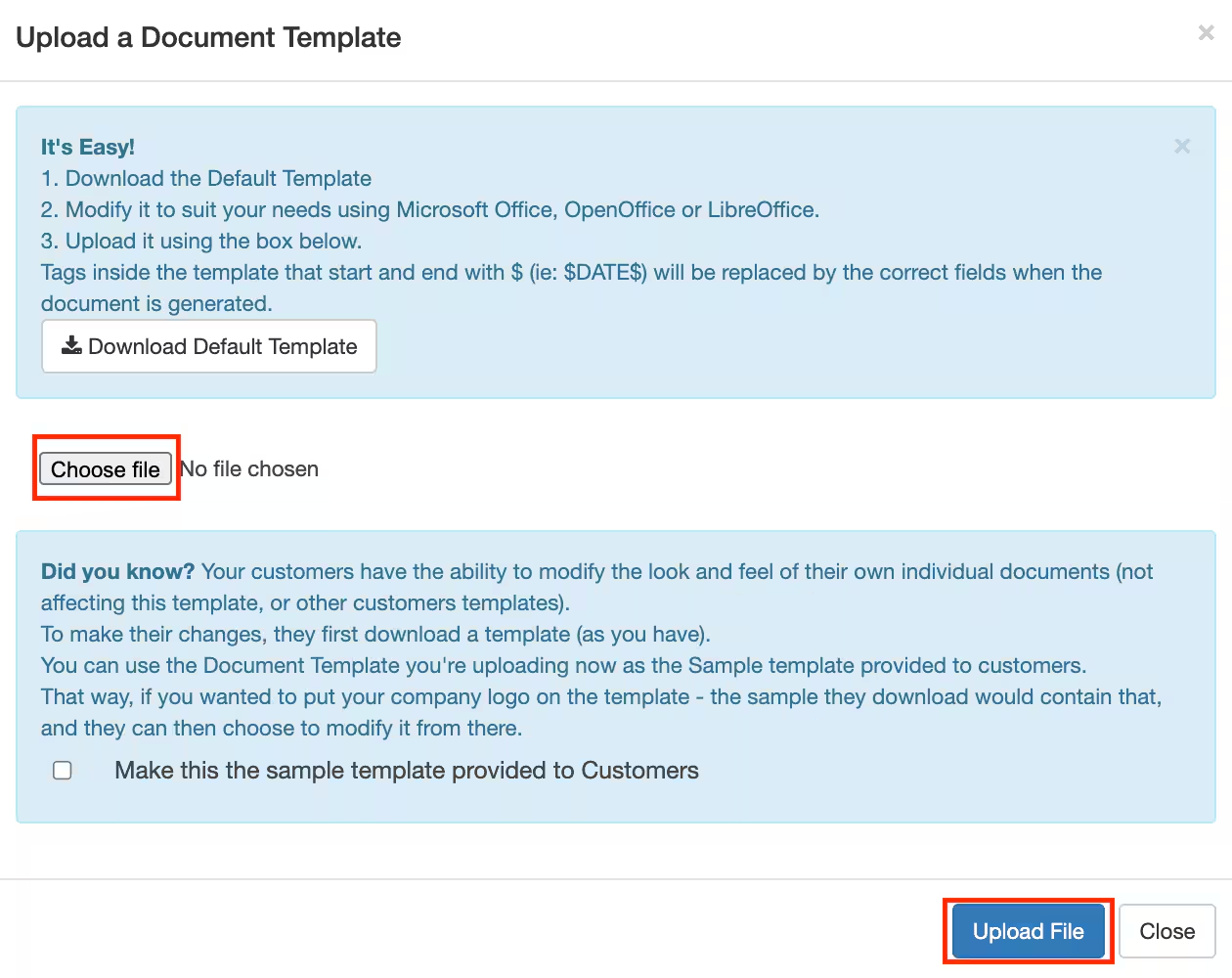
- Select your newly created template and select Upload File.
- The QR code will now be placed on each page of your Consignment Note and therefore, all pages will automatically be received and uploaded to the Consignment when the QR code is utilised by onforwarders/carriers.