
Table of Contents
- What is a Purchase Order
- Benefits of Purchase Orders
- How to add a Purchase Order
- Viewing a Purchase Order
What is a Purchase Order?
A Purchase Order is an order with stock coming into the warehouse. In order for the stock to come into the warehouse and be processed, a Purchase Order must be created first.
Benefits of Purchase Orders
- Allows you to more easily track your orders and inventory
- Record custom data against the orders and stock, for example, batch numbers, serial numbers, SSCC.
- Keeps record of what was expected to be received and what was actually received.
- Allows for notifications to be sent out for certain events during the order process.
How to add a Purchase Order
There are a number of different ways a Purchase Order can be added to the system. It is highly recommend that orders are created automatically via a Parser or Integration. If you would like to be set up with a Parser or Integration please reach out to your CartonCloud account owner (3PL provider) or reach out to the CartonCloud team for more information via CartonCloud Help .
- Navigate to the Purchase Order page, Warehouse > Purchase Orders.
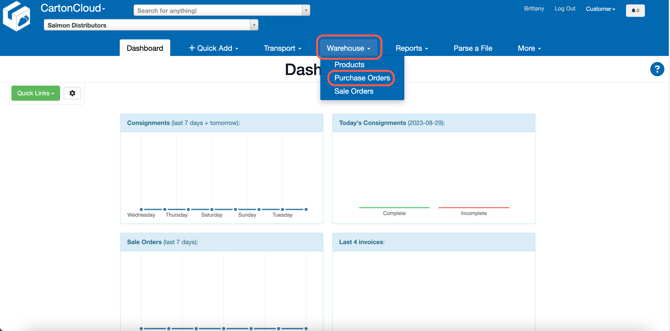
- Click +Add Purchase Order.
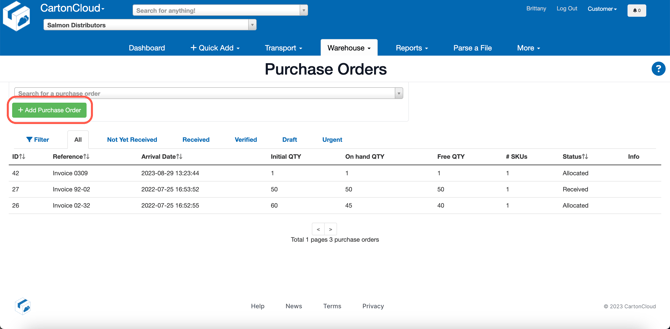
- Select the:
- Arrival date: date the stock will be arriving at the warehouse
- Customer reference: this is the key reference for the order.
- Special instructions: any special instructions for the order
- Click Save.
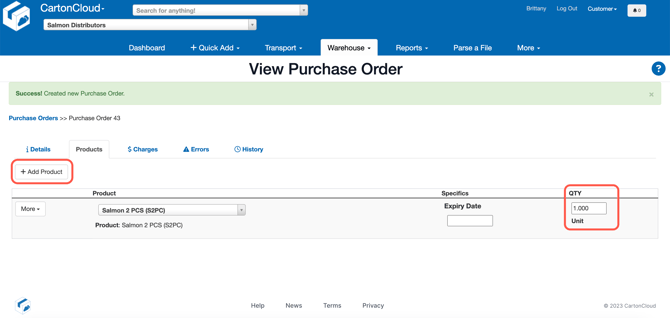
- Click +Add Products to Purchase Order.
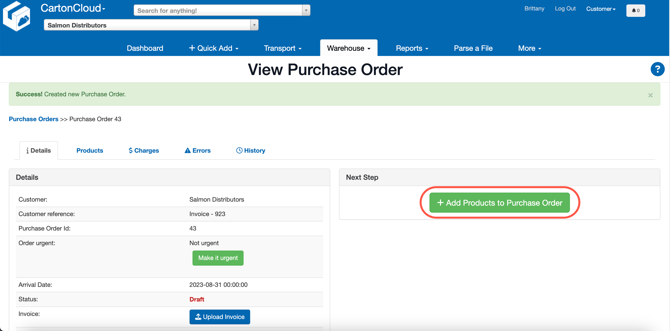
- Type in the name of the product you wish to add to the order and click Create.
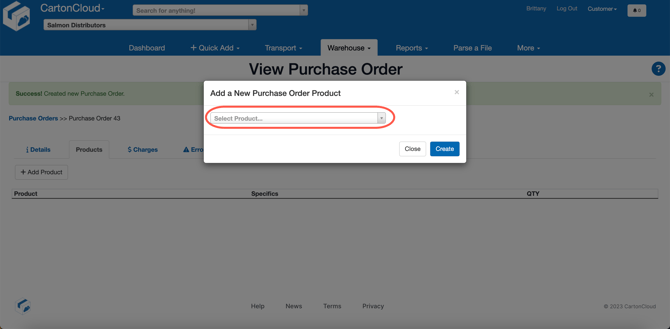
- Update the quantity of the product.
- To add more products, click the +Add Product button in the top left.
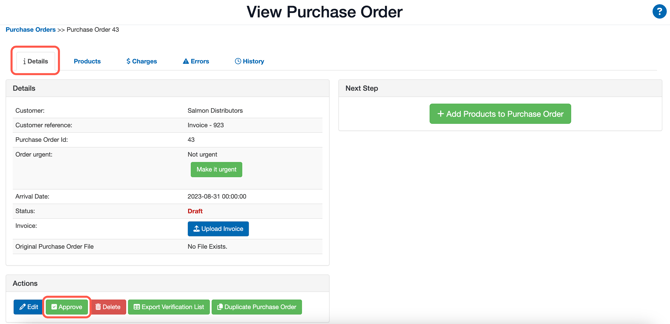
- Once you have finished adding the products to the order, click the Details tab and then the green approved button at the bottom of the screen. Once the order is approved changes can not be made unless you contact your 3PL/CartonCloud account owner.
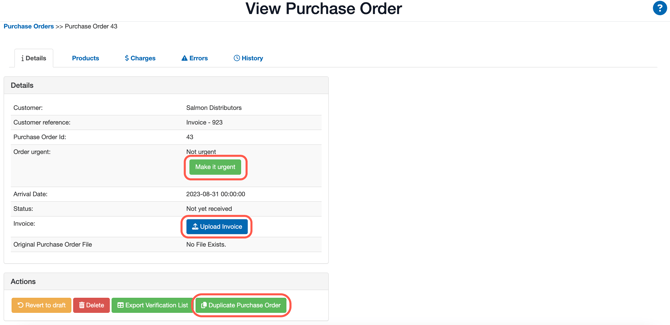
- The order is now approved and ready to be processed once it arrives to the warehouse.
- You can still mark the order as urgent, upload an invoice or if you wish to add another order you can duplicate the order.
Viewing a Purchase Order
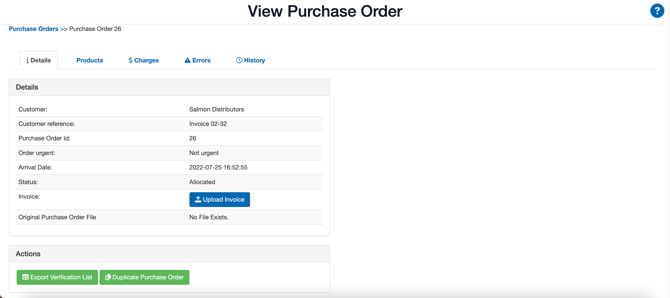
You can use the different tabs on the order to navigate to different information relating to the order.
- Details tab: basic details surrounding the order.
- Products tab: details of the stock on the order. List of products and the relevant data for each line of stock.
- Charges: charges associated with the order and the relevant invoice the order is associated with.
- Errors: any errors with the order.
- History: history of status changes of the order.