Table of Contents
- Purpose
- Benefits
- Use cases
- Set up requirements
- How uniqueness is checked
- How to record unique references on inbound
Purpose
Allow users to record unique references (ie: serial number), either by scanning or inputting the data against stock coming into the warehouse (via a Purchase Order).
Uniqueness is checked per Product — the same reference can be used for different Products, but not reused on another unit of the same Product while it still has on-hand quantity.
Benefits
- Allows you to record unique references against the base unit of measure (smallest unit of measure) of a product
- Improves tracking accuracy of items
- Allows for data captured on the inbound process to be validated on the outgoing process (as items leave the warehouse)
- More accurate traceability of all items (not just the purchase order as a whole)
- Assist with any recall process or warranty claims
- Provide greater visibility to your customers on their inventory
- Better meet customer requirements for recording custom and unique data against stock
Use Cases
- A pallet comes into a warehouse with 30 individual items and each item needs a serial number scanned against it.
- Wanting to group individual items together on a pallet and use a single pallet barcode to move the items into a warehouse location
- Unloading a container to multiple pallets and locating each pallet to a location
Set up requirements
Inbound unique reference scanning is set up from a customer level and at the purchase order product custom field. To enable inbound unique reference scanning:
- Navigate to the relevant Customer, Contacts > Customers.
- Click Edit.
- Select the Warehouse Management > Purchase Order Products tab.
- From the relevant Custom Field, enable the below settings:
- Enforce unique values
- Split to lowest Unit of Measure
- Make this a required step
- OR you can select Serial Number captured on Inbound and Verified on Outbound from the Configuration Type. Choosing this option will ensure all of the correct settings have been selected.
- Scroll down and select Save.
Please note, Is required can be set to optional at the customer purchase order product custom field but must be required at the product level (for the product you wish to enable inbound unique reference scanning for). To make this change at the product level you will need to edit the relevant product and scroll to the bottom under Modify Purchase Order Product Fields.
How uniqueness is checked
- Enforce unique values enabled must be unique among Purchase Order Products of the same Product that still have on-hand quantity.
- The same value can be reused on a different Product for the same Customer.
- This does not apply to SSCC Custom Fields — SSCC values must remain unique across your entire CartonCloud account.
How to record unique references on inbound
Video instructions
Written instructions
- Select the Putaway user mode.

- Select the relevant Purchase Order you wish to receive in.
- Click Receive.
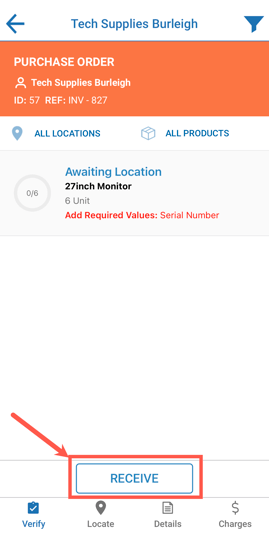
- Tap the product. If the quantity is greater than the product's pallet quantity (defined against the product) you can split the product into pallet quantities. It is suggested that you do split the quantity into pallet quantities as this will make it easier when you need to move and locate the pallet.
- Click the three dot action icon in the top right and click Bulk Split.
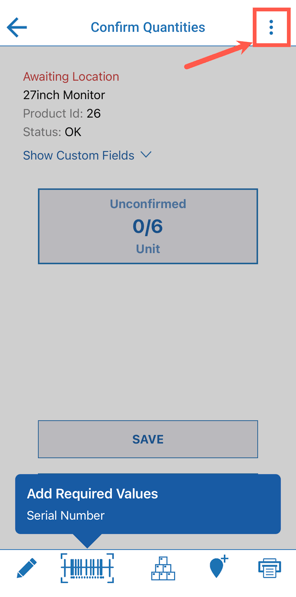
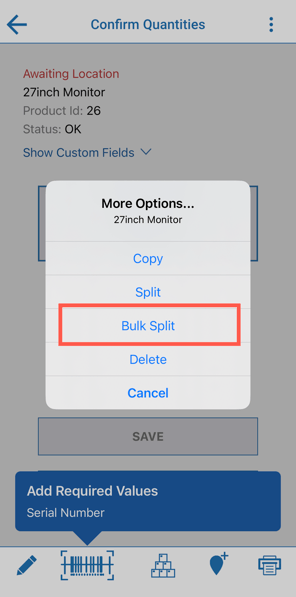
- The pallet conversion quantity will show, this is the quantity it will be split by. If you wish to change it, edit the number. Tap Bulk Split.
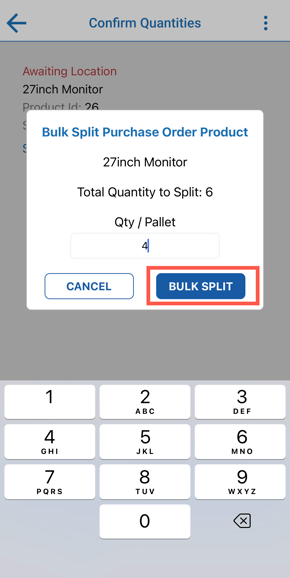
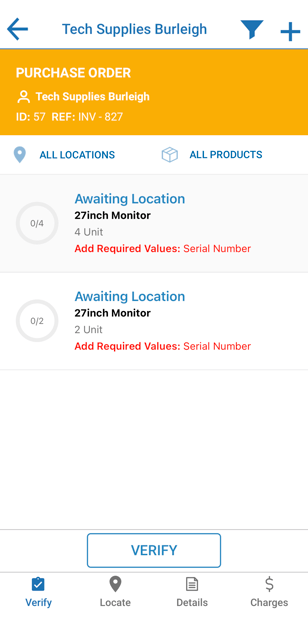
- You will now see individual lines of product for each pallet. Select a pallet to verify
-
Select a line of product to start recording the unique references against the stock.
- From this screen, you can then choose to assign a pallet barcode and/or print a pallet label by clicking the pallet icon. For more information please see Pallet Handling.
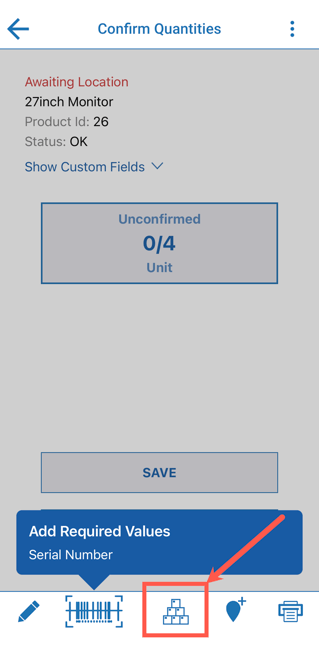
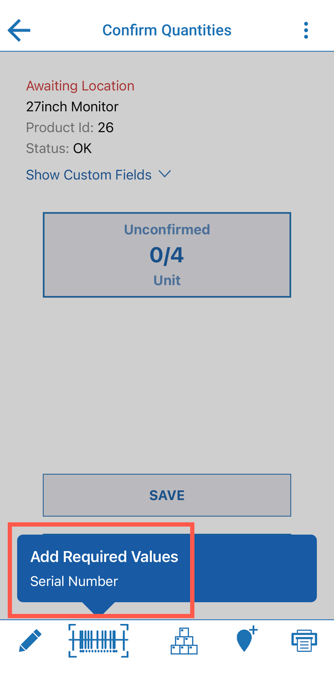
- In the bottom left corner a barcode icon with the pop up message 'Add Required Values' will appear for the fields that are marked as required. ie: Serial Number. Tap the pop up message or the barcode symbol below it.
- Scan or type in the unique reference field, in this case the Serial Number and click Submit.
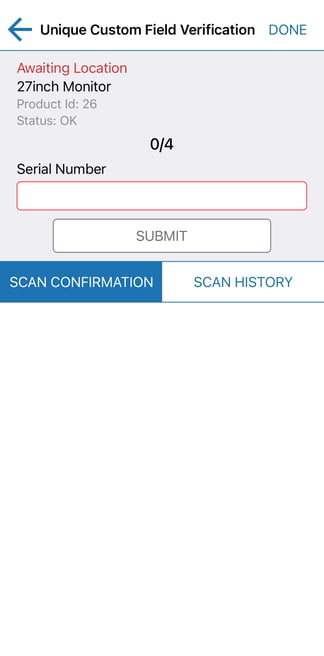
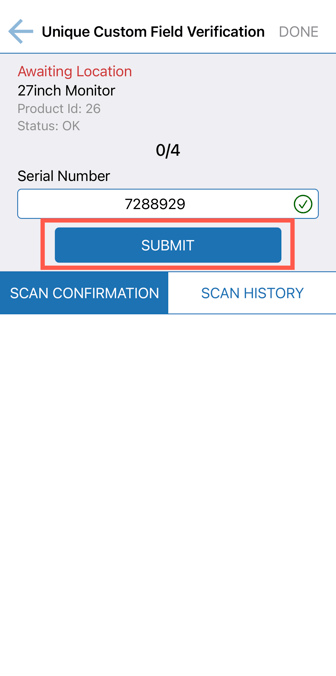
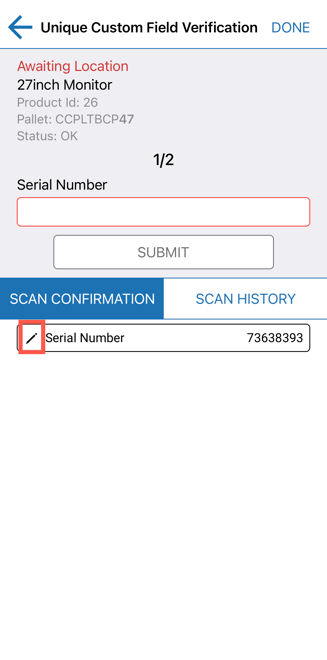
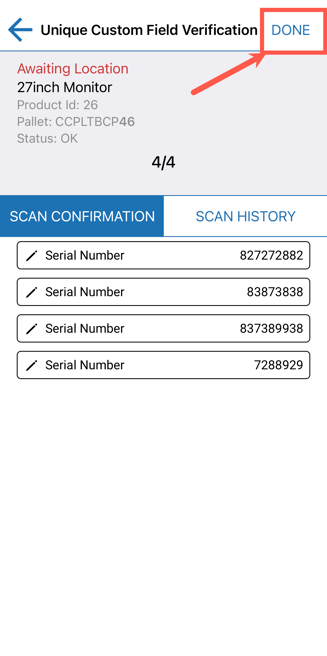
- You will be prompted to scan or input the reference for each individual item. You will be able to see the reference scanned for each item under the Scan Confirmation heading.
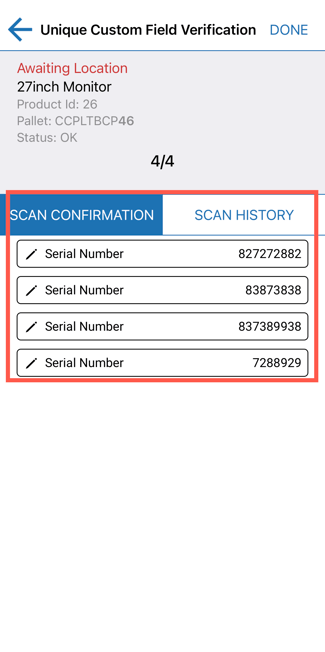
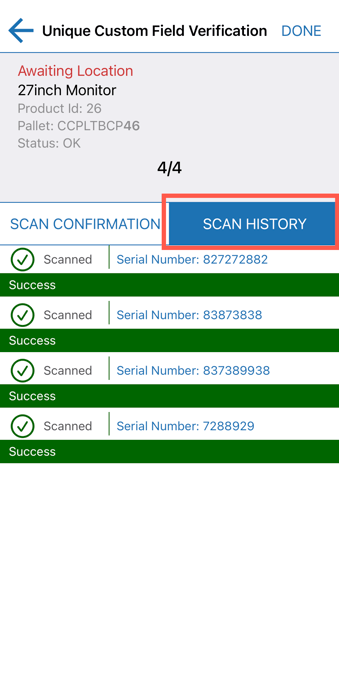
- If you select the Scan History heading you will be able to see each successful and unsuccessful scan and if the field has been edited.
- If you need to edit a field that has already been scanned or remove the scanned value from the group, select the pencil icon against the reference in the Scan Confirmation heading.
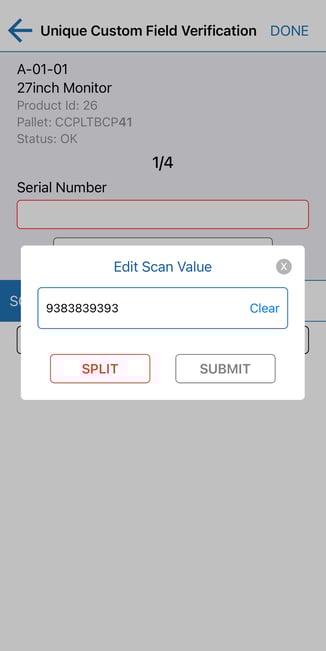
- Make any required changes and select Submit.
- From this screen you can also split the item from the current group after the Unique Reference has been captured. By clicking Split, the selected item will be removed from the original group and have it's pallet barcode removed. This allows you to update the status of individual item, for example if it is found to be damaged or needs to be assigned to an alternative pallet to the original group.
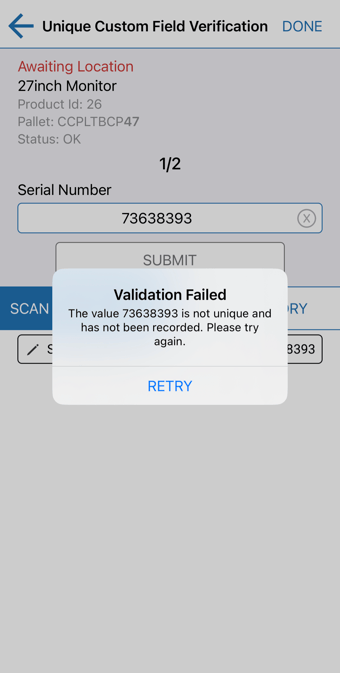
- If you record a reference that already exists on another unit of the same Product with on-hand quantity, you will receive an error message naming the Product, and you will need to enter a different reference.
- Once all items have a reference recorded against it, select Done in the top right corner of the screen.
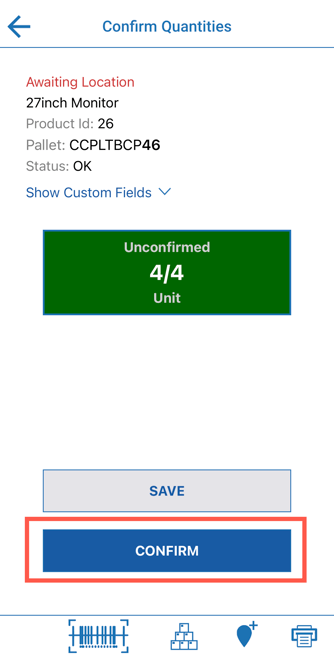
- Click Confirm.
-
Repeat this process for the other pallets.
-
Once you have recorded the data for each item, click Verify.
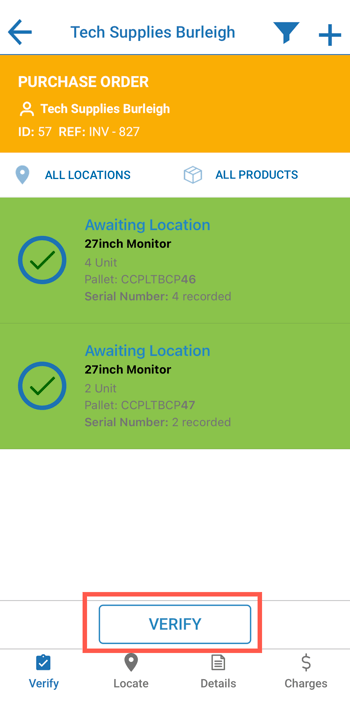
- In the above scenario, each individual item on the pallet has a different unique reference recorded against it, however, they are still grouped together by the same pallet ID.
- You can now locate the pallet, select a pallet to locate.
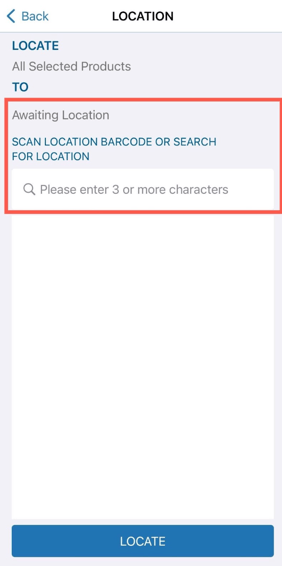
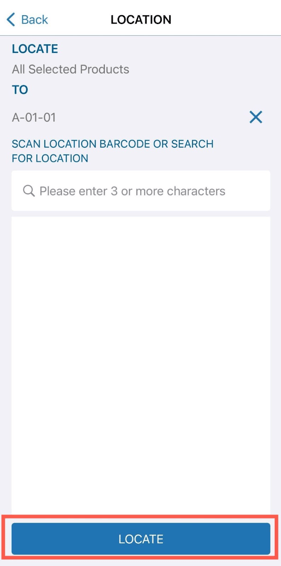
- Scan the warehouse location (or type the location) and click Locate.