Table of Contents
Purpose
Proof of Delivery V2 (Beta) allows drivers to capture more detailed delivery evidence using CartonCloud’s Documents functionality. It provides flexibility by enabling photo and video uploads directly from the mobile app during or before delivery.
This feature is designed to give your team better tools for confirming deliveries, particularly when handling fragile or high-value goods, and ensures clear visual records are available for both internal teams and customers.
Prerequisites
-
You must be using the CartonCloud mobile app version 6.35.0 or higher.
-
POD V2 must be enabled in your Organisation Settings. See here for steps.
-
Documents are split into two tiers: See detailed differences between the two here.
-
Essentials: available to all accounts
-
Advanced: available to Premium accounts. (All accounts are able to trial Advanced Documents for free until April 2026. After this, only accounts with WMS Premium will maintain Advanced Documents and all other accounts will switch to Essentials Documents.)
-
-
Optional: Select a default Document visibility option from: Organisation Settings > Transport Documents.
Benefits
-
Capture up to 100 full-resolution photos and videos (Advanced Documents)
-
Faster image capture (Multi-photo mode, Advanced Documents)
-
Option to require at least one image per POD
-
Ability to submit photos and videos without submitting a POD, useful when loading vehicles
-
Improved offline functionality for drivers
-
Better visibility and audit trail for both customers and admins
Use Cases
-
Deliveries involving fragile or high-value items.
-
Capturing damage evidence before delivery is finalised.
-
Recording proof of vehicle loading for transport compliance.
-
Supporting customer service with visual confirmation.
The difference between Documents Essentials and Advanced
Advanced Documents provides additional capability for higher resolution images, significantly increases the number of attachments per document, provides additional storage capacity and adds other timesaving enhancements.
Advanced Documents is a paid add-on available with WMS Premium. For more information on WMS Premium and to upgrade your account, please reach out to our Service Desk team here.
The detailed differences between the two are outlined below:
|
Essentials Documents |
Advanced Documents |
|
Max 6 images per Document |
Max 100 images per Document |
|
Images are always compressed (POD resolution ~700 kb/image) |
Default to full-resolution Compression options available via settings |
|
Max attachment size 1mb |
Max attachment size 500mb |
|
Video support Multi-photo mode |
|
|
Deleted Documents and attachments cannot be restored |
Deleted Documents and attachments can be viewed and restored by non-customer roles |
|
10gb included storage |
100gb included storage |
|
|
Image Metadata - date, time and location Information (where available) |
Limitations
Please note, this feature is currently in Beta as there are a couple of limitations. These will be addressed in future updates.
-
Photos taken using POD V2 are not attached to delivery emails, and are not included in the POD PDF. Customers can access the photos & videos through the web portal in a new tab, “Documents (new)”.
-
Delivery notifications may be triggered while photos and videos are still being uploaded.
-
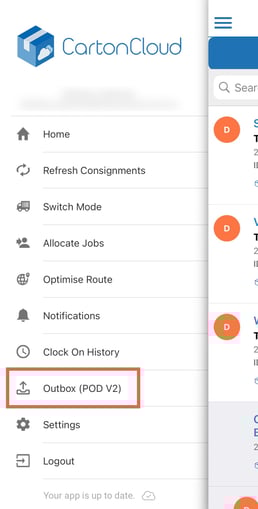
When enabled, the Delivery mode of the mobile app contains 2 Outboxes. The original outbox continues to show pending POD uploads, and there is a new Outbox (POD V2) accessible from the menu which contains pending photo/video uploads. This new outbox also contains documents pending upload from Sale Orders and Purchase Orders.
How to access Proof of Delivery V2 Beta
-
Navigate to More > Organisation Settings > Mobile App.
-
Enable Use POD V2 (Beta).
-
Drivers on app versions 6.35.0 and higher will then see the new POD interface.
How to Steps
You can upload images or videos without submitting a POD, such as during vehicle loading.
To record Documents without the POD:
-
On the mobile app, select Delivering mode.
-
Select the relevant Consignment.
-
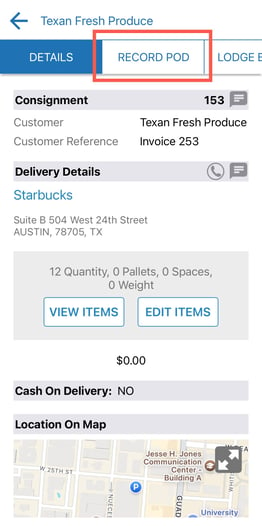
Tap the Record POD tab.
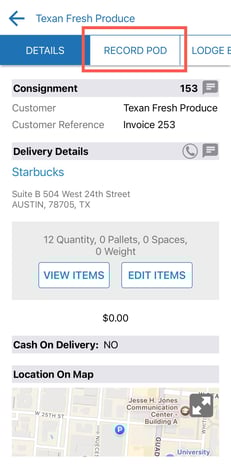
-
Tap the plus icon under Add Invoice Photos.
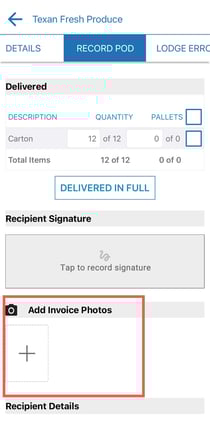
-
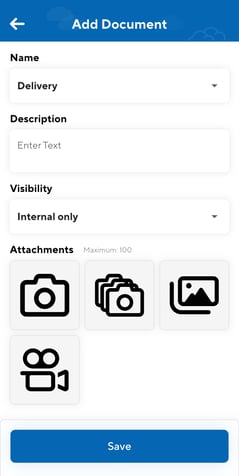
Select a Name for the Document. This does not change the attributes of the document and is for labelling purposes only.
-
Enter a Description.
-
Select the Visibility option.
-
-
Internal only: no customer access. Admins and packers can edit.
-
Shared with customer: customer can view. Admins and packers can edit.
-
-
Upload the attachment using either:
-
Single capture: take one photo using the camera on the device.
-
Multi-capture: rapidly take multiple photos without having to close and reopen the camera.
-
Video: record a video to upload using the camera on the device. By default, sound is turned off when recording the video however, you can turn this on when recording the video.
-
Library: access attachments saved to your device to upload to the Document.
-
-
If you wish to add more attachments, select the plus icon next to the attachment you just uploaded.
-
Tap Save when finished.
You will now be able to see the Documents and the associated attachments against the Consignment on the web app under the Documents tab.
To record Documents with the POD
-
On the mobile app, select Delivering mode.
-
Select the relevant Consignment.
-
Tap the Record POD tab.
-
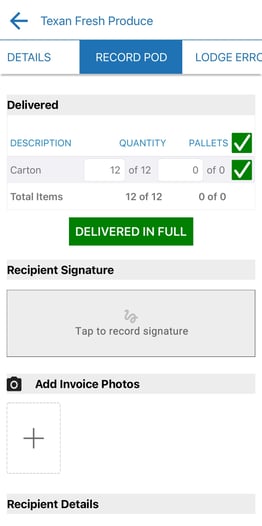
Tick the items that were delivered.
-
Tap to record a signature.
-
Tap the plus icon under Add Invoice Photos.
-
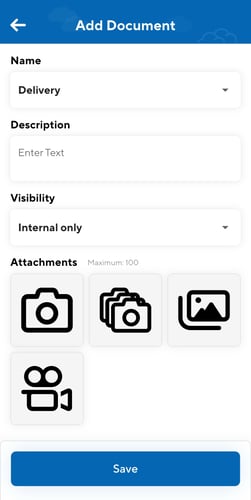
Select a Name for the Document. This does not change the attributes of the document and is for labelling purposes only.
-
Enter a Description.
-
Select the Visibility option.
-
-
Internal only: no customer access. Admins and packers can edit.
-
Shared with customer: customer can view. Admins and packers can edit.
-
-
Upload the attachment using either:
-
Single capture: take one photo using the camera on the device.
-
Multi-capture: rapidly take multiple photos without having to close and reopen the camera.
-
Video: record a video to upload using the camera on the device. By default, sound is turned off when recording the video however, you can turn this on when recording the video.
-
Library: access attachments saved to your device to upload to the Document.
-
-
If you wish to add more attachments, select the plus icon next to the attachment you just uploaded.
-
Tap Save once you have finished uploading the attachments.
You will now be able to see the Documents and the associated attachments against the Consignment on the web app under the Documents tab.
-
Note: the POD outbox is in a different location:
-
Select the menu navigation.
-
Select Outbox (POD V2).
-