
Table of Contents
- What are Products Units of Measure
- Example
- Benefits
- How to steps
- Making changes to Products Units of Measure
- Search for a Product UOM Barcode
What are Products Units of Measure
All products in CartonCloud are measured in a particular unit of measure. Each product contains a Base Unit Of Measure, which is the smallest sellable quantity of the product. CartonCloud uses the Base Unit of Measure to convert the quantity into other units of measure using the conversions set up against the product.
Example
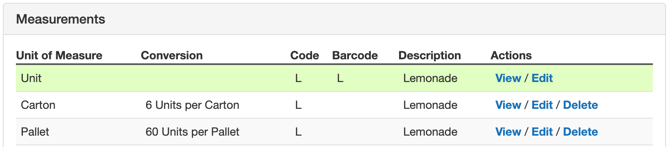
For example, if you sell bottles of lemonade by the individual bottle and in cartons (with 6 bottles to a carton) you can set up conversions from Units to Cartons. Same with pallets, if the lemonade can be sold by the pallet and you have 10 cartons per pallet you can set up a Units to Pallets conversion.
Base Unit of Measure = Units
Conversion = 6 Units Per Carton
Conversion = 60 Units Per Pallet
Benefits
-
Sale Order optimisation will try to prevent breaking larger quantities where possible, so if you have a location that contains 3 bottles, and another with 6 bottles, it'll prioritise taking from the 3 bottles as this cannot be sold as a Carton.
-
Handling charges for both Sale Orders and Purchase Orders will be Scaled automatically. So, if you're picking 6 bottles from a location, it'll automatically charge handling for 1 carton rather than 6 bottles.
-
Pick Lists will be shown in Scaled Quantities (so rather than saying to pick 60 Bottles, it'll say 10 Cartons).
-
Stock Reports can be shown in Scaled Quantities (very useful when dealing with Pallet Conversions).
Note: always set up the base unit of measure as the smallest sellable or trackable quantity of a product
How To Steps
Video Overview
How to create a Product Unit of Measure
-
Navigate to the Products Unit of Measure page by typing Product Units of Measure into the Search for anything bar.
-
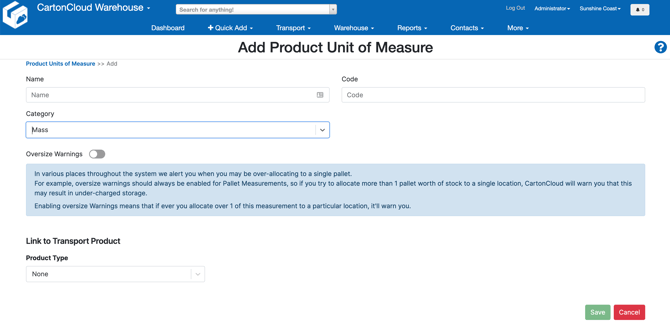
Select +Add Product Unit of Measure.

-
Enter the Name for the Product Unit of Measure and the Code.
-
Select the Category (Mass, Volume, Count).
-
Enable the Oversize Warnings if you wish to be notified of when you may be over-allocating to a warehouse location. See Oversize Warnings for more information.
-
If you wish to link the Product Unit of Measure to a Transport Product/Consignment, see Mapping Product Unit of Measures to Consignment Fields/Transport Products for more information.
-
Click Save.
Oversize Warning
When allocating products to a warehouse location, CartonCloud can be set up to warn you if you try to allocate more than a specific quantity of a product to a single location. For example, if you have a product measured in Pallets, then by default if you try to allocate all of these to a single location, CartonCloud will warn you that what you're doing may cause under billed storage charges and to potentially split the quantity into multiple locations.
We understand that you may need to store other items as well, such as IBCs, stillages, or Large, Block Items. Therefore, the 'Oversize Warning' may be used to notify you when you're trying to allocate more than 1 of those items to a single location. So, if for example, you try to allocate 3 IBCs to a single location, it'll warn you that this may cause underbilled storage.
Modifying Product Unit of Measures
CartonCloud comes with a number of pre-defined Product Units of Measure. These cannot be modified, therefore, appear locked with the lock symbol.

For the Product Units of Measure you have created, you can edit the measure by clicking on the Product Unit of Measure.
Deleting a Product Unit of Measure
If a Product Unit of Measure is in use (a current Consignment is using the Product Unit of Measure), then the measure CAN NOT be deleted. If the Product Unit of Measure is not in use (for example, it has just been created) then it can be deleted.
To delete a Product Unit of Measure (that is not in use):
-
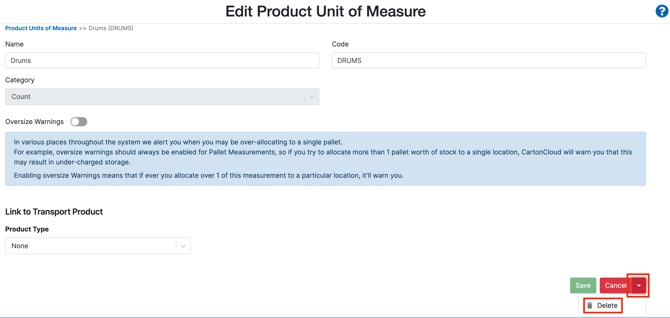
Select the Product Unit of Measure you wish to delete.
-
Click the arrow next to the Cancel button.
-
Click Delete.
Setting up Product Unit of Measurements when creating a Product
-
Navigate to the Products page, Warehouse>Products.
-
Click +Add Product and follow the steps here.
-
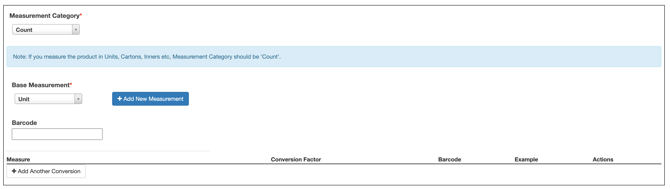
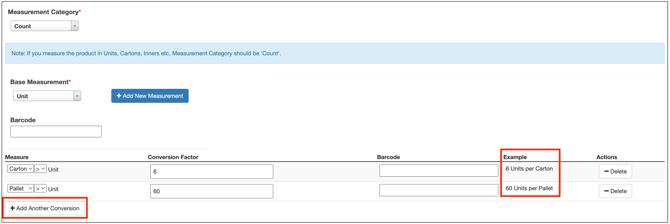
Once you get to the Measurement section, select the Measurement Category from the drop-down menu.
-
Select the Base Measurement from the drop-down (the Base Measurement is the smallest pickable unit of measure for this product). If the Unit of Measure you wish to use is not there, select +Add New Measurement to create a new measurement.
-
Enter a Barcode if you wish to use a barcode.
-
To add a conversion, select +Add Another Conversion.
-
Select the conversion measure from the Measure drop-down.
-
Enter the Conversion Factor.
-
Enter a Barcode if you wish to use a barcode.
-
Use the Example column to confirm you are using the correct conversions.
-
Using the same lemonade example, a Carton Measure with a Conversion Factor of 6 will need to be added and a Pallet Measure with a Conversion Factor of 60 will need to be added.
-
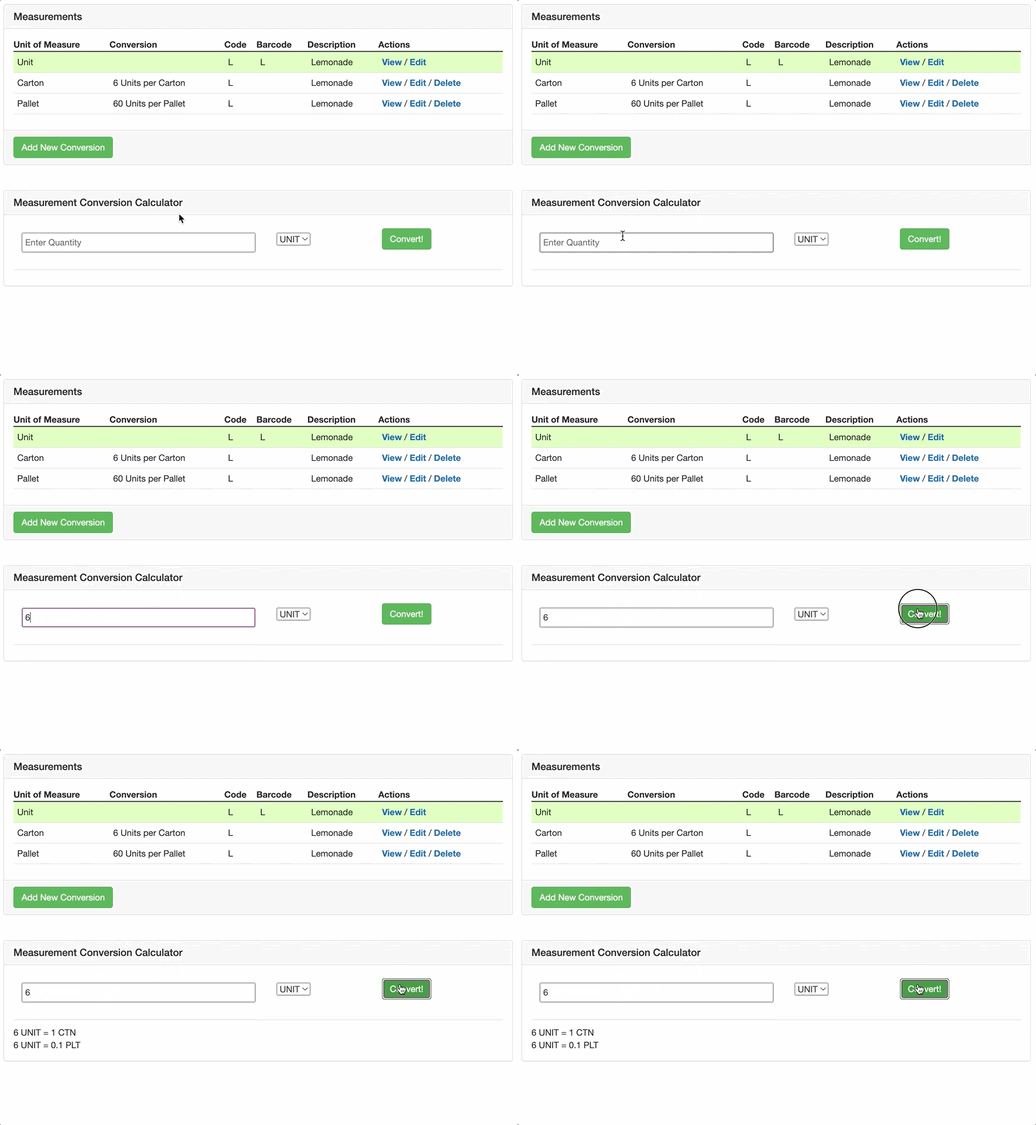
Once you have created your Product you can check the conversions, on the Products page using the Measurement Conversion Calculator.
-
Enter the unit quantity and click Convert. You can change the measure using the dropdown.
Making changes to a product unit of measure on a product
You will need to adjust your product if any of these situations arise:
-
The conversions you entered are not correct
-
You find that you only ship in full cartons, and would prefer the Base Measurement to be in Cartons instead of Units
-
After a few months, the product packaging changes from 6 per carton to 8 per carton
- If the product conversion has been set up inverted
Each of these cases requires a different change to be made and the process to make these changes is outlined below.
1. Problem: The conversions you entered are not correct. Solution: Add/edit conversion measurement and barcode
-
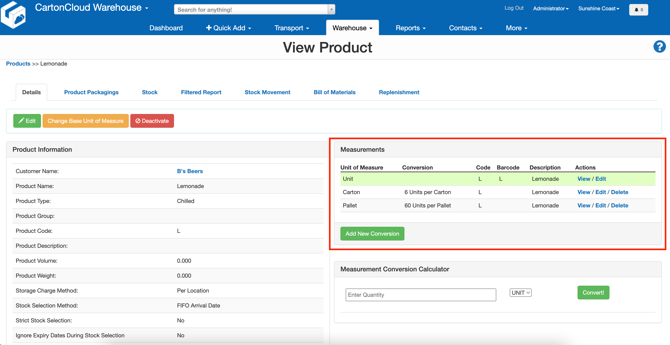
Navigate to the relevant Products page, Warehouse>Products>select the relevant Product.
-
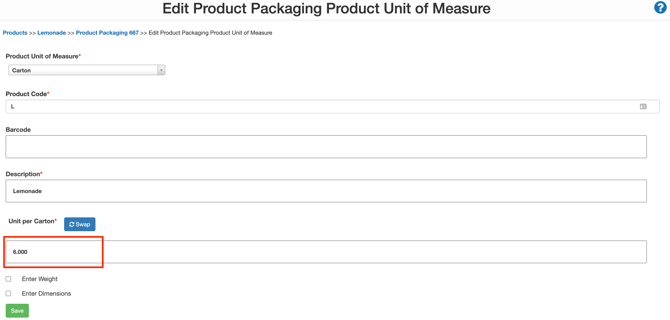
Select Edit against the Unit of Measure you wish to edit.
-
Update the quantity against the Unit per Carton.
-
Click Save.
2. Problem: You find that you only ship in full cartons, and would prefer the Base Measurement to be in Cartons instead of Units. Solution: Change the base unit of measure
Changing the Base Unit Of Measure will modify all history of the product to reflect quantities in the new measurement. For example, if you've been packing orders of Lemonade using units when you convert the Base Unit of Measure, it will modify all figures to be shown in Cartons. It will apply the 'conversion factor' to all stocks, which means it will either multiple or divide all quantities by the amount you specify.
This works if you have been packing orders in Cartons, however, if this is not the case you will end up with decimal quantities which may cause issues with stock selection in the future.
For example, if we are converting the Lemonade Base Unit of Measure from Unit to Cartons but there was an order that was 7 units. When the conversion factor of 6 is applied it will divide all records by 6 so the Sale Order will show that we packed 1.1667 of Lemonade.
Note: It is recommended that you only change the Base Unit of Measure if you have only just added the product or if you are certain that you've never packed an odd number of units. Changing the Base Unit Of Measure will also delete ALL existing Conversion Measurements. So, if you still require these you'll need to add them back in when you're done.
To change the base unit of measure:
-
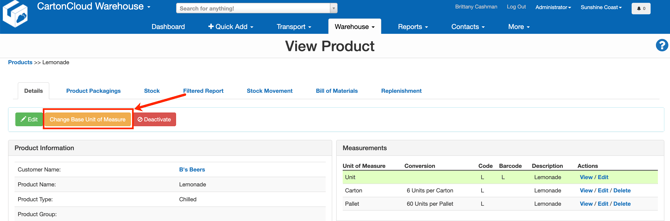
On the relevant Product page, select Change Base Unit Of Measure at the top of the Product page.
-
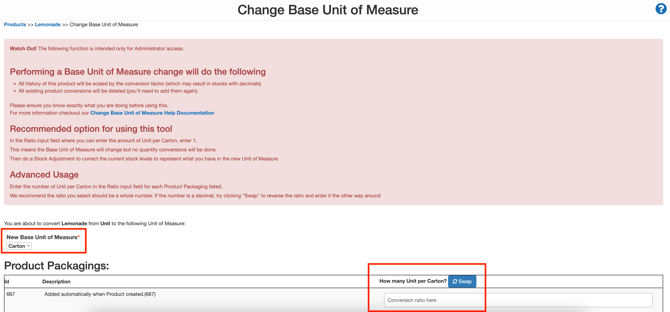
Select the New Base Unit of Measure you want the product to be measured in.
-
Enter the scaling factor. Ensure the conversion factor is going in the right direction (e.g 6 Units per Carton, rather than 6 Cartons per Unit).
-
Scroll down and click Save.
Tip: Keep in mind that any existing Conversion Measurements have been deleted, so if you need to convert from say, Cartons to Pallets, you'll need to add this Conversion Factor back in by following Step 1.
3. Problem: After a few months, the product packaging changes from 6 per carton to 8 per carton. Solution: Changing the base unit of measure without scaling
-
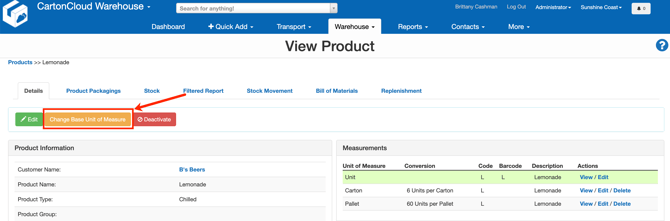
On the relevant Product page, select Change Base Unit Of Measure at the top of the Product page.
-
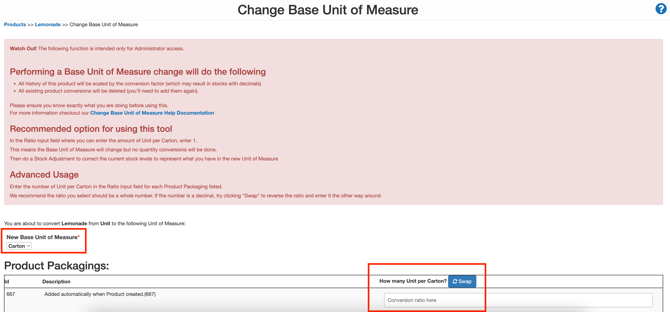
Select the New Base Unit of Measure you want the product to be measured in.
-
Enter the scaling factor of 1.
-
Scroll down and click Save.
Tip: Keep in mind that any existing Conversion Measurements have been deleted, so if you need to convert from say, Cartons to Pallets, you'll need to add this Conversion Factor back in by following Step 1.
4. Problem: If the product conversion has been set up inverted. Solution: Swap the unit conversions using the 'Swap' button.
- Navigate to the relevant Product you wish to edit.
- Click Edit against the unit of measure that has the incorrect conversions.
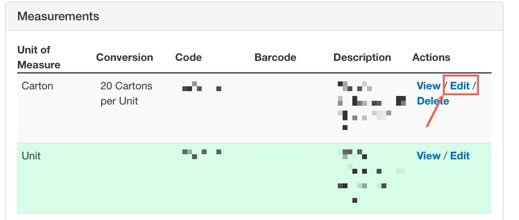
- Select the blue Swap button. This will change the conversion from 20 cartons per unit to 20 units per carton.
- Scroll down and click Save.
Search for a Product UOM Barcode
You can scan a Product UOM barcode directly into the Search for anything bar to return matching product results. This avoids having to manually search for product barcodes.