Table of Contents
Purpose
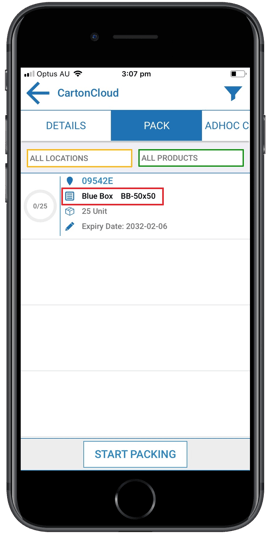
By default, when viewing a Purchase Order or Sale Order on the mobile app, the conversion Unit of Measurement description will be shown. This can be customised by using the Product import/export feature. 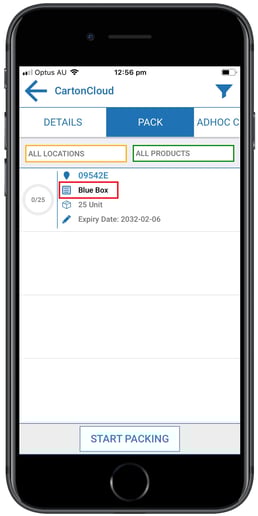
How to edit the product name that appears on the mobile app
To edit the product name on the mobile app view you will need to export your Product list, edit it and then re-import it into CartonCloud.
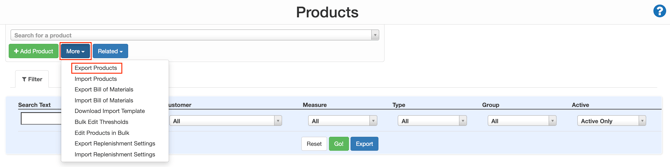
- Navigate to the Products page, Warehouse>Products.
- Select the blue More button.
- Select Export Products.
- Open the downloaded XSL file.
- Scroll across the file to the right until you reach the coloured section of the Conversion Measurement fields.

- Now you can choose how you would like the Product details to be displayed on the mobile app (Description and Code, Description only or Code only). To do this you need to update the "Description" field for the Conversion Measurement. See Add product code to mobile app view for more information on how to include both the product code and name in the mobile view.
- In the example, the Description and the Code (this is the code as it appears in Column E of the file) have been selected for viewing.

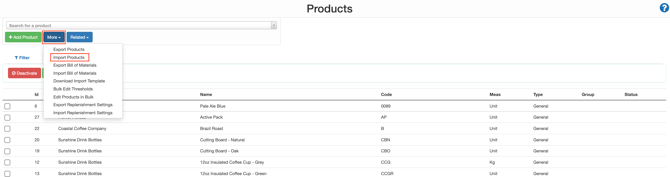
- Navigate back to the CartonCloud Products page.
- Select the blue More button.
- Click Import Products.
- Select the relevant file.
- Click Upload File.
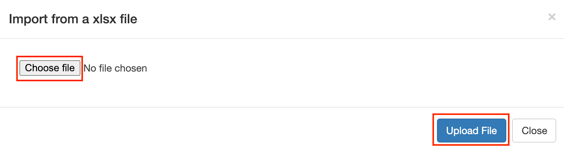
- You will then be directed to the Product Import Results page and will receive a success message.

Now you can refresh your screen in the mobile app and view the updated Product details