
Table of Contents
Purpose
By using Avery templates, you can easily print your warehouse locations onto labels to place on your warehouse racking.
Prerequisites
-
You must have already created Warehouse Locations in CartonCloud.
-
Each Warehouse Location must have a barcode.
How to steps
-
Navigate to the Warehouse Locations page in CartonCloud, by typing Warehouse Locations into the Search for anything bar.
-
Select More and Export to XLS.

-
Save the XLS file.
-
Navigate to the Avery Design & Print Online website - https://www.avery.co.uk/
-
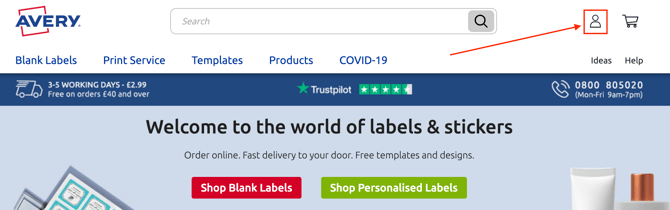
Select the login logo in the top right corner and select Design & Print Login from the drop-down menu.
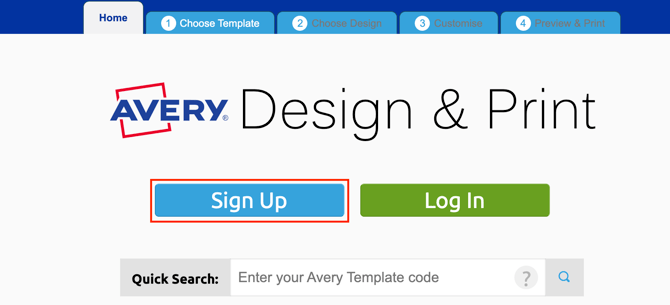
- Select the Sign Up button and create an account.
-
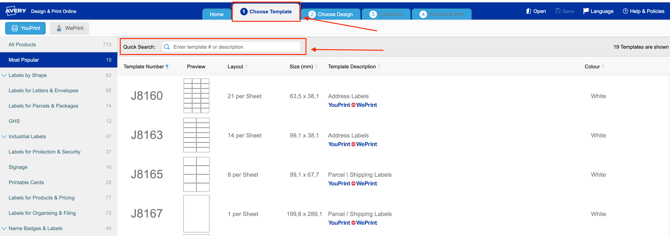
Once you have created an account, select the 1 Choose Template tab.
-
Search for the template you wish to use in the top search bar. You will be able to find the label code on the front of the label packet.
It is recommended that you use L7165 labels.
-
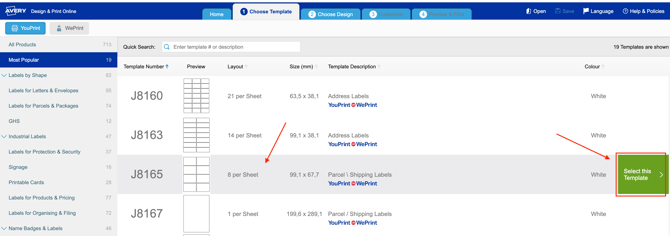
Select the template you wish to use and then click the green Select This Template button.
-
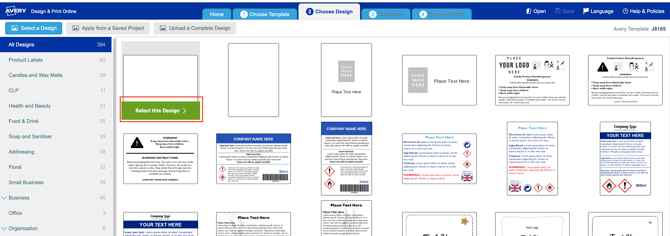
You will then move to the Choose Design tab. Select the design you wish to use.
For simple white labels, it is recommended you select the first template
-
You will then move to the Customise tab.
-
Click the top Text box and then Add Text Box.
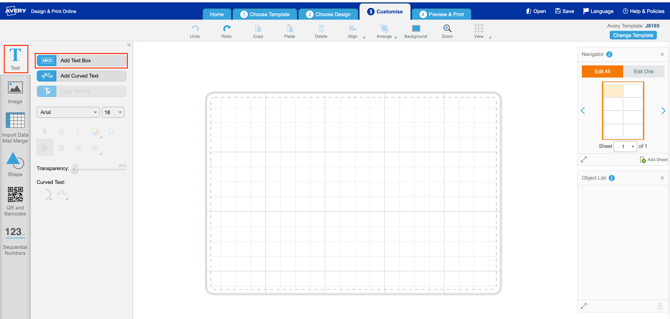
- Do not type anything into the text box.
-
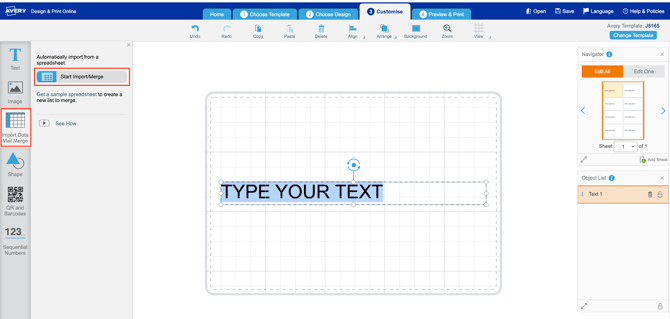
Select the third box, Import Data Mail Merge and then Start Import/Merge.
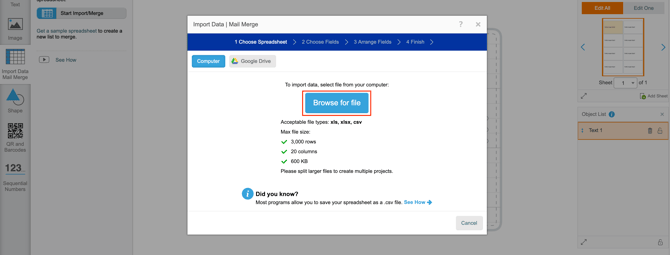
- Select Browse for file and select the Warehouse Locations XSL you downloaded from CartonCloud.
-
Select the 2 Choose Fields tab from the top blue bar.
-
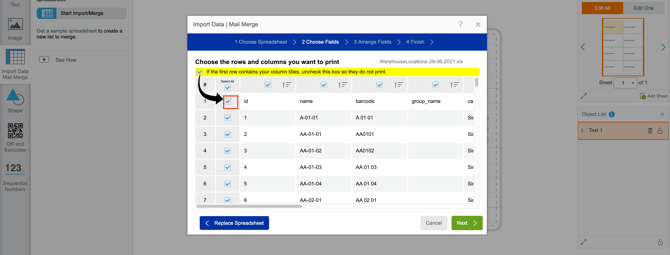
Untick the first column.
-
Select the green Next button in the bottom right corner.
-
Select and drag the Name field across into the Arrange fields box.
-
Select the green Next button in the bottom right corner.
-
Select the green Finish button in the bottom right corner.
-
Select the Text box in the left panel and arrange the text so it is centred and at the size you require.
-
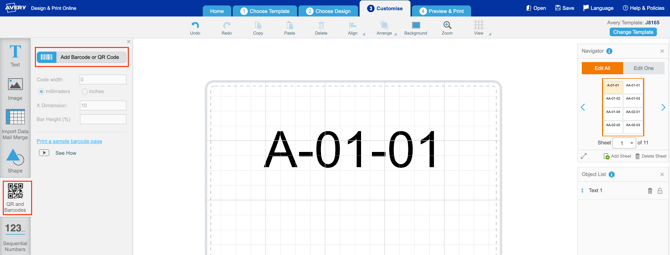
Select the QR and Barcodes text box and select Add Barcode or QR Code.
-
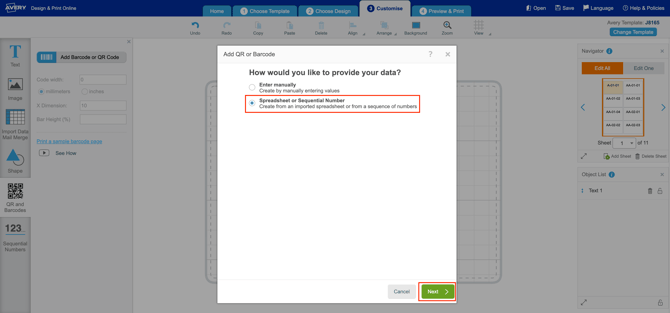
Select the Spreadsheet or Sequential Number option by selecting the clear circle until it turns blue.
-
Select the green Next button in the bottom right corner.
-
Select and drag the Barcode field across into the Enter alphanumeric and special characters field.
-
Select Code 128 from the Industry Standard Format drop-down menu.
-
Untick the Display text below the code option.
-
Select the green Finish button.
-
Arrange and re-size the barcode.
-
To add images to the label, select the Image box and then Add Image.
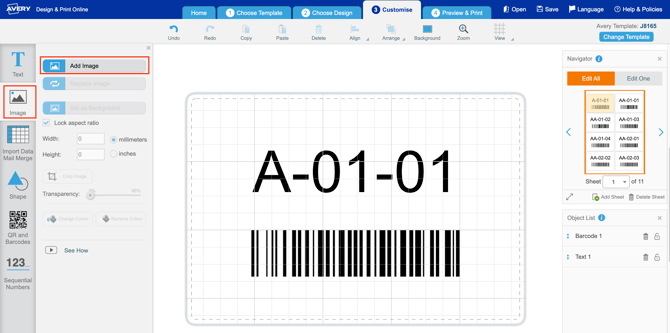
Image examples: arrows (point to the direction of the location) or a DG sign (to identify the DG warehouse location section).
-
Select the 4 Preview & Print tab from the top blue bar.
-
Select the Print button.
Before printing your labels, make sure the printer has the correct label pages in the paper tray.