Table of Contents
- CartonCloud Connect
- Downloading CartonCloud Connect
- How CartonCloud Connect works
- Setup instructions
- Reset password
- Printing
CartonCloud Connect
CartonCloud Connect is an application that allows you to print directly from within CartonCloud to your printer. Currently, only printers that can handle ZPL format are supported, however, PDF print will be introduced in the future.
Downloading CartonCloud Connect
The CartonCloud Connect software is available for download from:
Please note that there's no PrintNode Client for iOS. You can run the PrintNode Client on any computer running Windows, macOS or Linux. If you want to run it on a tablet, a Windows 10 tablet should be able to do the job.
|
Operating System |
Link |
|---|---|
|
Windows |
https://app.printnode.com/download/client/cartoncloud/windows |
|
Mac |
https://app.printnode.com/download/client/cartoncloud/osx If using a Mac you will need to download and install a RAW printer driver to run PrintNode (see Setting up RAW printing for Macs). |
How CartonCloud Connect Works
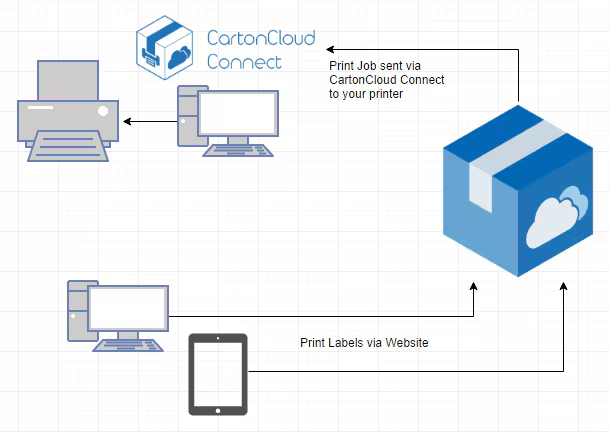
By installing CartonCloud Connect on to your computer (that is connected to your printer), you will be able to process print jobs sent from CartonCloud. You can initiate a print job from any device connected to CartonCloud and it will print on the specified printer.
Setup Instructions
To set up CartonCloud Connect on your computer and enable printing from CartonCloud follow the below steps.
-
Install and connect your printer to the computer.
-
To successfully print from your selected printer the below conditions must be met;
-
The printer must be turned on when processing a printing job.
-
The computer must be connected to the printer (either directly or through the network).
-
The computer must be connected to the internet.
-
-
-
Install the CartonCloud Connect application on your computer.
-
Download the software and follow the install instructions using the below links:
-
Log onto CartonCloud Connect using the email and password supplied to you by CartonCloud Service Desk. This is different from your email/password you use to access CartonCloud itself.
-
Lodge a case with the Service Desk via CartonCloud Help if you do not have a password.
-
-
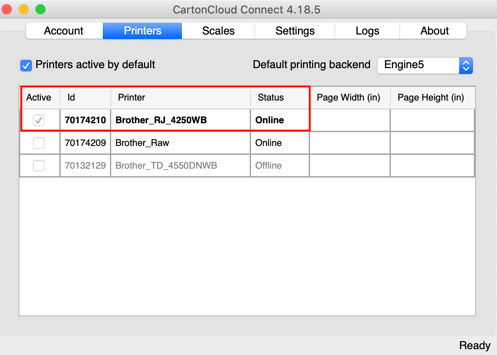
Enable printing through CartonCloud Connect and select the relevant printer from the Printers tab (Tip: search for 'CartonCloud Connect' via the search function built into your PC.
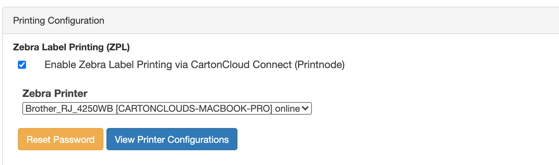
4. Enable the relevant printer within the CartonCloud application (you must have Administrator permissions to complete this step).
- Type in Organisation Settings in the Search for anything bar at the top of the application.
- Select the Features & Options tab within Organisation Settings.
- Click the tick-box Network Zebra Printing Enabled under the Printing Configuration heading.
- Select the relevant printer from the Remote Printer drop-down menu.
Reset Password
NOTE: Your password for CartonCloud Connect is different from your password for CartonCloud itself.
If you need to reset your password please follow the below steps (you must have Administrator permissions to CartonCloud to complete the below steps).
- Type in Organisation Settings in the Search for anything bar at the top of the application.
- Select the Features & Options tab within Organisation Settings.
- In the Printing Configuration section, click the Reset Password button.
- A screen will be displayed showing the email address and a randomly generated password you need to enter into CartonCloud Connect.
Printing
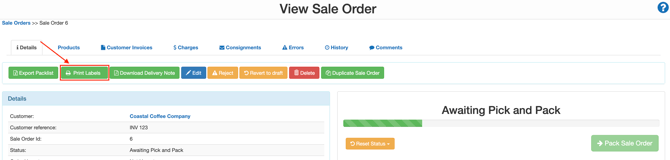
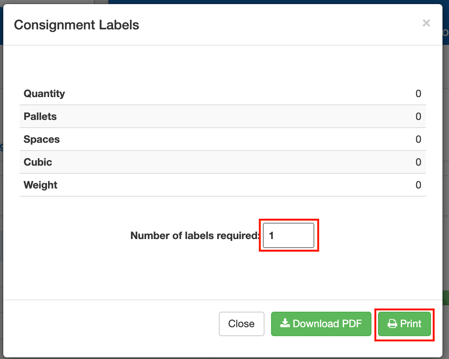
Once you have completed the above steps you will be able to print from within the CartonCloud application. You will be able to see a Print Labels button from within the relevant Sale Orders, Purchase Orders, and Consignments.
If you need a custom label format, please use CartonCloud Help and lodge a case with our support team to discuss your requirements.
Consignments
Purchase Orders
Sale Orders