Table of Contents
- Warehouse location capacities
- Storage charges
- How to prevent undercharges storage
- What to do if you already have stock which is being undercharged
- Bulk splitting
Warehouse location capacities
- Single Pallet
Used typically for racked locations and locations which contain a single pallet or less. - Multiple Pallets
For bulk areas such as loading bays, or large unracked areas where many pallets of the same SKU will be stored.
Storage charges
CartonCloud is able to handle a wide variety of storage situations;
- Single SKUs on a Single Pallet location (charges the location once)
- Multiple SKUs on a Single Pallet location (charges the location once)
- Multiple Pallets within a Multiple Pallet location (charges for each pallet)
- Multiple Pallets each containing multiple SKUs within a Multiple Pallet location (charges for each pallet)
When working with Single Pallet Locations, CartonCloud determines storage charges by looking at the Warehouse Location of Purchase Order Products (stock).
When CartonCloud sees multiple Purchase Order Products on a single Warehouse Location, it will only charge the customer once for using that location.
However, in the case of Multiple Pallet Locations, CartonCloud uses another identifier, the Pallet Id, to determine how many pallets are stored within a specific Multiple Pallet Location.
This means that if multiple Purchase Order Product records are allocated to the same Pallet Id, then they'll only generate charges for one pallet of storage.
Important: This also means that if a single, large, Purchase Order Product record is allocated to just one Pallet Id, it'll only be charged as one space.
For example, if you have a product that is measured in Pallets, and you load 5 Pallets to a single Pallet Id, then you'll only charge storage for a Single Pallet space.
How to Prevent Undercharged Storage
When verifying a Purchase Order into stock, CartonCloud will warn you when it thinks you're going to load more than a pallet worth of stock into a single location (and thereby, undercharge the storage).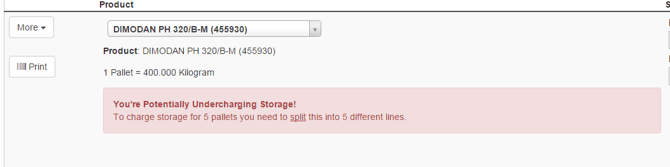
CartonCloud will warn you when it thinks you're loading too much stock into a single location and therefore undercharging storage
When this occurs, it is often easiest to use the Bulk Split functionality to break the stock into multiple records (each with their own Pallet Id). You can do this from the Verification page by clicking More->Bulk Split.
What to do if you already have stock which is being undercharged
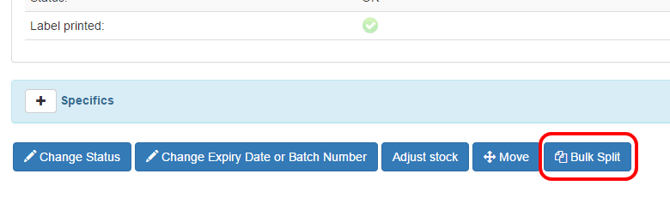
You can use the Bulk Split method to break the stock record up into multiple records. Simply view the stock record and then click Bulk Split down the bottom.
Bulk Splitting
To perform a bulk split follow the below steps:
-
Select More on the product displaying the warning.
-
Select Bulk Split.
-
Confirm how many units or cartons are on a pallet in the Qty/ Pallet field.
-
Click Bulk Split.
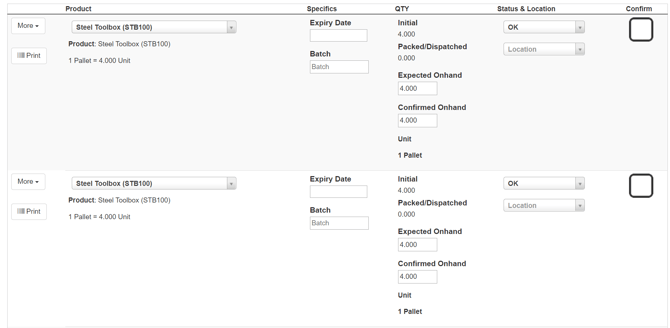
In the above example, a single Purchase Order Product line contained 8 units of steel toolboxes. When Bulk splitting the toolboxes we confirm that only 4 fit onto a pallet, meaning two pallets are arriving. Once the bulk split is performed the product is split from one to two purchase order Product lines (the same number as the number of pallets), this now allows us to allocate them to separate Warehouse Locations.
The same process can be followed to Split products that may need to be separated due to their Status. For example, if 3 cartons at the top of the pallet are damaged you can perform a split, then allocate them to a different part of the warehouse.