
Table of Contents
- Purpose
- Scope
- What happens when you select 'prevent changes'
- How to select 'Prevent changes to stock selection'
Purpose
When adding products to a Sale Order or editing existing products on a Sale Order you are able to select the Prevent Changes box and hold that stock selection criteria (custom fields, expiry dates) to that Sale Order. Sale Orders submitted over API/Parsers have Prevent Changes selected by default.
Scope
The Prevent Changes option is available when:
-
When adding products to a Sale Order.
-
When editing products on a Sale Order.
The Prevent Changes option is selected by default for orders submitted over API/Parsers.
What happens when you select Prevent Changes
Once you have selected the Prevent Change box, that stock selection criteria will be saved against that product on the Sale Order. This means when CartonCloud conducts its stock optimisation process it will look for stock that meets the criteria you have locked against the product. Therefore, CartonCloud will not allow you to pick stock that varies from the criteria you have locked against the product, for example, the expiry date.
Note, it will only save criteria for expiry dates and custom fields, not warehouse locations.
How to select Prevent Changes to stock selection
When adding a product to a Sale Order
-
Navigate to the Sale Order page, Warehouse>Sale Orders.
-
Select the relevant Sale Order
-
Select the Products tab.
-
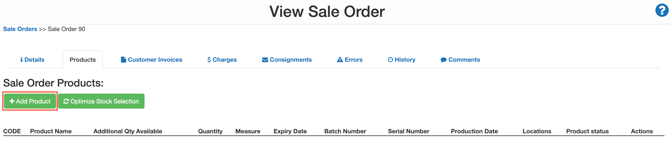
Select +Add Product.
-
Search for the applicable product.
-
Tick the PREVENT CHANGES box for the relevant product line or select Prevent Changes: Select All to select all product lines
Note, if you choose the Select All option, CartonCloud will ignore the lines with 0 quantity.
-
Select the Take Stock button.
When editing product on a Sale Order
-
Navigate to the Sale Order page, Warehouse>Sale Orders.
-
Select the relevant Sale Order
-
Select the Products tab.
-
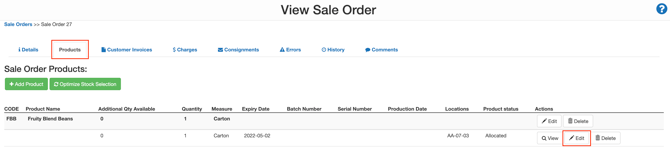
Select Edit against the relevant product line.
-
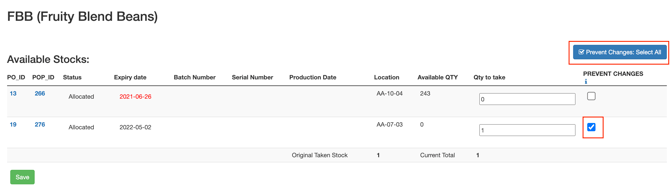
Tick the PREVENT CHANGES box for the relevant product line or select Prevent Changes: Select All to select all product lines
Note, if you choose the Select All option, CartonCloud will ignore the lines with 0 quantity.
-
Select Save.