Table of Contents
Purpose
The process for adding and capturing Photos and Documents on Sale Orders during the outbound process on the mobile app.
Prerequisites
-
Use a mobile device with a built-in camera. If not, take photos on another device, then send them to your mobile device to upload via the Library option or use the web app for upload.
-
Allow the CartonCloud app access to your Camera and Photos on your mobile device. You will be prompted to do this when you first use the Document feature on your mobile device.
-
If you would like your Customer to be notified when Documents are uploaded against a Sale Order ensure they are set up with Sale Order Packed notification. These notifications will include Documents if they have been uploaded and are a Shared with Customer visibility level. See Customer Settings - Email (Notifications) for more information.
Use Cases / Benefits
-
Provide photo evidence to your customers of what has been packed in the Sale Order. This is useful if the person receiving the order claims certain products were not included.
-
To verify packing requirements with photo evidence. This is helpful if your customer requires orders packed a certain way.
-
Provide greater transparency and updates to your customers on their orders.
Process
You can add a Photo/Document to a Sale Order before picking the order or upon picking completion.
Before picking an order:
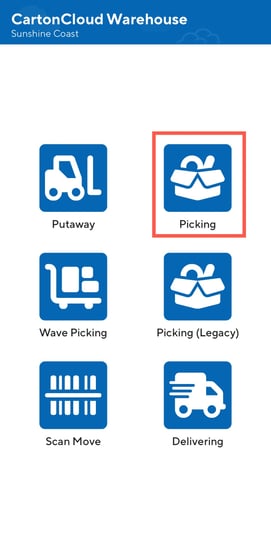
- Select Picking mode.
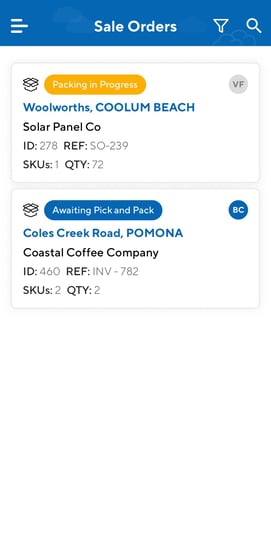
- Select the order you wish to add the photo/document to.
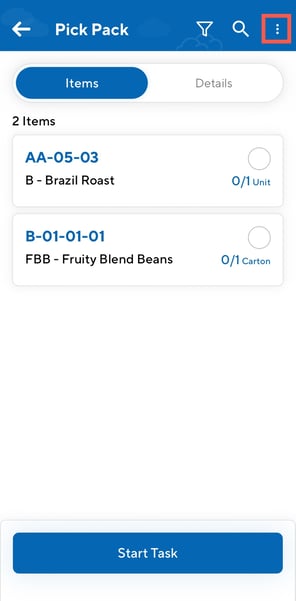
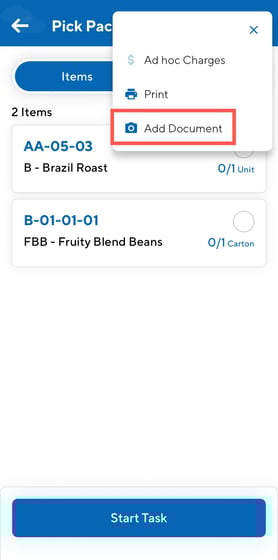
- Tap the three dot icon in the top right corner.
-
Select Add Document.
-
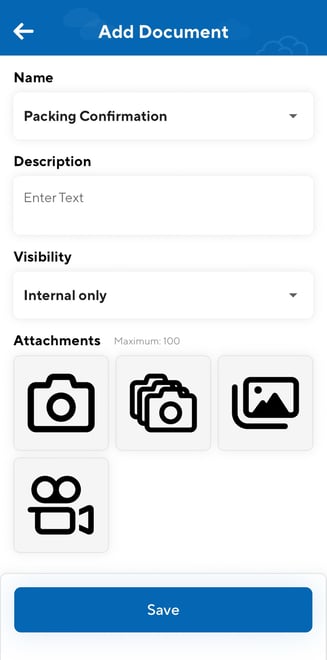
Select the Name for the Document from the drop-down. Note that names are not customisable, however, they will be in the future.
-
Packing Confirmation: use this Name when confirming the packed order. For example, taking a photo of the packaging to confirm the order has been packed to the customer’s specifications.
-
Other: for anything other than Photos and Documents relating to packing confirmation.
-
-
Enter information related to the Document within the Description text box. This will be visible to anyone who has access to the Document.
-
Select the visibility option: (a default visibility option can be selected from the Organisation Settings. More information here)
-
Internal only: only internal users of your CartonCloud account will be able to see the Document. This includes all User types apart from Customers. Only Admin and Packers can edit the Document (Documents can only be edited via the web app).
-
Shared with Customer: all user types in your CartonCloud account including Customers can see the Document. Only Admin and Packers can edit the Document (Documents can only be edited via the web app).
-
-
Upload the attachment using either:
-
Single capture: take one photo using the camera on the device.
-
Multi-capture: rapidly take multiple photos without having to close and reopen the camera.
-
Video: record a video to upload using the camera on the device. By default, sound is turned off when recording the video however, you can turn this on when recording the video.
-
Library: access attachments saved to your device to upload to the Document.
-
-
Select Save once you have finished uploading the attachments.
-
You will now be able to see the Documents and the associated attachments against the Purchase Order on the web app.
Upon picking completion
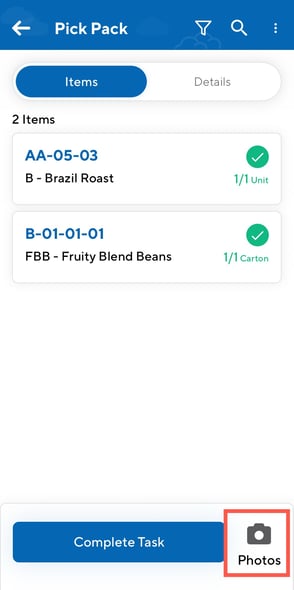
- Once all products have been picked for the order and before completing the Task, select Photos on the bottom right of the screen.
-
Select the Name for the Document from the drop-down. Note that names are not customisable, however, they will be in the future.
-
Packing Confirmation: use this Name when confirming the packed order. For example, taking a photo of the packaging to confirm the order has been packed to the customer’s specifications.
-
Other: for anything other than Photos and Documents relating to packing confirmation.
-
-
Enter information related to the Document within the Description text box. This will be visible to anyone who has access to the Document.
-
Select the visibility option: (a default visibility option can be selected from the Organisation Settings. More information here)
-
Internal only: only internal users of your CartonCloud account will be able to see the Document. This includes all User types apart from Customers. Only Admin and Packers can edit the Document (Documents can only be edited via the web app).
-
Shared with Customer: all user types in your CartonCloud account including Customers can see the Document. Only Admin and Packers can edit the Document (Documents can only be edited via the web app).
-
-
Upload the attachment using either:
-
Single capture: take one photo using the camera on the device.
-
Multi-capture: rapidly take multiple photos without having to close and reopen the camera.
-
Video: record a video to upload using the camera on the device. By default, sound is turned off when recording the video however, you can turn this on when recording the video.
-
Library: access attachments saved to your device to upload to the Document.
-
-
Select Save once you have finished uploading the attachments.
-
You will now be able to see the Documents and the associated attachments against the Purchase Order on the web app.
On the Pack Screen
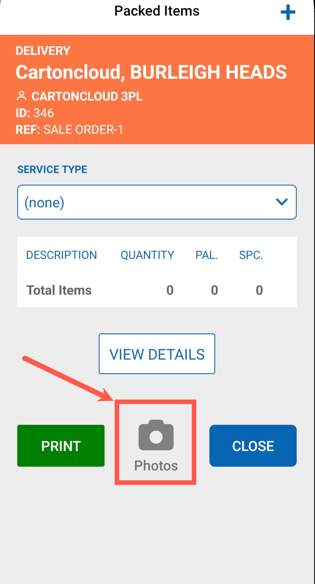
If you are creating Consignments from the Sale Order, you can also add Photos and Documents from the TMS pack screen when confirming Consignment Items.
Uploading Photos and Documents in the Background
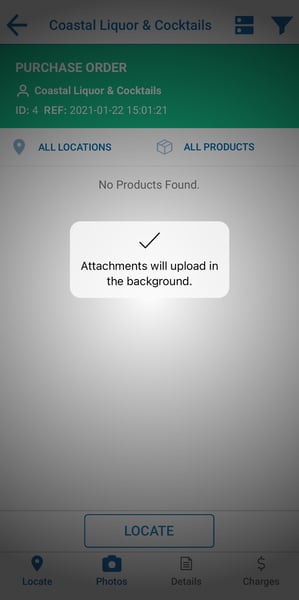
When uploading photos and documents to Purchase Orders the files can be uploaded in the background whilst you continue processing the order.
You will be notified that the file is uploading in the background:
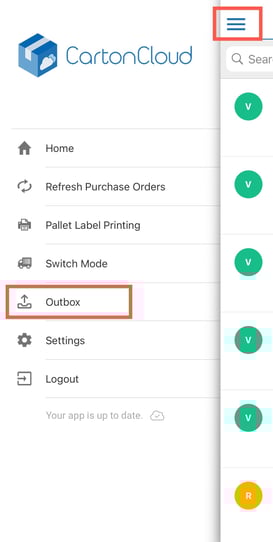
To check progress on the upload or to retry failed uploads you can use the Outbox feature. To access this feature be sure you are in the Wave Picking mode, select the side navigation and then select Outbox.