
Table of Contents
- Carrier Notifications
- Internal Notifications
- Setting different recipients per site
- What the emails contain
Everything here lives under Settings → Notifications, split into two sections. Carrier Notifications go out to the people delivering to you. Internal Notifications go to your own team.
Carrier Notifications
These stop your team relaying the same information by phone. They apply across your whole organisation and cannot be set differently per site.
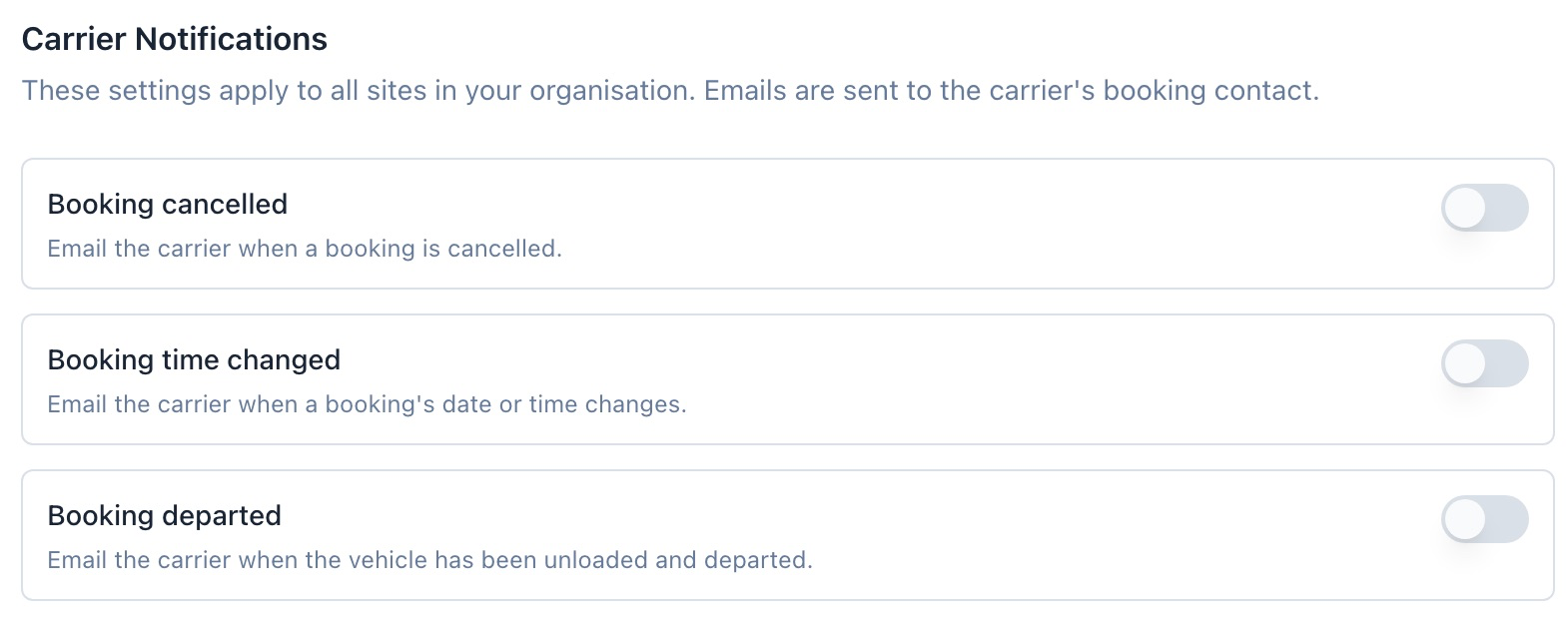
- Booking cancelled emails the carrier when you cancel their booking, so they find out before the truck leaves rather than when it arrives
- Booking time changed emails them the old time and the new time side by side whenever you move a booking
- Booking departed emails them once the vehicle has left site
Emails go to the booking contact captured on the booking, falling back to the email on the carrier record.
If you have booking approval switched on, carriers are also emailed when you approve their booking, and that email carries their driver check-in code.
Internal Notifications
When a carrier books a slot through their booking link, the site that has to plan for it gets an email.
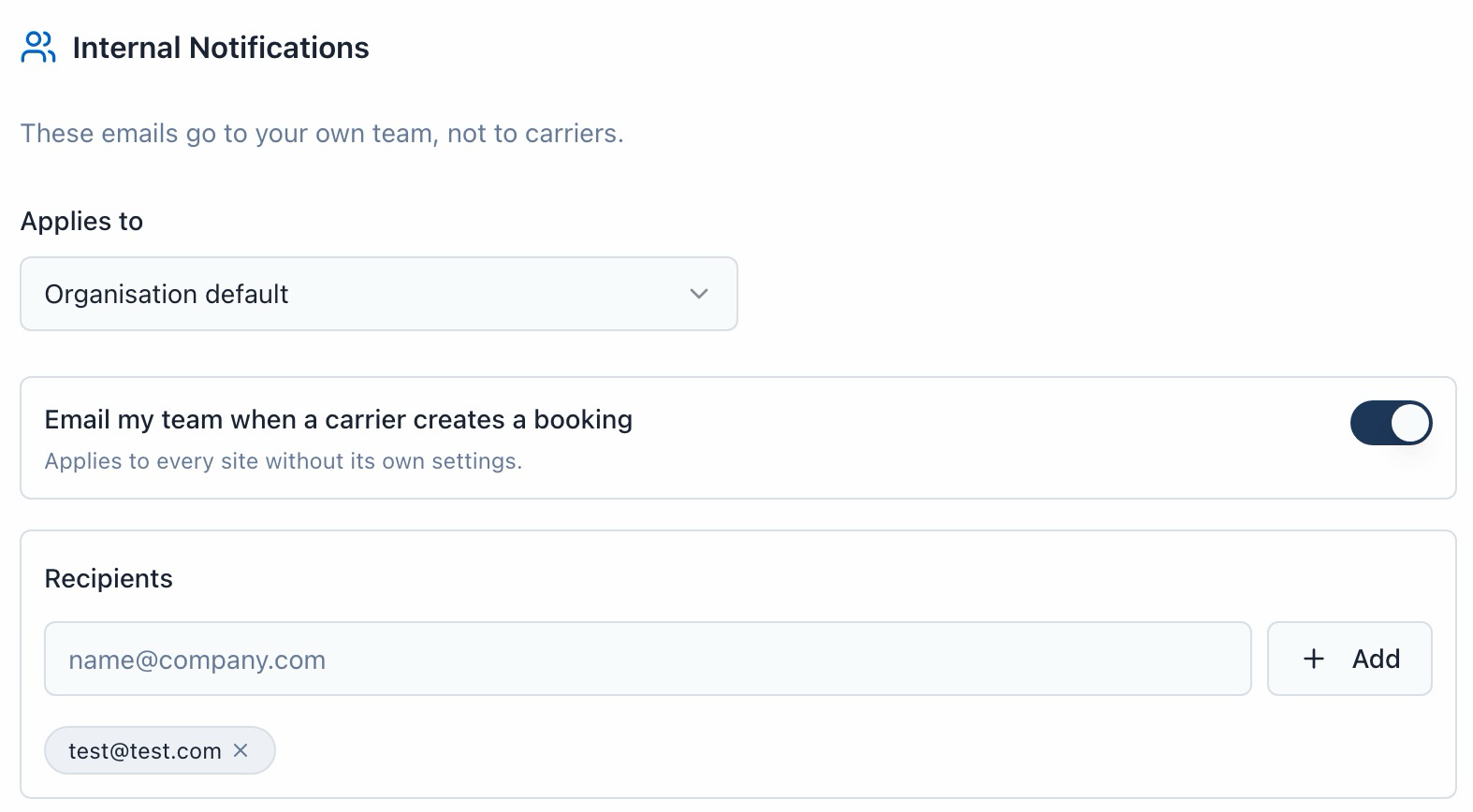
Switch on Email my team when a carrier creates a booking, then add the addresses that should receive it. Up to 10 per list. These are plain email addresses, so shared mailboxes like brisbane.dock@yourcompany.com work well and are usually a better choice than individuals.
This only covers bookings carriers make through their own link. Bookings your staff create, and bookings brought in through the import, do not send anything, so a depot is never emailed about work it just booked itself.
Internal notifications are off until you switch them on and add at least one recipient.
Setting different recipients per site
If bookings for each depot need to reach different inboxes, give a site its own list.
Use the Applies to picker inside the Internal Notifications section. Organisation default covers every site that has no settings of its own. Pick a specific site and the picker tells you whether it is using the organisation default or has its own list.
For a site on the default, click Set up different recipients for this site to give it its own. To put it back, use Use organisation default, which removes the site's list.
One thing to watch. If a site has its own list and that list is empty, the site sends nothing at all. It does not fall back to the organisation list. The screen warns you when a site is in that state, but it is worth knowing before you clear a list to stop one depot receiving emails, because clearing it is exactly how you do that deliberately.
The carrier toggles are unaffected by this picker. They stay organisation-wide.
What the emails contain
Internal emails carry the booking reference, title, date and time, site, carrier and truck rego, plus the dock, load type, contact email and notes when those are set. They are clearly marked as internal and are never sent to carriers.