
Table of Contents
- What is Multi Factor Authentication (MFA)
- Factors to consider before enabling Multi Factor Authentication (MFA)
- How to enable Multi Factor Authentication (MFA) on the web app
- How to enable Multi Factor Authentication (MFA) on the mobile app
What is Multi Factor Authentication (MFA)
Multi Factor Authentication forces the user to provide an authentication code (from their authentication app of choice) each time they log in. This provides greater security and account protection.
Factors to consider before enabling Multi Factor Authentication (MFA)
- You can not use MFA if you are already using SSO.
- MFA can be enabled at the individual user level, and is up to the individual user to enable this feature themselves, unless Enterprise Security is enabled and MFA usage is enforced across all users in the account. Please see Organisation Settings - Security for more information.
- Once MFA is enabled, you will always need to provide an authentication code from your chosen authentication app each time you log into the web and mobile CartonCloud app.
- You will need an authentication app of choice to be able to access the authentication code. One Authentication app includes Google Authenticator, however, there are a number of different options to choose from.
- It is recommended that you choose and download an authenticator app (if you do not already have one) to your mobile device before you set up MFA for your user.
- It is recommended that once you enable MFA, you log out of all sessions on all browsers/computers/mobile apps everywhere (other than the one being used to set up MFA, which forces a logout).
How to enable Multi Factor Authentication (MFA)
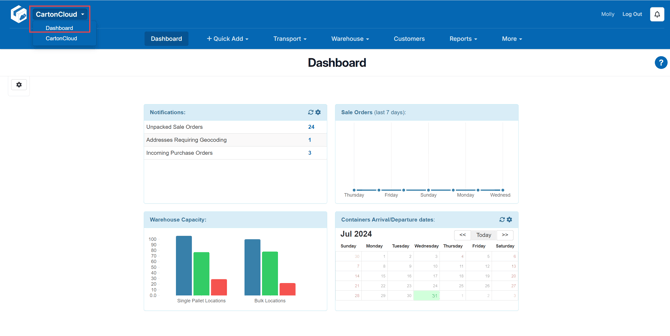
- From within your CartonCloud account, click your account name in the top left corner and select Dashboard. This will take you to the My dashboard page. This is information relevant to your individual user not the CartonCloud account.
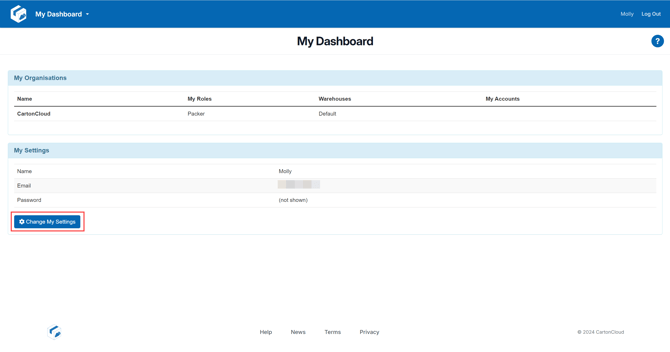
- Under the My Settings section, select Change My Settings.
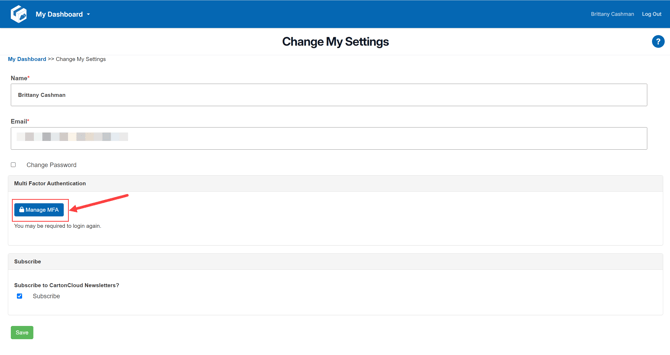
- Under the Multi Factor Authentication heading, click Manage MFA.
- Set up MFA on your authentication app using the QR code or the secret.
- Enter the authentication code.
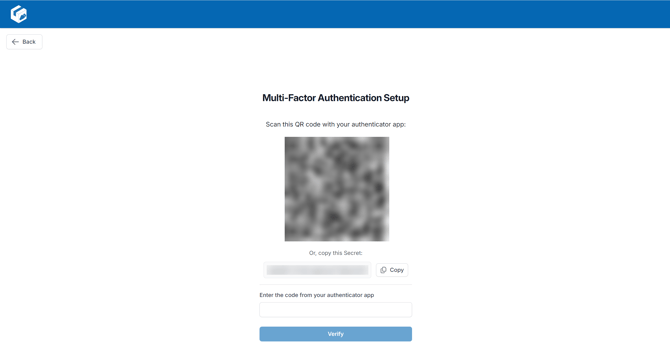
- Your user will now be set up with MFA and be required to enter an authentication code each time you log into either the web or mobile app.
How to enable Multi Factor Authentication (MFA) on the mobile app
If you do not access the web app and need to enable MFA from your mobile app you can follow the below steps.
- Within the mobile app select Settings from the side navigation bar.
- Toggle Multi-factor Authentication.
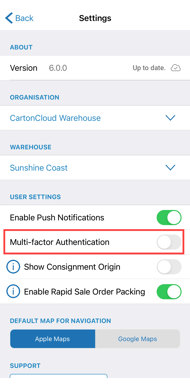
- You will then need to either copy the secret to your authenticator app or can follow the click through button to your authenticator app.
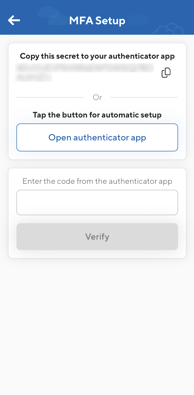
- You will then need to enter the code from your authenticator app.