
Table of Contents
Purpose
The ability to scan a 2D barcode and record multiple unique references against lines of product on a Purchase Order.
In some cases, products may be supplied with a 2D barcode that stores a string of values related to the product, for example, the serial numbers for 10 items of a product. If your customers utilise these 2D barcodes for their products you can scan this barcode and record the unique references against multiple lines of product.
Benefits
- Creates a more efficient process of recording unique references
- Saves time
- Better utilisation of the information provided to you by your customers
Limitations
Currently, this process does not support setups that have more than one custom field using unique references per customer.
Use cases
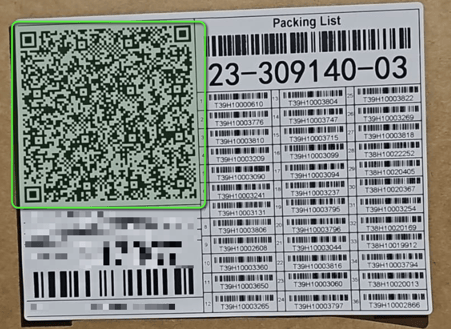
This process is only possible if there is a 2D barcode provided to you by your Customer. In this case, the 2D barcode will contain a string of values separated with a separation character. Once scanned the values contained in the barcode will be recorded against the individual lines of product on the order. For example, if you store Solar Panels and on the order paperwork there is a list of the serial numbers contained in the order and a 2D barcode that contains all of the individual products' serial numbers you can scan this barcode rather than scanning each individual serial barcode.
Example of a 2D barcode:
Set up requirements
Inbound unique reference scanning is set up from a customer level and at the purchase order product custom field. To enable inbound unique reference scanning:
- Navigate to the relevant Customer, Contacts > Customers.
- Click Edit.
- Select the Warehouse Management > Purchase Order Products tab.
- From the relevant Custom Field, enable the below settings:
- Enforce unique values
- Split to lowest Unit of Measure
- Make this a required step
- OR you can select Serial Number captured on Inbound and Verified on Outbound from the Configuration Type. Choosing this option will ensure all of the correct settings have been selected.
- Scroll down and select Save.
Please note, Is required can be set to optional at the customer purchase order product custom field but must be required at the product level (for the product you wish to enable inbound unique reference scanning for). To make this change at the product level you will need to edit the relevant product and scroll to the bottom under Modify Purchase Order Product Fields.
Multi-unique reference capture process
See Purchase Order (inbound unique reference scanning for more information on unique reference scanning set-up.
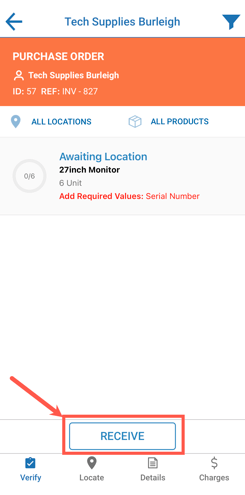
- On the mobile app select the Putaway mode.
- Select the relevant Purchase Order you wish to receive in.
- Click Receive.
-
Select a line of product to start recording the unique references against the stock.
- In the bottom left corner a barcode icon with the pop up message 'Add Required Values' will appear for the fields that are marked as required. ie: Serial Number. Tap the pop up message or the barcode symbol below it.
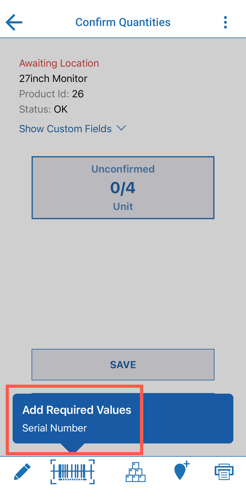
- Scan the 2D barcode.
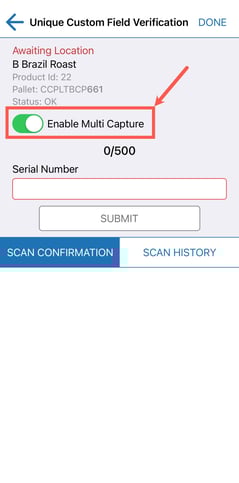
- You will be prompted to confirm if you wish to scan multiple codes. Select Use Multiple Capture.
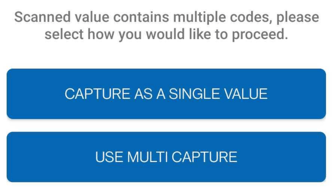
- Alternatively, before you scan the barcode you can slide the toggle called Enable Multi Capture.
- Each individual unique reference will be recorded against each line of stock.