
Table of Contents
- What a load type is
- Creating a load type
- Using a load type on a booking
- Letting carriers choose
- Restricting load types by carrier
- Changing or removing a load type
Dock Management is a paid CartonCloud application. Contact the CartonCloud support team for pricing and access.
What a load type is
A container unload and a two pallet drop are not the same job. Load types let your schedule know the difference. A load type describes a kind of work your site handles. Each one carries a direction, and optionally a duration, so bookings that use it are set up correctly without anyone having to remember.
A typical set looks like this:
- Inbound Container Unload, inbound, 180 minutes
- Inbound Palletised Delivery, inbound, 30 minutes
- Outbound Pallet Pickup, outbound, 30 minutes
- Trailer Drop, inbound, 15 minutes
Keep the list short. A good rule: only create a load type if it changes how long the job takes, or whether it's inbound or outbound. If it doesn't change either, it's a note on the booking rather than a load type. Customer names in particular don't belong here.
Creating a load type
-
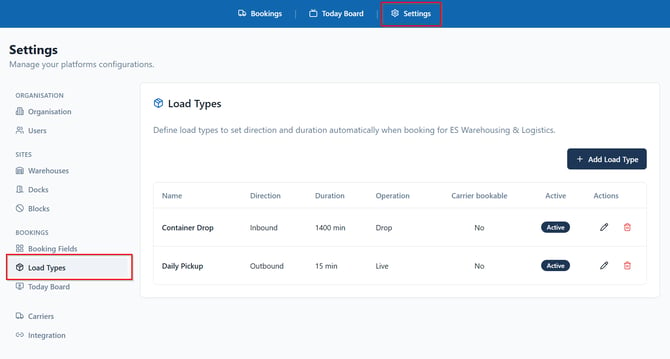
Go to Settings > Load Types and click +Add Load Type.
-
Name - what your team will see in the dropdown
- Direction - Inbound or Outbound. This is recorded on every booking that uses this load type.
- Duration - how long this kind of job takes. Leave it blank to use the warehouse's default booking duration.
- Operation - Live if the driver waits, Drop if they leave a trailer
- Carrier bookable - whether carriers can choose it through their booking link
- Active - turn off to retire a load type without losing history
Using a load type on a booking
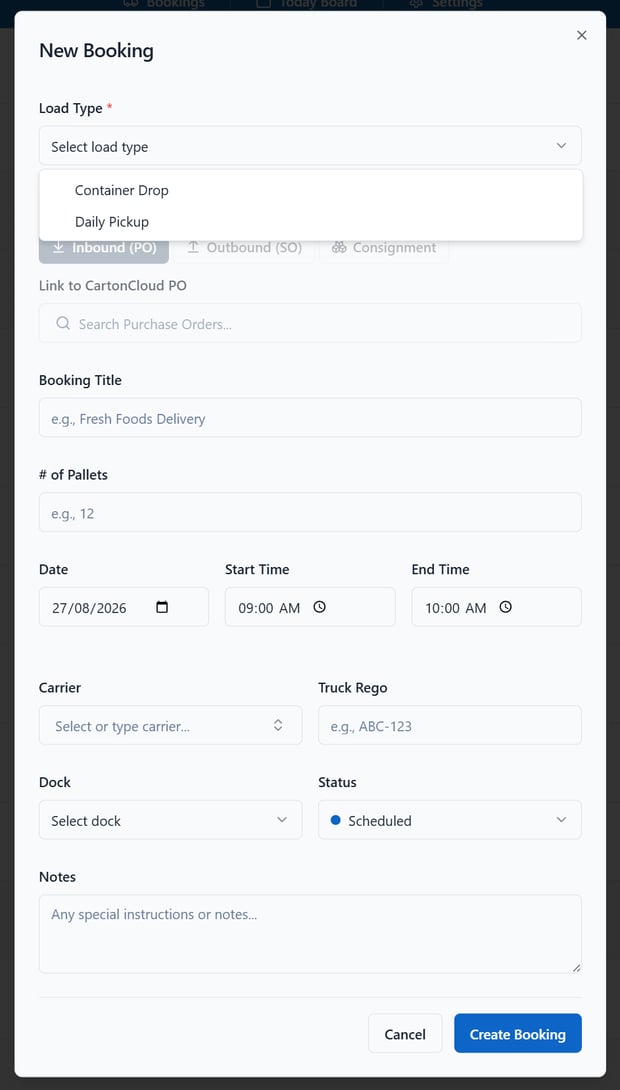
Load Type sits near the top of the booking form and is required on new bookings. Choosing one sets the direction, shown underneath, and works out the end time from the duration.
Change the start time afterwards and the end time follows, keeping the job the right length.
Bookings created before you set up load types are unaffected. Open one and Load Type shows as Not set, and it saves normally.
Letting carriers choose
Switch on Carrier bookable and the load type appears when carriers book through their link, as a step before they pick a date.
The duration matters here. Carriers are only offered slots long enough for the load type they chose, so a three hour container unload can't be booked into a thirty minute gap.
If a carrier only has one load type available to them, they're not asked, and the flow stays as short as it is today.
A load type set to a full day gives carriers a single slot covering your whole working day for that site.
Restricting load types by carrier
By default a carrier sees every load type marked carrier bookable. That suits most carriers.
To narrow it, go to Settings > Carrier Management, edit the carrier, and tick the load types they're allowed to book. A parcel carrier can be limited to a courier delivery, for instance, so they can't book a container slot.
Leave every box unticked to allow all of them. An empty list means no restriction, not no access.
Changing or removing a load type
Editing a load type does not change bookings that already used it. Their duration and direction stay as they were recorded.
A load type attached to any booking can't be deleted, so your history stays intact. Set it to inactive instead. It disappears from the dropdowns and stays on the bookings that used it.