How to Link Drivers, Carriers and Warehouses to Suppliers
Please note that if your CartonCloud account was created post 1 July 2019, you will only be able to link a Warehouse to a Supplier. You will NOT be able to link Drivers and/or Carriers. If you have any questions please use CartonCloud Help and lodge a case with our Service Desk.
To link a Driver or Carrier or Warehouse to a Supplier begin by searching for Suppliers in Search for anything.
From the Suppliers page, select the Supplier you wish to link. In the example below, we've chosen a Driver who is set up as a supplier.
Now within the Supplier select Edit.
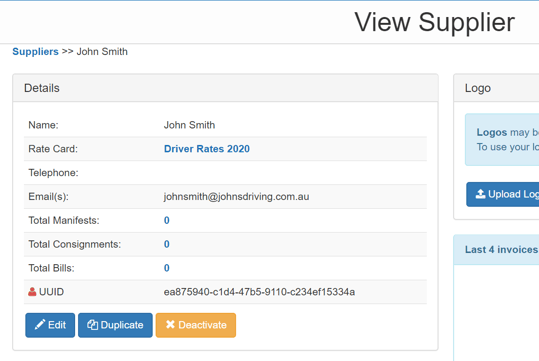
This will go to the Edit screen for that Supplier. Navigate to Linked To tab.
This tab will allow the adding of Drivers, Carriers or Warehouses.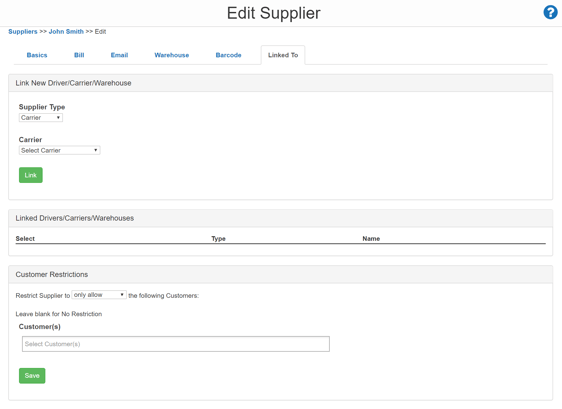
To link a new Driver/Carrier/Warehouse to the Supplier:
- Select which Supplier Type to add (Driver or Carrier or Warehouse)
- Choose the Driver/Carrier/Warehouse to link to the Supplier from the second dropdown
- Click Link
In the example provided we are linking our Supplier John Smith to the Driver John Smith. 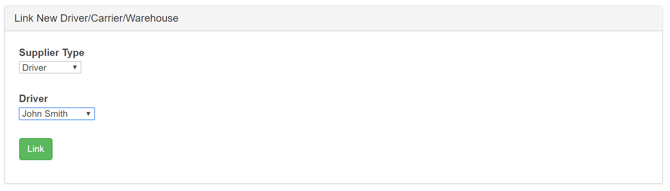
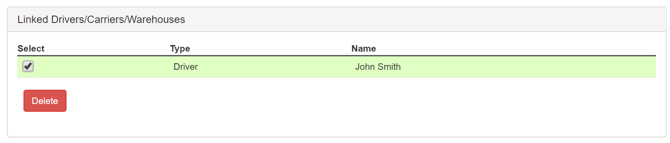
Linked Drivers/Carriers/Warehouses can be unlinked by deleting them from the table of Linked Drivers/Carriers/Warehouses.
- To delete Linked Drivers/Carriers/Warehouses:
- Check the box of the Driver/Carrier/Warehouse to delete. This will highlight the selected row.
- Click the Delete button. Then click OK in the confirmation message that appears after clicking delete