
Table of Contents
Purpose
The CartonCloud mobile app offers the option of editing photos taken from within the app, e.g. to crop photos of invoices to the correct size and correct their perspective. These optional features are provided to help improve the quality of invoice photos sent through to the web app by the driver.
How to steps
To access the photo editing features, simply start a normal photo-taking process, e.g. by selecting the invoice photo button on the main screen or choosing to add an invoice photo to a POD, and choose "Take Photo".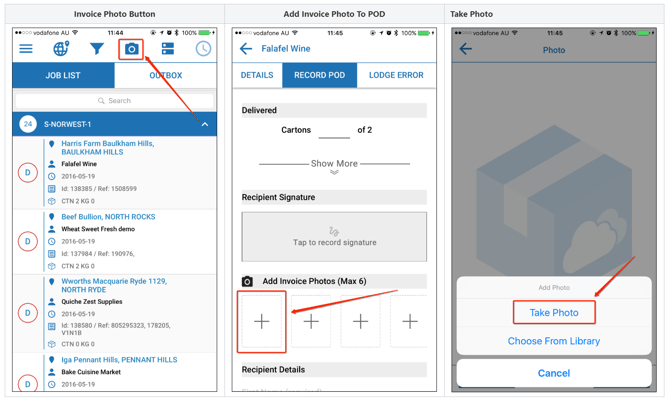
When choosing to add an invoice photo, the auto-crop option will be automatically activated. When adding for example a "Left Stock Location" photo or a photo attached to a lodged error, auto-crop will not be activated automatically but can still be activated as needed (see "Auto-Crop" below for more information).
Auto-crop
Auto-Crop will try to detect a document by searching for rectangles within the camera lens frame. As it is updating the document it is detecting, a blue overlay will be displayed over the detected rectangle. For the most accurate results, try to fill as much of the frame with the document you are trying to capture, ensuring all corners and edges of the document are within the frame.
In the example below, the blue overlay shows the document that has been detected by Auto-Crop.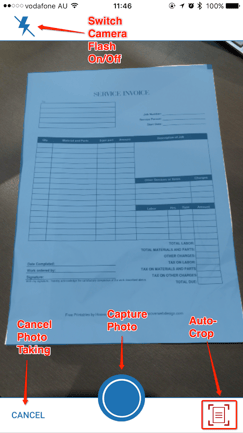
The available actions in the auto-crop view:
- Switch Camera Flash On/Off: The camera flash can be switched on or off as desired or required.
- Cancel Photo Taking: Cancel the photo-taking action and return to the previous view.
- Capture Photo: This button will take a photo when selected.
- Auto-Crop: In the example above, auto-crop has been activated (either automatically or manually), therefore the auto-crop button is coloured red. When auto-crop is switched off, a "normal" photo without any cropping will be taken.
- Focus: (not pictured) By tapping anywhere on the camera frame, the picture will be focussed onto that point. This will be highlighted by a blue square temporarily appearing above the focus point.
If no document can be detected, a "normal" non-cropped photo will be taken.
On finishing the photo capture, the next view will display a preview of the taken photo, with any Perspective Correction applied (see "Perspective Correction" and "Photo Preview" below). From there, the photo can be selected and will be used as required (e.g. sent to the server or added to a POD).
Perspective Correction
As the photo is cropped to a certain size, a perspective correction will be applied, meaning the cropped photo will be stretched to fill the photo space, therefore returning it to a standard document shape (see "Photo Preview" below for an example).
Photo Preview
The Photo Preview view not only shows a preview of the photo, with any crop apply, but also offers a number of user actions for further refinement or finalising/redoing the photo.
The available actions in the auto-crop view:
- Manual Crop: See "Manual Crop" below for more information.
- Apply Filter: See "Photo Filter" below for more information.
- Cancel Crop: Remove the crop (if any was applied) and display "normal" un-cropped photo.
- Retake Photo: Return to photo-taking view.
- Use Photo: Select the currently displayed photo (with any crops or filters applied if applicable) and use as required. Returns to the original view the photo taking process was started from.
Manual Crop
The manual crop functionality allows you to adjust the crop used on the photo captured in an earlier step. Simply drag and drop the corner circles to adjust the cropped rectangle. Once you are happy with your crop area, select the tick button to confirm your selection and the photo will be cropped accordingly.
Selecting the X button will cancel the cropping process and return to the previous view.
Photo Filter
Sometimes an invoice piece of paper may be crumpled and creased. In this case, the supplied photo filter may be able to improve the quality of the invoice photo. Simply select the filter button and then adjust the filter by sliding the sliding button back and forth.