Table of Contents
Purpose
Charge errors appear when CartonCloud fails to calculate charges for a particular item on the Invoice. This failure to calculate charges occurs when charge information is missing or not valid. For example, if inbound pick charges for a carton unit of measure are missing from the Customer's Rate Card and the Sale Order on the Invoice is a carton, then a charge error will appear.
Benefits
- Charge errors ensure you are charging your Customers correctly.
- Charge errors prevent charging issues from arising after you have sent the Invoice to the Customer. Therefore, reducing the number of invoice inquiries, you receive from your Customers.
- Charge errors provide you with information relating to what caused the issue and allow you to resolve the issue promptly.
How to identify a Charge Error
- On the Invoices Page:
- If the invoice has a charge error, it will read as Yes in the Charge Error column.
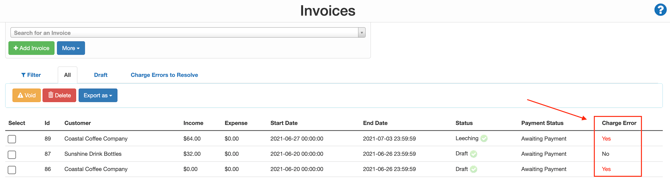
- You can also view invoices with a charge error by selecting the Charge Errors to Resolve tab.

- On the View Invoice page:
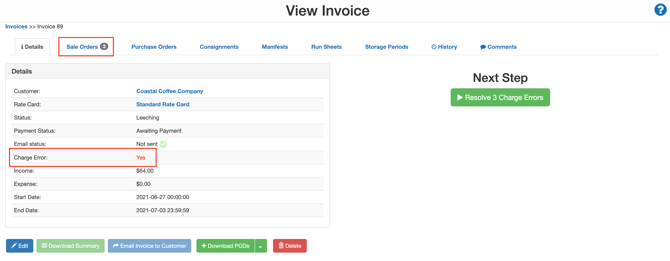
- If the invoice has a charge error, it will read as Yes in the Charge Error field. You will see what the charge error relates to due to the number in the top menu bar.
How to diagnose the Charge Error
- Navigate to the tab with the highlighted charge error.
- The particular items that have a charge error will read as Yes in the Charge Error column.
- Select the View action. This will take you to the item with the charge error.

- Once on the item with the Charge Error, select the Charges tab.
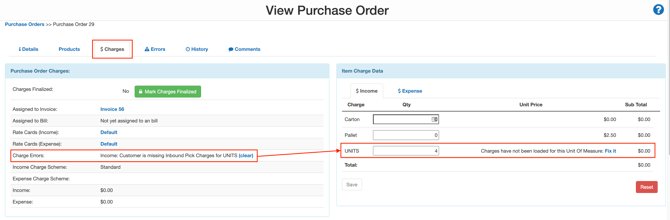
- Within the Charge Errors field, you will see a message explaining what the Charge Error relates to.
- Use the prompts to resolve the Charge Error.
- Once the issue is resolved, navigate back to the relevant invoice.
- Select the tab with the charge error, and select Recalculate.

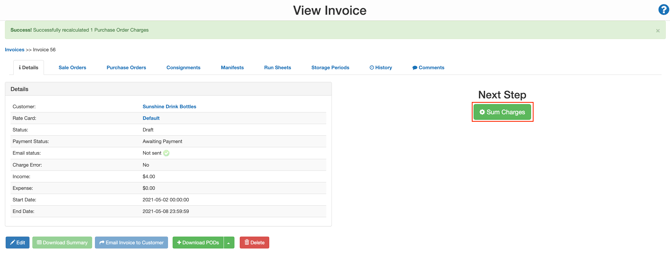
- You will then be directed to the Details tab.
- Select Sum Charges to recalculate the Invoice.