
Table of Contents
- Before you start
- Download the template
- Fill in the template
- Upload and review
- Fixing rows that didn't import
- Undoing an import
Dock Management is a paid CartonCloud application. Contact the CartonCloud support team for pricing and access.
Already planning your week in a spreadsheet? Bring it in as it is, instead of keying in one booking at a time.
Before you start
You'll need the Administrator or Operator role. Imports go into one warehouse at a time, so if you're loading several sites, do one import per site.
Download the template
-
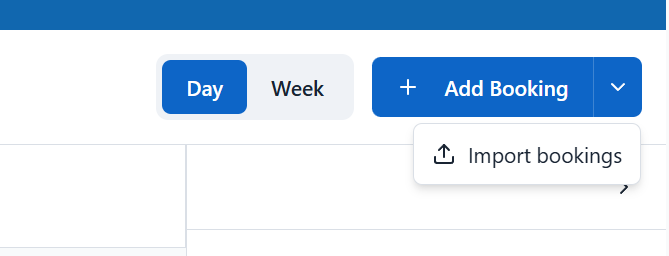
On the Bookings page, click the arrow next to Add Booking and choose Import bookings.
-
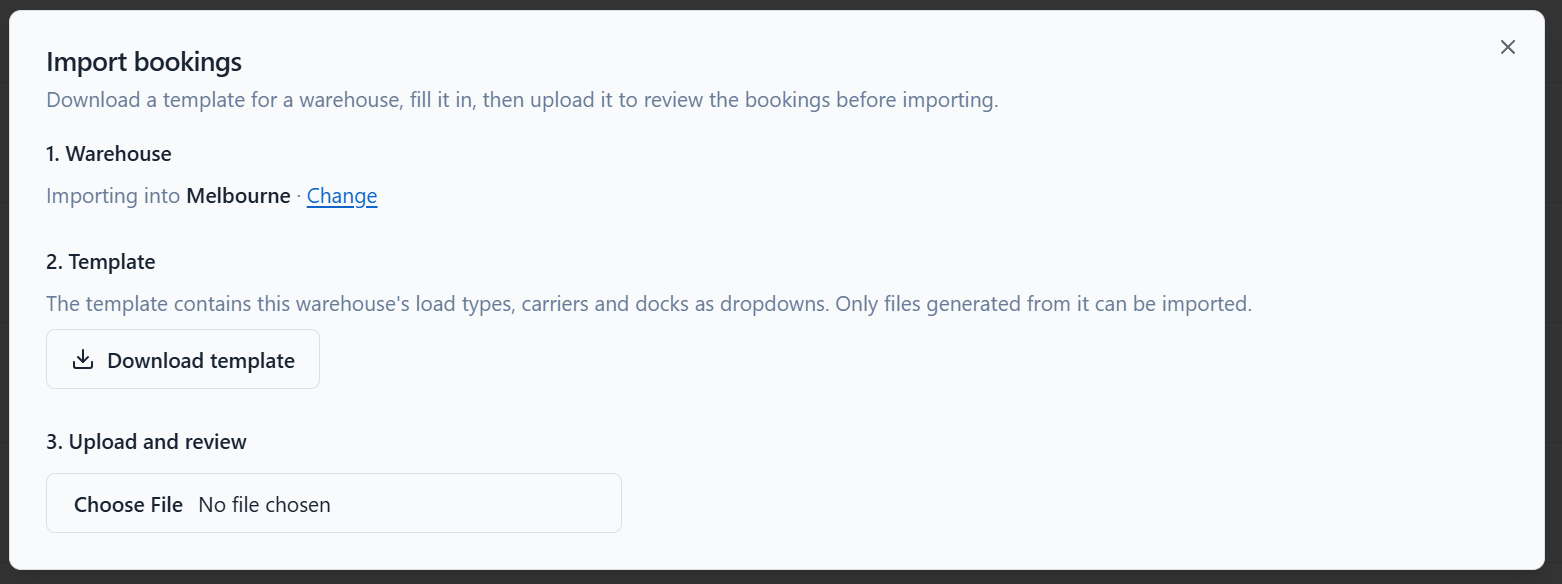
Pick the warehouse you're importing into, then click Download template.
-
The template is built for that specific warehouse. It contains its carriers, its docks and your load types as dropdowns, so there's nothing to map and nothing to spell correctly. A template downloaded for one warehouse can't be imported into another.
Fill in the template
-
Fill in one row per booking, up to 500 rows.
-
Three columns are required, marked with an asterisk:
-
- Booking Title - what the booking is called on your calendar
- Date
- Start Time
-
Everything else is optional:
- End Time - leave it blank and it's worked out from the load type's duration, or your warehouse default if the load type doesn't set one
- Load Type, Carrier and Dock - choose from the dropdown. Click the cell to see the arrow.
- Truck Rego, Pallets, Notes
- Any custom booking fields you've set up appear as their own columns
-
The Reference sheet lists every valid value along with your warehouse's settings, so you can check anything without leaving the file.
-
Don't add or rename columns. Anything unrecognised is ignored, and you'll be told which columns were skipped when you upload.
Upload and review
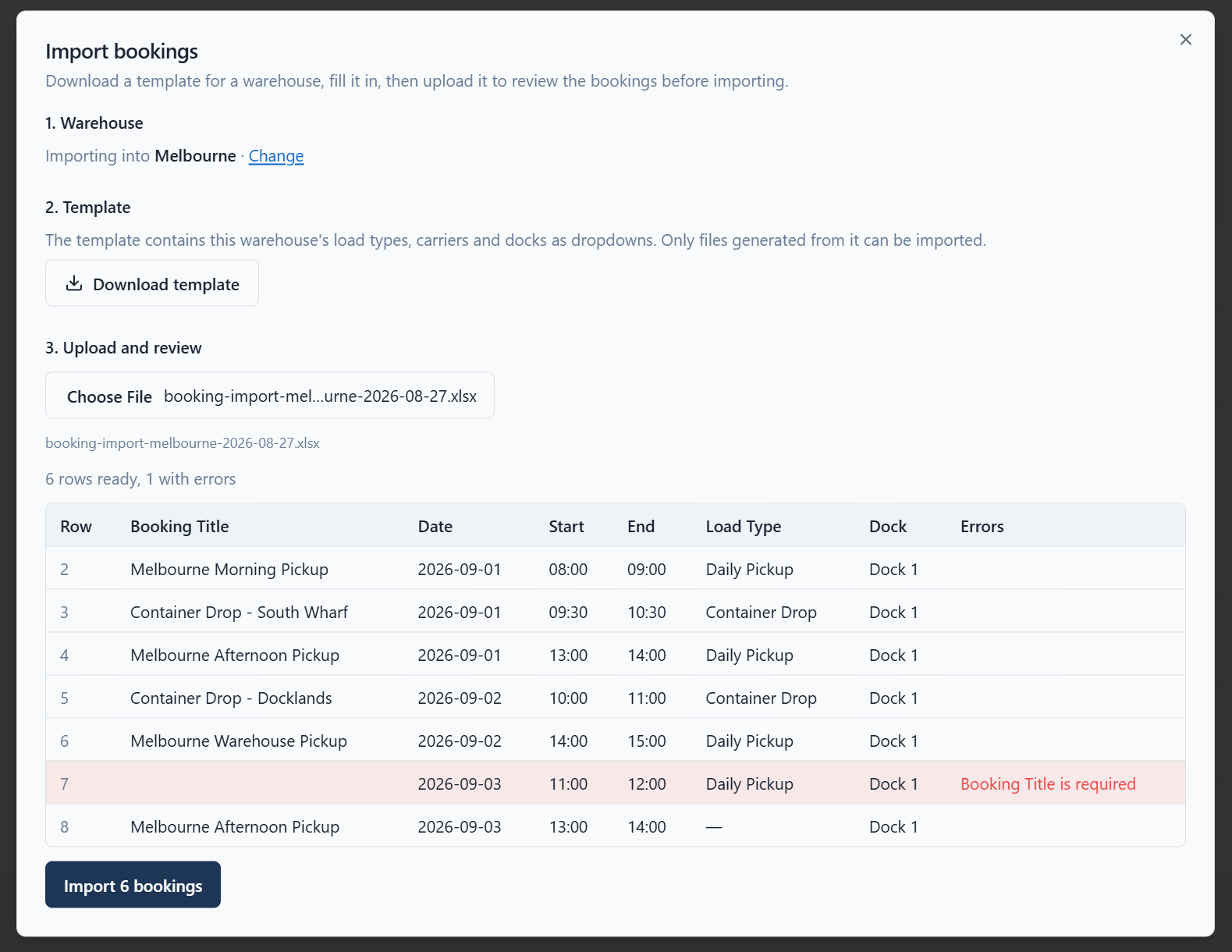
Upload the completed file and every row is checked before anything is created.
You'll see a summary of how many rows are ready and how many have problems, then the full list with a reason against each row that can't be imported. Common ones are a carrier or dock name that doesn't match, a missing date, or two rows booked onto the same dock at the same time.
Nothing has been created at this point. Click Import, confirm, and only the rows without errors are created.
Fixing rows that didn't import
After the import you'll see how many bookings were created and which rows were skipped.
Click Download skipped rows to get a fresh template containing only those rows, already filled in, with a Skip Reason column explaining each one. Fix them, delete nothing, and upload that file straight back. The Skip Reason column is ignored on import.
Some rows only fail at this point rather than during the review, usually because the dock was already booked at that time by someone else.
Undoing an import
If an import wasn't what you expected, click Undo this import to remove every booking it created.
Undo is only available while the import window is still open. Once you close it, you'd need to delete the bookings individually, so check the result before closing.
Importing the same file twice creates a second set of bookings. If something's wrong, undo the import and upload a corrected file rather than uploading over the top.