
Table of Contents
- Purpose
- How to steps
- Including Custom Fields within the import file
- Dates within the import file
- Including Pallet Barcodes within the import file
Purpose
The import stock feature allows you to bring stock into your Warehouse for a single Customer without generating inbound handling charges for that stock. This differs from creating a normal Purchase Order which will generate the inbound handling charges (if they are set up).
How to steps
-
Navigate to the Purchase Orders page, Warehouse > Purchase Orders.
-
Select the More button and then click Import Stock.
-
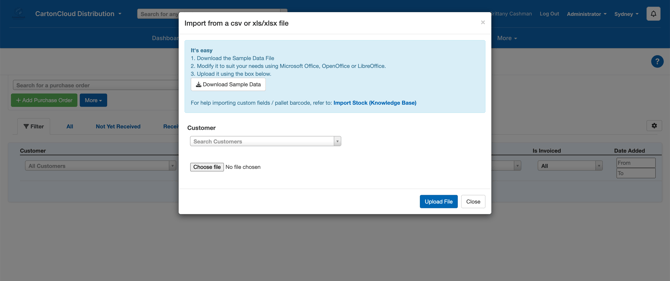
The Import Stock feature will require you to import a CSV file with the stock's details filled out within each column.
-
To begin, you will need to select Download Sample Data. This will download a sample excel file with a format you can follow.
-
In the CSV file provided, fill each row for the stock you wish to import. Please note that you must use exactly the same Product Code and Product Name provided during the Product setup, otherwise, it will not be able to match up the imported stock to a Product record. If you are unsure what the product_name or product_code recorded is, it's best to refer back to the Products page in an extra tab of your browser.
Warehouse locations can either be allocated directly in the spreadsheet or left blank and allocated later when processing the generated Purchase Order.
-
Once the spreadsheet is complete, save it to your computer and go back to the Import Stock page. Then select Choose file and choose the CSV file you just saved.
-
Finally, select the customer the product belongs to and click Upload File.
-
Provided the import was successful, a result page will display in the browser and a purchase order will be created for the new stock.
Dates within the import file
When importing dates via the Stock import it is recommended that you follow the date format of YYYY-MM-DD.
- Dates that contain - are first parsed in as YYYY-MM-DD. If this does not yield a result they will be parsed in as MM-DD-YYYY.
- Dates that contain / or . are parsed as DD-MM-YYYY
Including Custom Fields within the import file
When updating Custom Fields with an input type of date, the date format must be YYYY-MM-DD
If you have Custom Purchase Order Product fields set up for the Products you are importing it is possible to include the data for those fields within the file.
To do this you will need to create a new column and name it "custom_field_x" where x is the number of the custom field you wish to include.
In the example shown below, you can see we have included "custom_field_1" as a new column in the spreadsheet to match the Custom Field 1 created to store the Batch number.
The batch number for each product can then be stored in each row below that column. In the example provided "134235" will be stored as the Batch number for the stock with the product name "Red Cordial 1L Bottle".
Including Pallet Barcodes within the import file
When importing stock you have the option to include the pallet barcode. This avoids having to adjust stock after the import and ensures the pallet barcode is assigned to the correct stock.
When including the Pallet Barcode on the import file it should be noted that:
- You will need to manually add a column to the import file with the heading pallet_barcode and then add the pallet barcode to this column on the file. It will not work without adding this heading.
- If the pallet barcode on the import is already in use, and contains stock which is allocated to a warehouse location, the warehouse location on the import must match the current location of the pallet. If not, the import will fail. Pallets cannot exist in two warehouse locations simultaneously.
- The Pallet Barcode must be a CartonCloud Pallet Barcode (generated from within CartonCloud. Please see Pallet Handling for steps on how to generate a pallet barcode within CartonCloud).
- The Pallet Barcode must be the full barcode.
See Pallet Barcode Behaviour and Pallet Handling for more information.