Table of Contents
Purpose
If the consignment you are recording a POD for has been generated from a Warehouse Sale Order then it is possible to view the products as they were listed on that Sale Order. This is useful for when a customer wants to check the contents of a consignment but the actual consignment is only recorded based on the packaging (e.g. cartons).
This feature requires a setting to be enabled for the Customer who owns the consignment:
How to enable Sale Order details on Consignments POD Recording screen
Enabling Sale Order details for a specific Customer
-
In the main menu of the Web app go to Contacts > Customers
-
Search for and select the Customer you wish to enable this feature for
-
Now on the View Customer page, select Edit at the bottom left of the page
-
Select the Transport Management tab, followed by the POD sub-tab
-
Scroll down to the setting Show Sale Order details for Consignment on Mobile, then set it to "Yes"
-
Select Save at the bottom of the page for the change to be applied
-
The button will now appear on the Consignments record POD screen, provided the consignment has been generated from a Sale Order.
Enabling Sale Order details for all Customers (By default Customers are set to use the Organisation setting)
-
In the main menu of the Web app go to More > Organisation Settings
-
Select the Transport tab, then scroll down to the Other Transport Settings section
-
Scroll down to the setting Show Sale Order details for Consignment on Mobile, then select it to be ticked
-
Select Save at the bottom of the page for the change to be applied
-
The button will now appear on the Consignments record POD screen, provided the consignment has been generated from a Sale Order.
Example:
On the Record POD screen of this consignment, the Driver is given the necessary transport information that this consignment contains 9 Cartons.
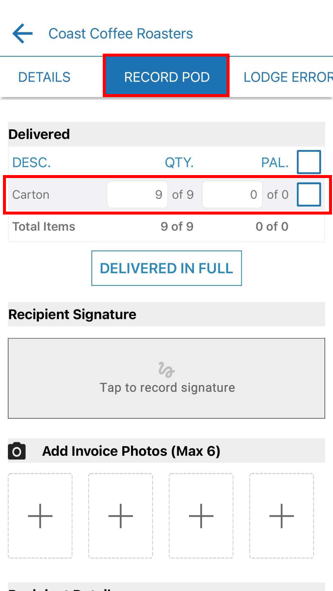
However, the receiver needs to know what is inside the Cartons before signing, and the driver does not have any additional paperwork on them to verify the contents.
Luckily, the Display Sale Order Products feature has been enabled for this customer, so when the driver selects Tap to record signature the following screen displays.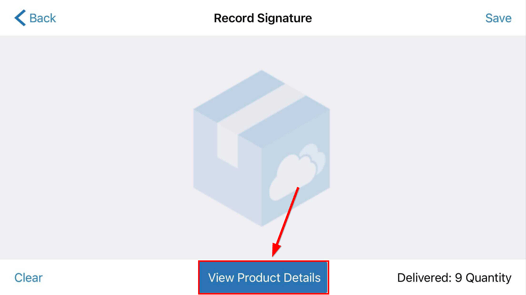
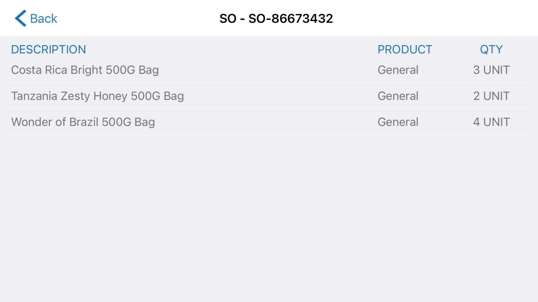
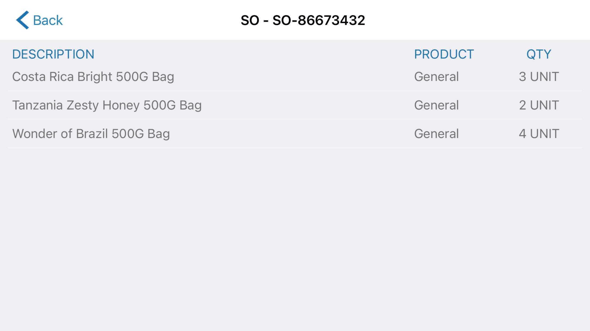
The driver can then select the View Product Details button and the contents of the Cartons will appear on the screen, based on the information entered on the Sale Order from which the consignment was generated.