Table of Contents
Purpose
In order to optimise the full benefits of the CartonCloud mobile app, the latest version of the app must be installed on your device. To ensure your app is up to date, you can configure your device to update it automatically or manually update it.
Benefits of updating the mobile app
- Latest features - our latest features and improvements are made available by updating the app, therefore, you need the latest version of the app to utilise the latest features.
- Improved performance - faster loads times and reduced risk of the app crashing when you are using the latest version of the app.
- Bug fixes - bugs can impact app performance and usability. Updates will fix any bugs that may be in the application.
- Security - outdated apps can pose a higher risk of cyberattacks.
How to update automatically
iOS
-
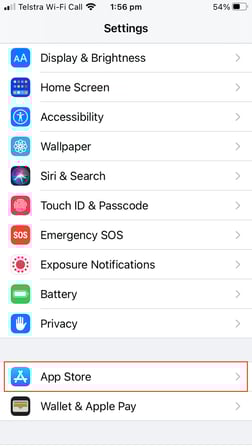
Navigate to Settings on the device.
-
Click App Store.
-
Under the Automatic Downloads section, slide the toggle against App Updates.
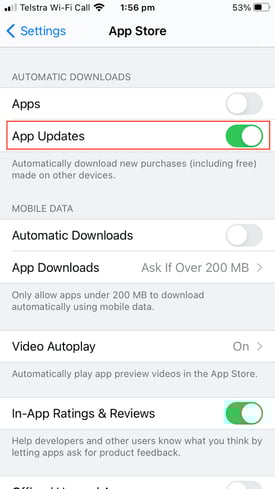
The apps on your device will now automatically update as updates become available.
Android
-
Navigate to the Google Play Store.
-
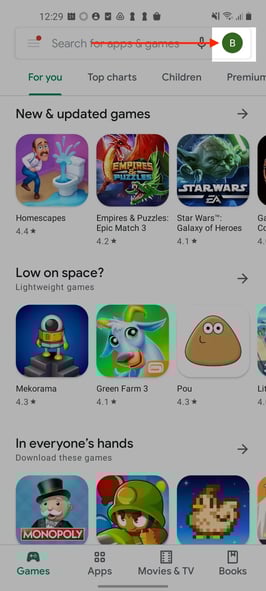
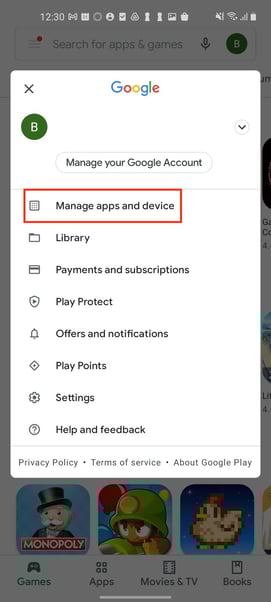
Select the User button in the top right corner of the screen.
-
Select Manage apps and device.
-
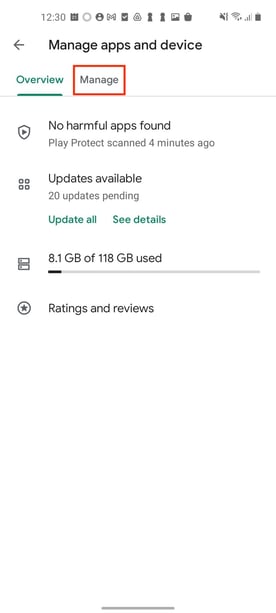
Select the Manage tab.
-
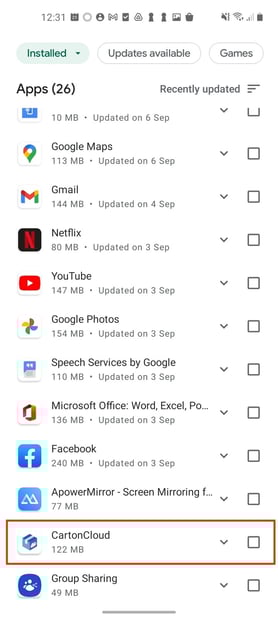
Select CartonCloud from the available apps.
-
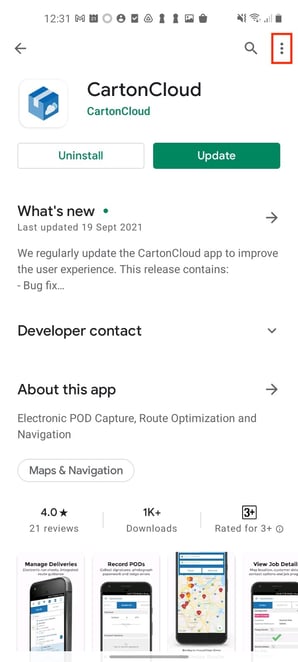
Click the three-dot icon in the top right corner.
-
Select the tick box next to the Enable auto-update.
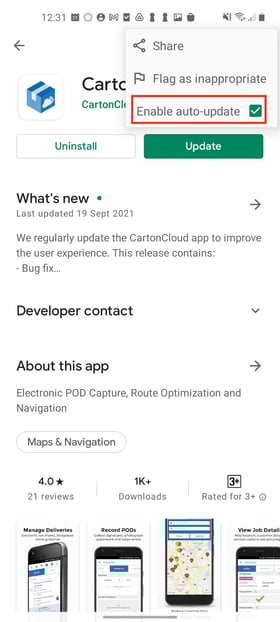
Your device will now automatically update the CartonCloud application as new updates are released.
How to update manually
iOS
-
Navigate to the App store.
-
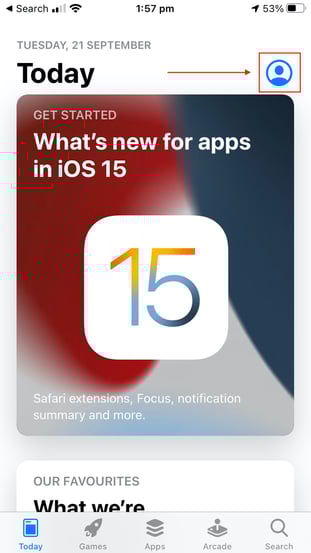
Select the User icon in the top right corner.
-
Scroll through the list of apps until you locate CartonCloud.
-
Select Update.
Android
-
Navigate to the Google Play Store.
-
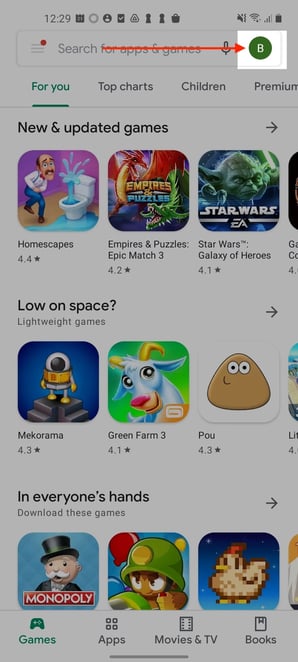
Select the User button in the top right corner of the screen.
-
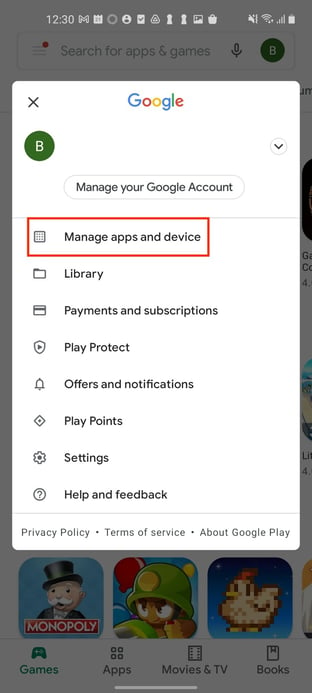
Select Manage apps and device.
-
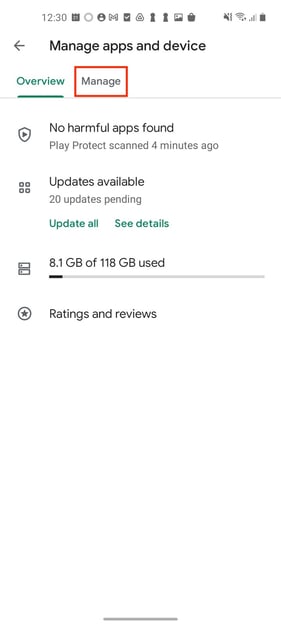
Select the Manage tab.
-
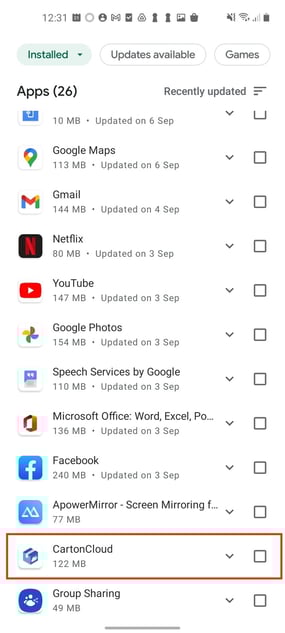
Select CartonCloud from the available apps.
-
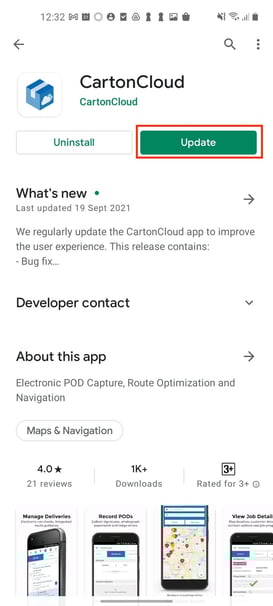
Select the green Update button.